View Log Files
This guide is maintained for Ruk-Com PaaS. Screens and options may vary by platform version and account permissions.
Confirm the environment, region and account permissions, and back up current settings before changing a production system.
Objective
This guide explains how to use View Log Files on Ruk-Com Cloud PaaS, with ordered procedures and practical verification points.
Before you begin
- Sign in with an account permitted to manage the relevant environment.
- Confirm the target environment, region and resources before saving changes.
- Create a backup or rollback plan before changing a production system.
Log files are the most important source of information about what's happening in your environment. For example, any development or testing work needs access to this important information.
To view your node's logs, follow these steps:
1. Login to Ruk-Com Cloud Dashboard.
2. Click on the icon.Logfor the node you want
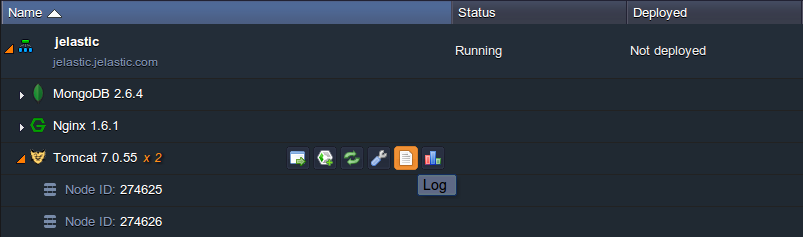
3. The logs tab will appear at the bottom of the dashboard. If your environment has multiple nodes of the same type, you can select the node for which you want to view logs in the drop-down list.
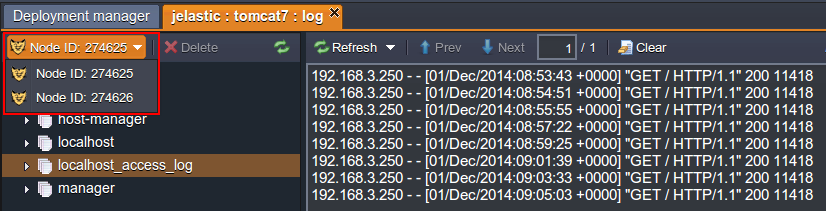
Using the buttons above the log message, you can clear the log or refresh it by using the Prev and Next buttons to navigate through the log if it is large.
Tips:To make checking logs more convenient, the Auto refresh feature is enabled by default, causing currently open log files to be refreshed every 3 seconds, thus eliminating any delay or need to manually refresh to get the latest information and also helping to easily track real-time processes such as installations or updates.
If a problem occurs You can disable auto-refresh to focus on that information instead of new information. By unchecking that option in the drop-down list and pressingRefreshabove to save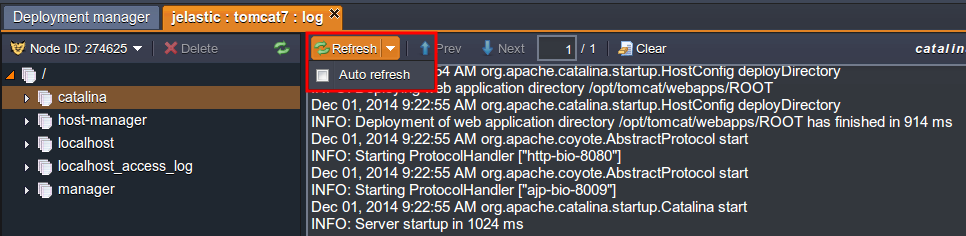
In the same way You can enable the Auto refresh option again.
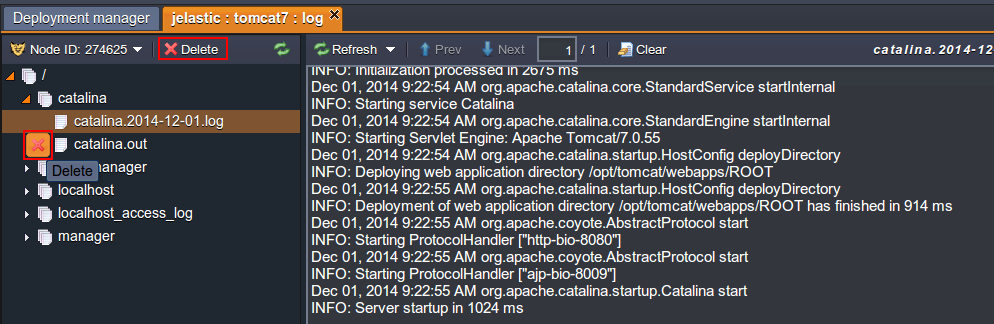
4. All log files in the folder can be deleted directly from the log list by hovering over the desired server log and clicking the Delete button that appears or selecting it and pressing.Deletein the top tool panel
5. You can download logs via FTP. To learn more about installing and using the FTP module, you can refer to the documentation.FTP/FTPSThis is possible.
6. The list of available log files that you can view depends on the following nodes:
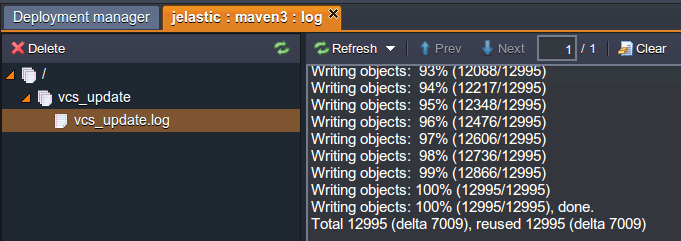
Tips:If you use storageGIT/SVNRemotely deploy your applicationsvcs_updateNew will pull the log file and add it to the Maven node (for Java) or application server.Apache/NGINX(for PHP) which contains information on building and deploying your project.