
Custom Domain Name
This guide is maintained for Ruk-Com PaaS. Screens and options may vary by platform version and account permissions.
Confirm the environment, region and account permissions, and back up current settings before changing a production system.
With the platform, you have a possibility to set an external domain address for your site, instead of the default environment URL (i.e., {env_name}.hoster_domain_name). The custom domain allows promoting your unique branding and improves your web application recognition over the Internet.
Before diving in, let’s deal with some basic concepts for better understanding:
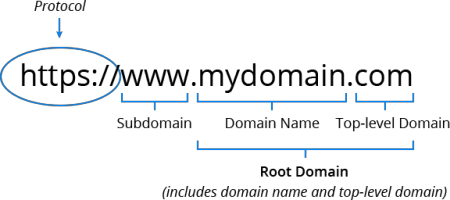
- Domain is the name you specify within a browser to access a website. The part of the name to the far right (for example .com or .org) is known as the top-level domain (TLD), and the part before it - the second-level domain (SLD). Subdomain is an optional part, which is placed in front of the SLD and is separated with a period. See the image below for example.
- Root Domainis a combination of the second- and top-level domain names without the subdomain. Such an address represents a whole website instead of a particular web page. Each site has a unique root domain, which is included in all its pages and subdomains.
- DNS is a system that converts textual domain names into numerical IP addresses, which are needed to locate and identify web services. For example, when you type www.mydomain.com into the browser address bar, it looks for the actual IP address of the server that hosts this page, e.g., 209.50.246.12. If you type https://209.50.246.12/, you will arrive at the exact same site.
Tip: The platform also provides the full gTLD + IDN Domain Names support so that you can use both internationalized and generic top-level names for your external domains.
To attach the custom domain you should follow the next steps:
How to Buy a Domain Name?
The exact steps vary based on your particular domain registrar. As an example, we use GoDaddy.
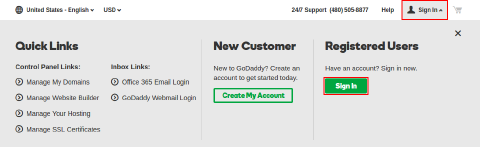
- Log into your account or sign up a new one. Expand the Sign In option at the top and click the same-named button.
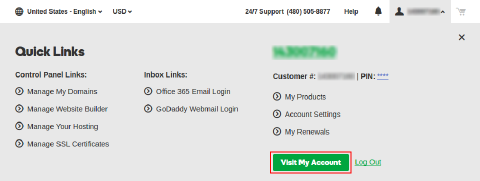
 2. Switch to your account management page by clicking the Visit My Account button.
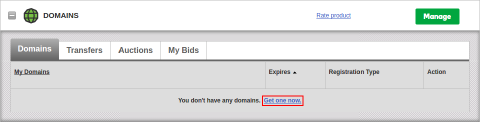
 3. In case you don’t have any domain yet, click the Get one now link and follow the provided steps to select and purchase a domain.
How to Configure DNS Record?
Once you have your own domain, the flow to add a new DNS record is simple (GoDaddy example):
There are various types of DNS records, which can be used to point to your environment:
- CNAME - maps your custom domain to environment domain (requires additional domain binding via the platform dashboard)
- ANAME (if supported by your DNS server) - maps whole root domain (e.g., example.com) to your environment domain or other root domain
- A Record - maps your custom domain to a public IP (requires external IP address attached to the environment)
Note: The CNAME/ANAME DNS records can be used with Shared Load Balancer (i.e., without public IP). However, for the production environments, it is recommended to attach public IP and configure A Record.
In case of a Private Cloud setup, when the platform owner controls all the environments, the Shared Load Balancer limitations can be disabled, making the CNAME usage a production-ready option.
Below, we’ll provide step-by-step instructions to configure a record for your domain name.
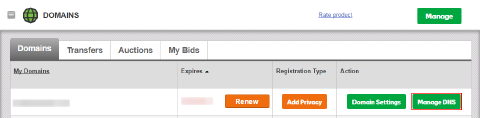
- Find the required domain in your domain registrar, and click on Manage DNS for it.
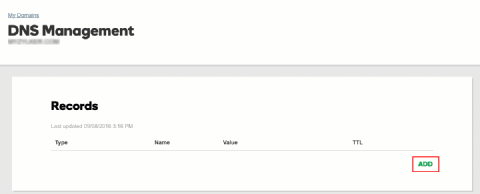
 2. At the bottom of the Records section, click the Add button.
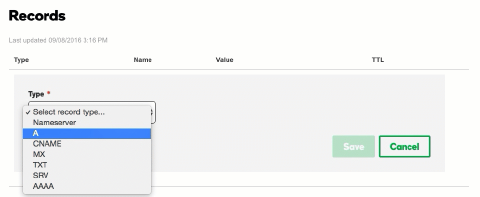
 3. Within the shown Add Zone Record frame, select the required option from the Type drop-down list (e.g., A Record).
 4. Complete the selecter record addition.
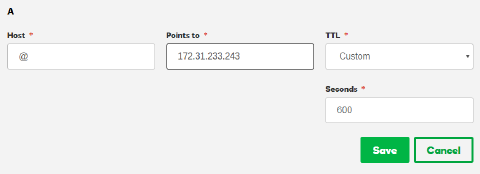 In our case, for the A Record:
- Host - enter hostname the A Record is linked to - in our case, just type @ to point the record directly to your domain name
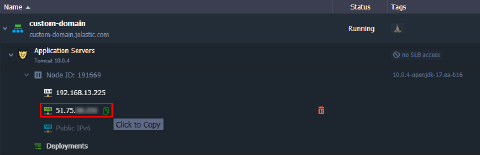
- Points to - specify the external IP address of your environment entry pointTip: To get this IP, expand your application server (load balancer) node to see your public IP address.
TTL* - select for how long the DNS server should keep your A Record information cached (i.e., the delay before new settings for it will be applied in case of their further change)
Click Save.
Note: Any DNS changes you make can take up to 48 hours to be reflected throughout the Internet.
Which DNS Record to Use?
Check the following general rules and examples:
- use A Record if your environment is working over public IP
name1.mydomain.com > 111.111.111.111
name2.mydomain.com > 111.111.111.112
- use CNAME if you want to alias custom domain to environment name (requires domain binding)
name1.mydomain.com > env1.hosterdomain.com
name2.mydomain.com > env2.hosterdomain.com
- use ANAME if you need to redirect one DNS zone (root domain) to another with all of its subdomains being resolved over the same subdomains
mydomain.com > hosterdomain.com
As a result, any subdomain on your domain will be pointed to the appropriate one on the service hosting provider: {subdomain}.mydomain.com > {subdomain}.hosterdomain.com.
mynewcompany.com > myoldcompany.com
As a result, you can point all traffic from your old domain to a new one keeping all the subdomains the same: {subdomain}.mynewcompany.com > {subdomain}.myoldcompany.com.
mydomain.com > env1.hosterdomain.com (requires domain binding)
As a result, subdomains of your custom domain will point to the appropriate ones within the target environment: {subdomain}.mydomain.com > {subdomain}.env1.hosterdomain.com.
How to Bind Domain to Environment?
When working without public IP addresses attached (i.e., DNS record points to the environment name via CNAME or ANAME), you need to bind the appropriate domain name. It is necessary for the Shared Load Balancers to correctly route traffic to the target environment.
Note: Custom domain binding via the platform dashboard is unnecessary if public IP is enabled for the environment, as incoming traffic bypasses SLBs.
- Within the platform dashboard, click the Settings button (the wrench icon) for the environment you need to bind a domain name.
 2. Within the automatically selected Custom Domains menu tab, use the Domain Binding section to specify your domain name (e.g.,
 www.myexternaldomain.com or myexternaldomain.com) and Bind it with the corresponding button.
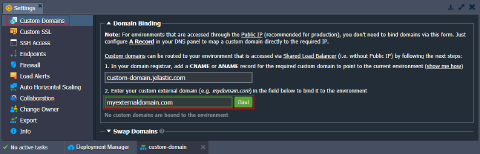
Note: It may take up to several minutes until the new URL settings will take effect.
Great! Your environment is now accessible under its unique domain name.