
Links
This guide is maintained for Ruk-Com PaaS. Screens and options may vary by platform version and account permissions.
Confirm the environment, region and account permissions, and back up current settings before changing a production system.
The Links section is intended to establish connection between the containers placed at different layers of a single environment.
After such connection is set, a container will be able to work with environment variables of the linked image (herewith, the imported properties can be recognized by a specified prefix). Below, we’ll provide a step-by-step example of containers linking.
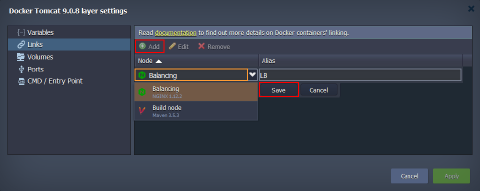
- Click the Add button and fill in the appeared fields:
- Node - select the required layer of the current environment using the drop-down list
- Alias - type a connection alias (LB in our case). Subsequently, it will be used as a prefix for the variables imported to the current container(s) from the layer chosen in previous field
Tip: Upon linking containers, the platform also adds the corresponding DNS record (with the name identical to the used alias) to the platform DB. In such a way, you can refer to a particular container from inside of these two environment layers not just over its IP address or NodeID, but also specifying the assigned alias with counter, i.e., {alias_name}_N.
For example, after linking with DB alias, you can ping specific containers at the appropriate layer as “db_1”, “db_2”, etc while working with platform internal network via SSH Gateway. Herewith, if using common layer alias (i.e., without counter, “db” in our case), the system will use Round-Robin algorithm to choose any container within the defined node group.
- After that click Save to confirm linking settings. You can link as many different node groups to a single layer as you require.
Note:
- all the stated connections will take effect only after selecting the Apply buttons for this frame and, if needed, for the whole topology wizard
- be aware that the linked nodes will be restarted for the new settings to be applied (causing a short downtime of the involved containers)
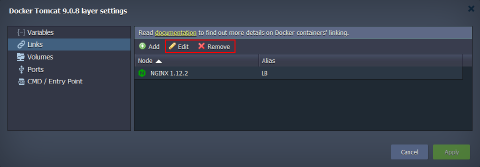
- You always can Edit or Remove the unnecessary link with the corresponding buttons at the top pane of the Docker layer settings frame.
 When updates are applied, you can check the results by switching to the Variables section (where the newly imported parameters will be listed).