
Managing Timezone Data
This guide is maintained for Ruk-Com PaaS. Screens and options may vary by platform version and account permissions.
Confirm the environment, region and account permissions, and back up current settings before changing a production system.
Objective
This guide explains how to use Managing Timezone Data on Ruk-Com Cloud PaaS, with ordered procedures and practical verification points.
Before you begin
- Sign in with an account permitted to manage the relevant environment.
- Confirm the target environment, region and resources before saving changes.
- Create a backup or rollback plan before changing a production system.
All containers created within Ruk-Com Cloud PaaS by default use the UTC time zone. However, you can easily change your preferred time zone by adding an add-on.TimeZone Change You can follow the steps listed to switch time zones in your instance.
Alternatively, you can change it manually. For example, Java and PHP application servers come with special time zone packages that collect information about the history of local times in different locations around the world and the current time zone rules. This information is required for software running within containers and is regularly updated within the respective server.
In addition to that, you can manually update the timezone on the fly if needed or change the currently used TZ based on the desired location. So below we will explain about timezone data management for server application of the above mentioned programming languages:
TimeZone Add-On
Add-on programsTimeZone ChangeIt can be installed on your environment and will change the time zone for all containers in minutes.
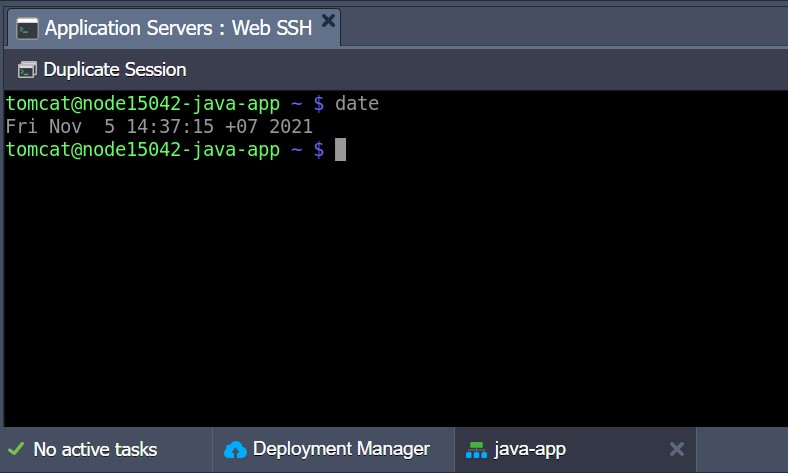
1. Before proceeding with installation Check the time zone on your container using the commanddate
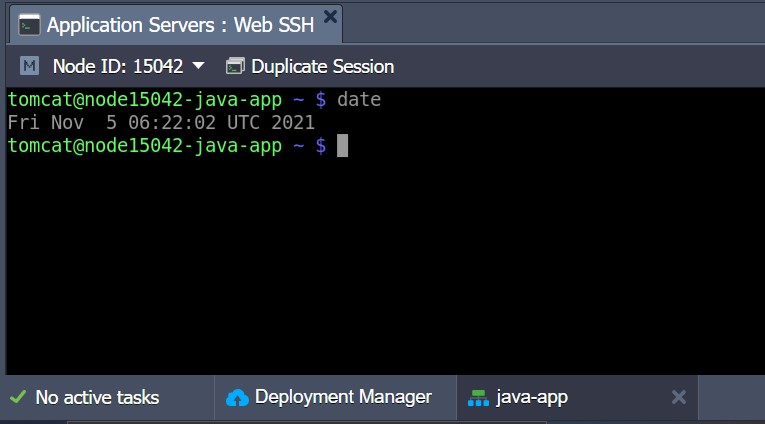
As you can see, the default container will useUTCzone
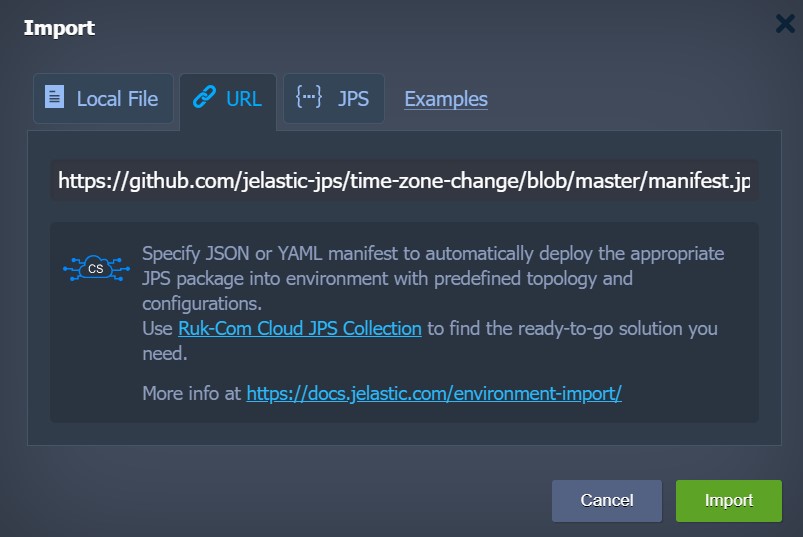
Tips:Depending on the settings of the particular hosting provider, add-ons are available throughMarketplace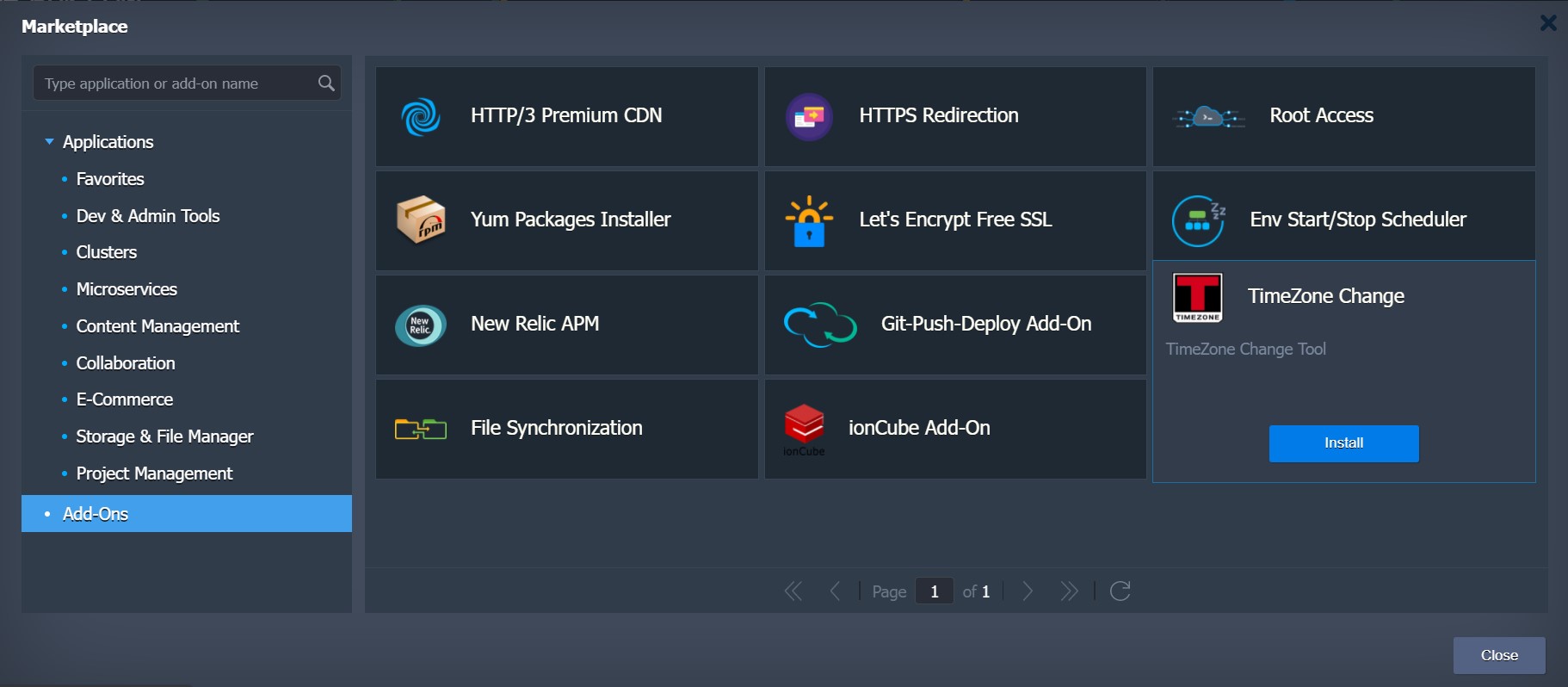
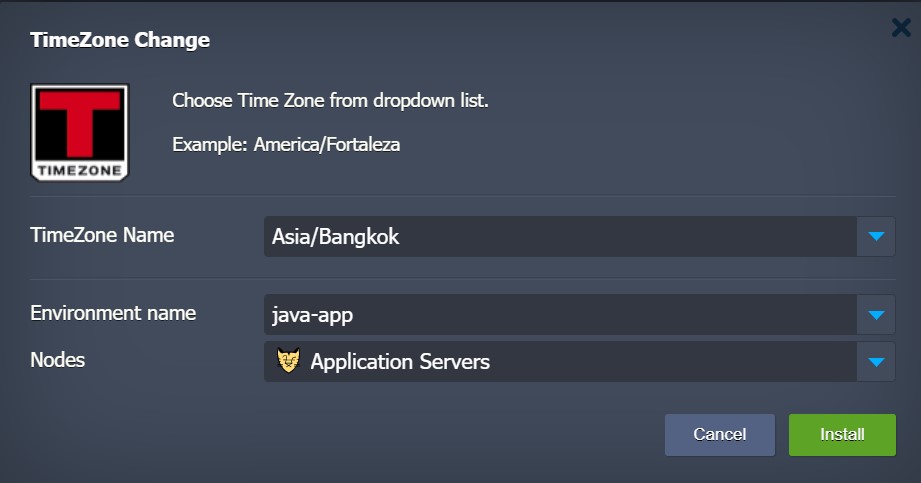
3. Within the frame that opens, selectEnvironmentwhere you want to change the time zone and type the name of the desired time zone (List of time zones)
4. After installing the add-on, you can check for time zone changes by typing the commanddate
Timezone rules for Java
Time Zone Rules Within Java, node processing is delivered by a dedicated TZdata package, which contains each appropriate container. You can follow the instructions below:
- Updating Timezone information
- Changing the current timezone
Despite the fact that the newest TZdata package edition is integrated into nodes during creation, it sometimes becomes out of date due to periodic internal data changes. Therefore, old containers may require corresponding updates from time to time. (Especially so that you don't have to rebuild every time you want.) For this reason, the toolTZUpdaterA special embed intended to keep your time zone information accurate and up-to-date is quite easy to use and can be run with just a single line command:
1. Connect to the Java environment via SSH, such as usingWeb SSHon the dashboard
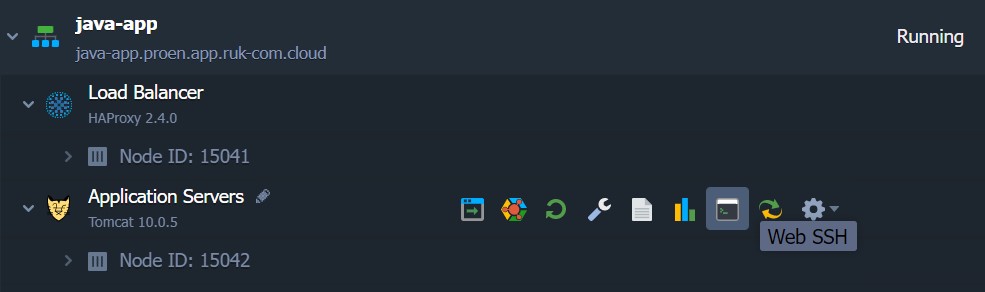
2. You can check the version.TZdataCurrently used by running the following command:
java -jar /usr/java/utils/tzupdater.jar -V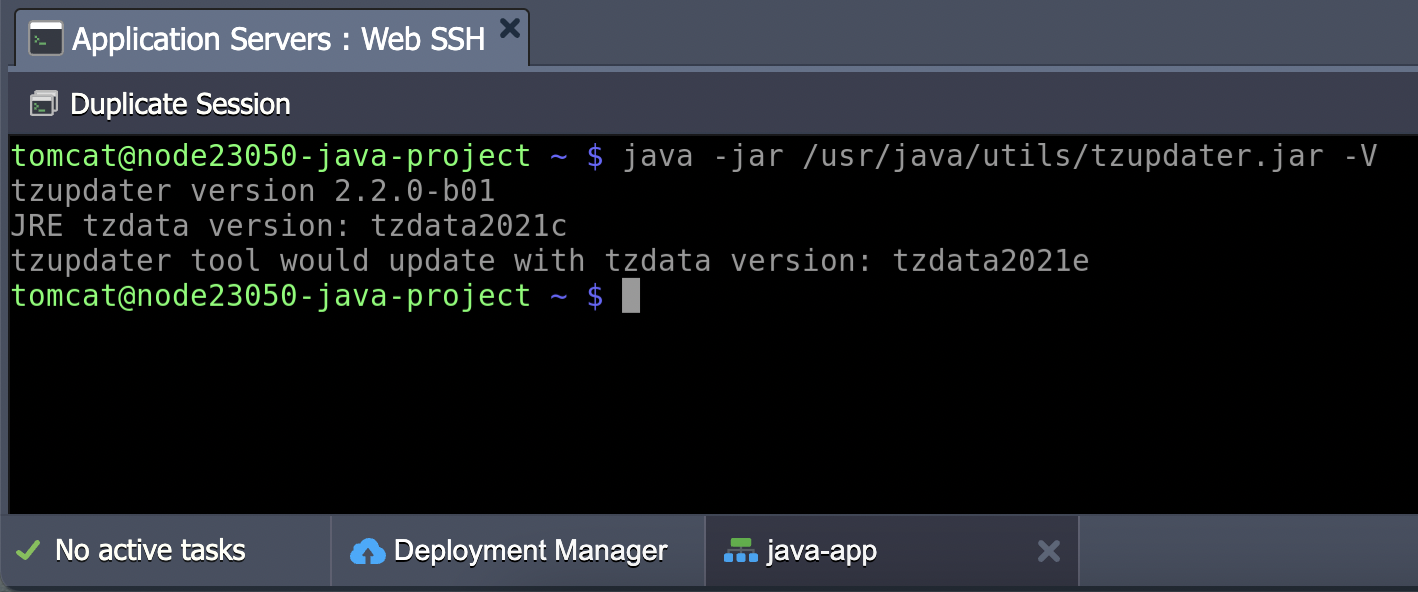
3. Also you can update timezone information using the tool.TZUpdater
java -jar /usr/java/utils/tzupdater.jar -uChanging Timezone
In this section, let's look at changing time zones. In this example we will use Tomcat 10.0.12 server.
1. Set uptimestampThe current time is displayed on the server's home page.timezoneThe new one has been successfully deployed.
By pasting the code below in place of the default value in the file/opt/tomcat/webapps/ROOT/index.jsp((The easiest way is to useFile Managerwithin the platform)
<%@page import="java.util.*"%>
<html>
   <head>
       <title>TZ Page</title>
   </head>
   <body>
       <%=new Date(System.currentTimeMillis()).toString()%>
   </body>
</html>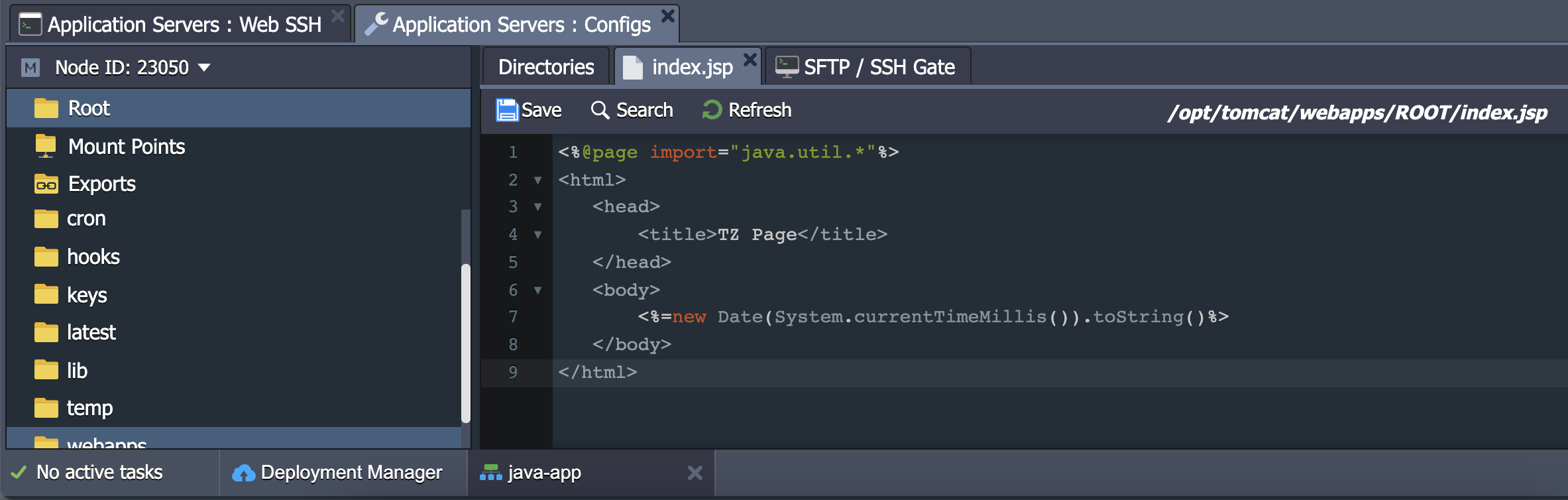
2. Save changes and open a browser in your environment by clicking the button.Open in Browser
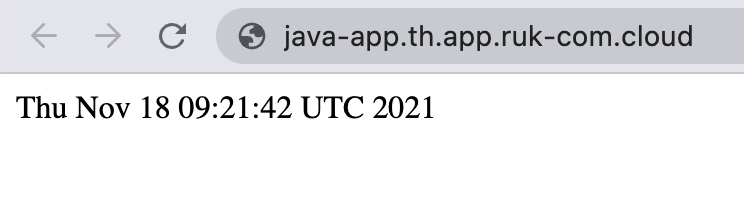
3. Changing the actual time zone for a specific server. You can do this by following these steps.
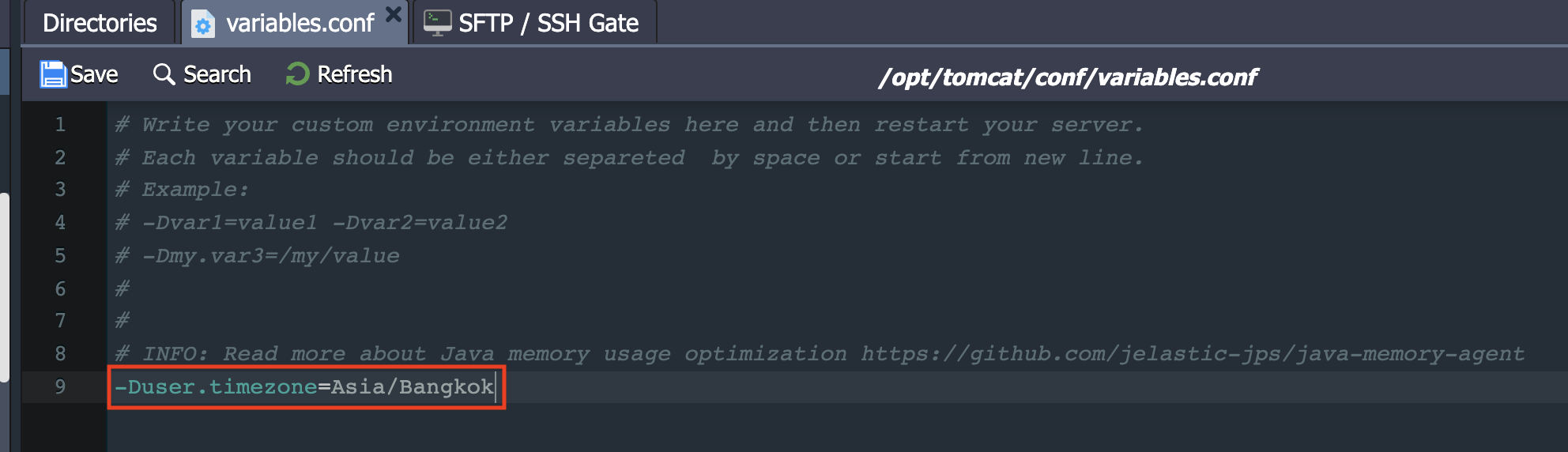
- forTomcat, TomEE, Payara, Spring BootandJetty
Switch to the file configuration page.variables.confand add variables -Duser.timezone along with the valuezonedesired, such as -Duser.timezone=Asia/Bangkok
More:The file location may vary depending on the server application used:
- Tomcat 7, 8, 9, TomEE - /opt/tomcat/conf/variables.conf
- Jetty 9 - /opt/jetty/etc/variables.conf
- Payara 4, 5 - /opt/payara/glassfish/domains/domain1/config/variables.conf
- Spring Boot 1, 2 - /opt/shared/conf/variables.conf
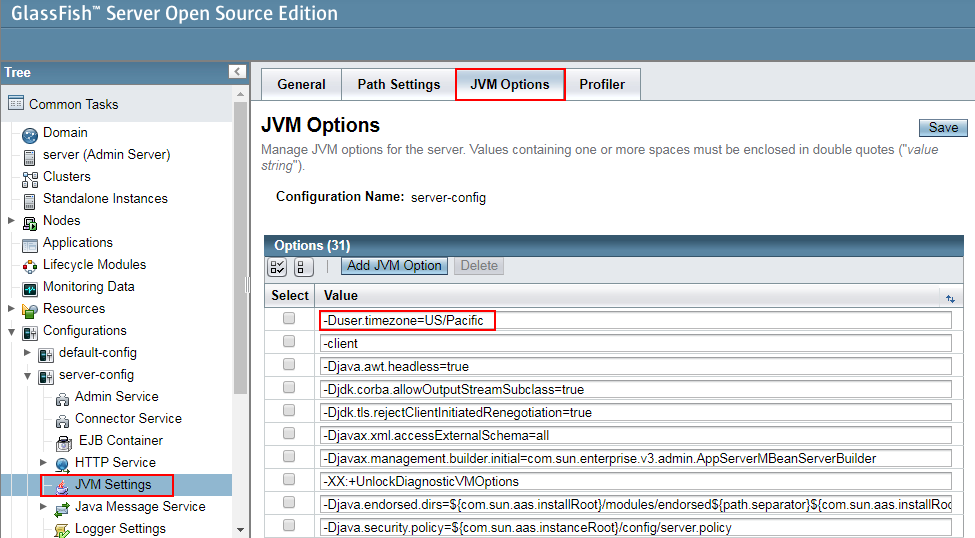
- For GrassFish access through the GF admin panel, go to the sectionConfigurations > gfcluster-config (or server-config for GF 4) > JVM Settings > JVM Optionsand click the buttonAdd JVM OptionPaste the relevant string (e.g. -Duser.timezone=Asia/Bangkok) in the input field that appears.
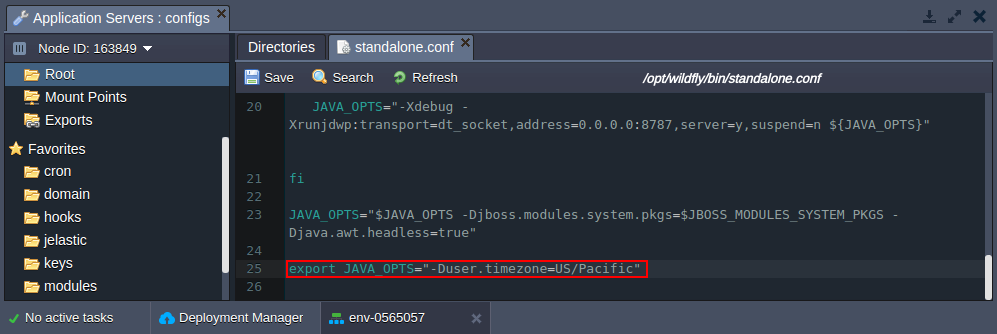
- forWildflySwitch to file./opt/wildfly/bin/standalone.confOr if the server scales horizontally, go to/opt/wildfly/bin/domain.confand declare the corresponding variables using the following format: export JAVA_OPTS="-Duser.timezone=Asia/Bangkok"
4. Save changes andRestartto apply the new settings, then refresh the timezone page or click Open in Browser again to see the updated local time.
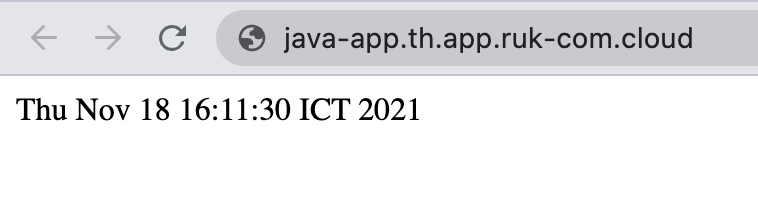
This way, you can set the desired time location for your server without any problems in a matter of minutes.
Timezone rules for PHP
Managing timezone settings for PHP application servers (Apache and NGINX) is done in the section[date]of the main configuration filephp.ini.
To access the file, select the button.Confignext to the desired node and enter the file./etc/php.ini
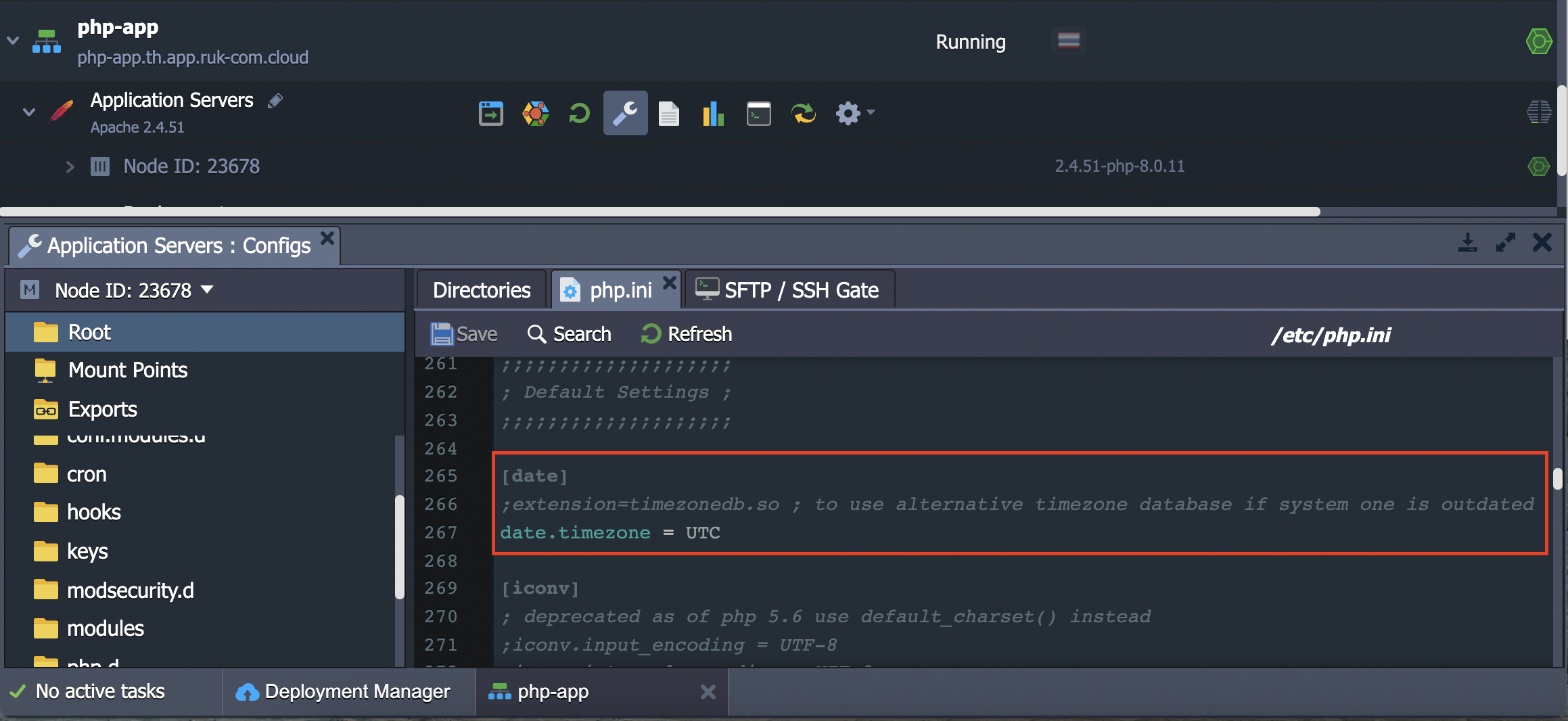
This section can be done in two parts:
- Get the latest time zone information
- Set the time zone manually
Checking Timezone Data
The first setting allows you to use other external Timezone Databases (i.e. -Olson) in case the internal database is outdated
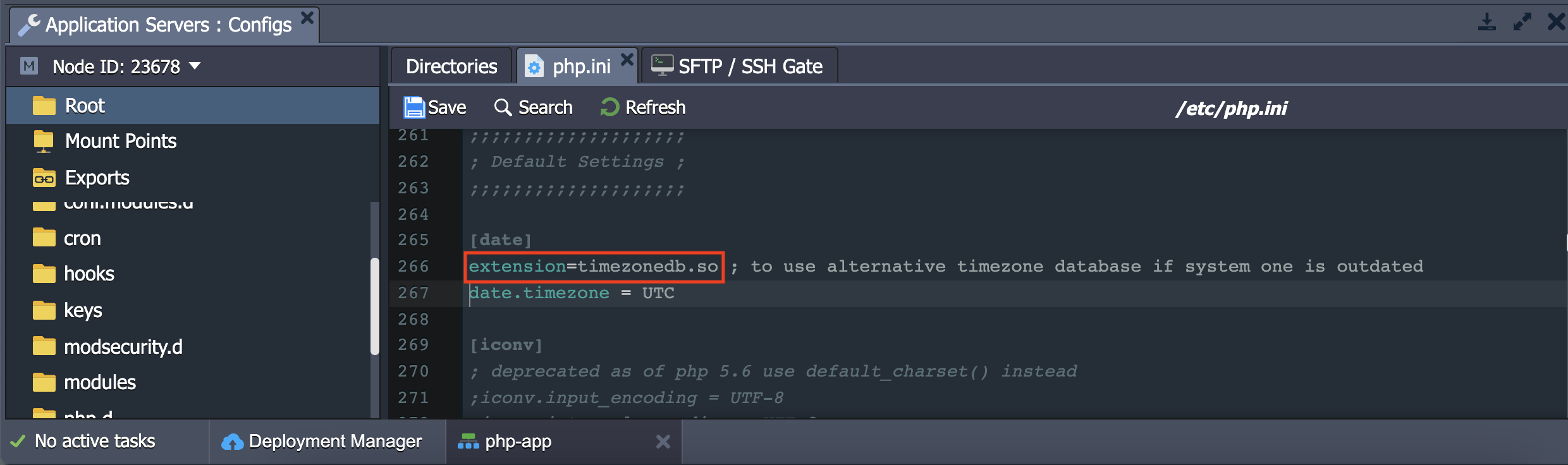
By uncommenting, delete the semicolon symbol (;) in line 266 and press the Save button to save the changes. ThenRestartYour app server
Now you can clickOpen in browserand scroll to the sectiondatein the pagephp.infoThat opens, you will see the latest version of the timezone package with the use of an external DB specified:

Changing Timezone
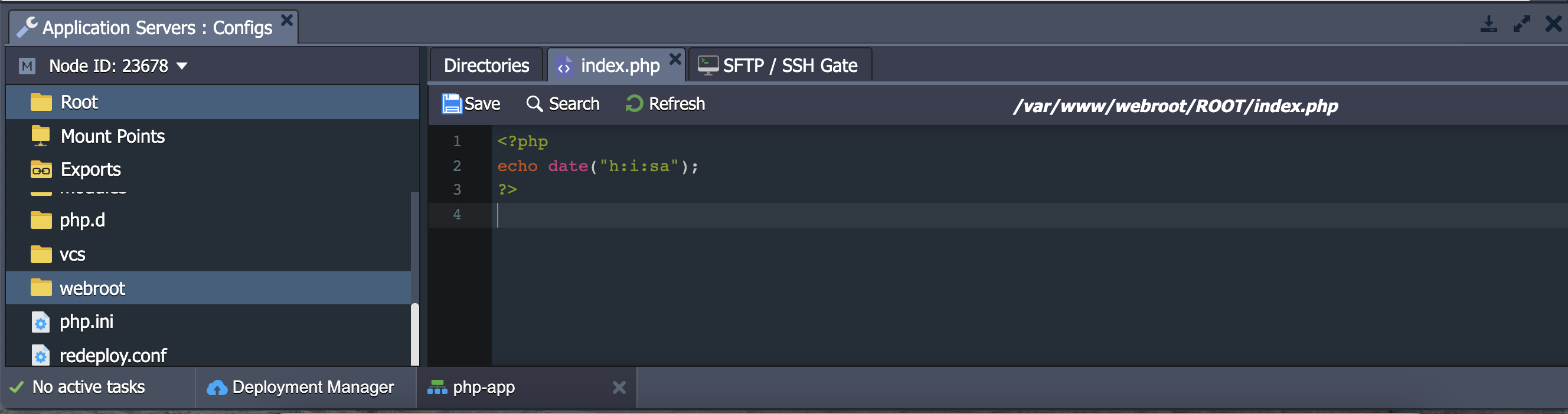
The second option in the [date] section is for setting the current time zone location of the node. (By default, it points to the UTC zone.) In the example below we will edit the server's default homepage at file./var/www/webroot/ROOT/index.php With the following code:
<?php
echo date("h:i:sa");
?>
Then press the buttonSaveFile updatedOpen in BrowserYou will see the results time
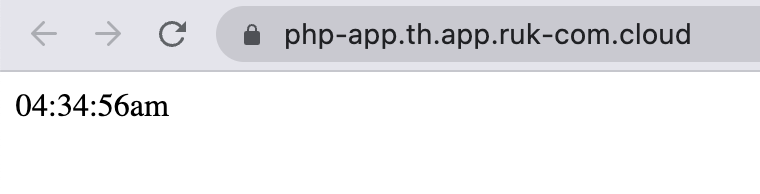
Return to the Ruk-Com Cloud Dashboard and specifyTime zonedesired as the value for the parameter date.timezone within php.ini file, for example (Asia/Bangkok)
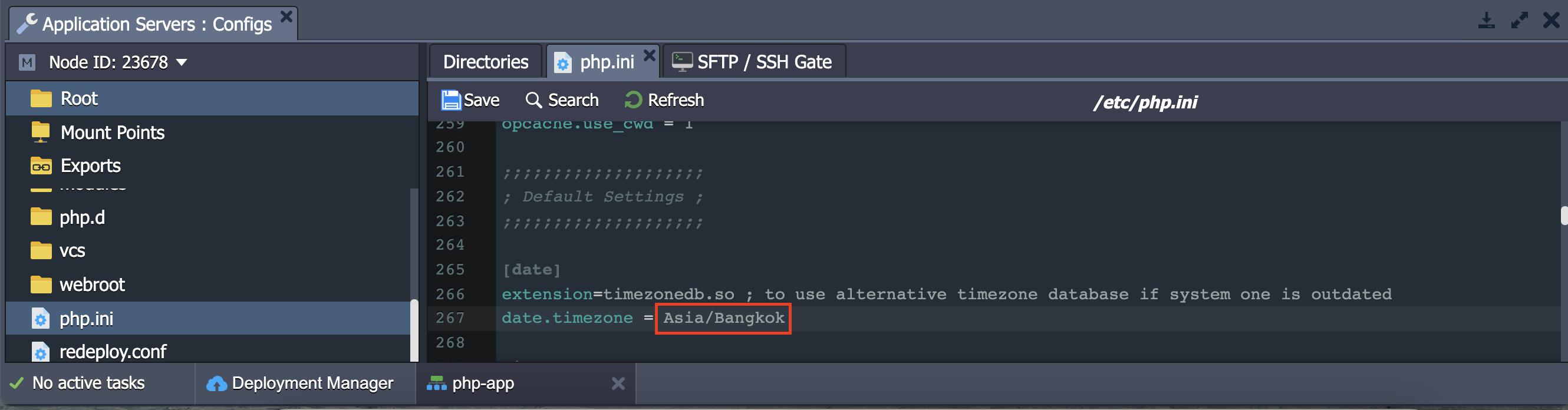
SaveReconfigure again andRestartPHP compute node and refresh the current time page again.
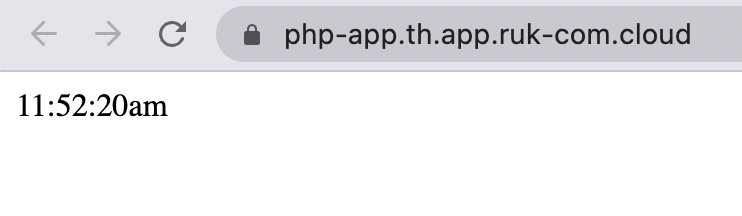
That's it, you will see the timezone was successfully changed and now aligns with the desired location.