
PostgreSQL Replication
This guide is maintained for Ruk-Com PaaS. Screens and options may vary by platform version and account permissions.
Confirm the environment, region and account permissions, and back up current settings before changing a production system.
Objective
This guide explains how to use PostgreSQL Replication on Ruk-Com Cloud PaaS, with ordered procedures and practical verification points.
Before you begin
- Sign in with an account permitted to manage the relevant environment.
- Confirm the target environment, region and resources before saving changes.
- Create a backup or rollback plan before changing a production system.
ReplicationIt is the basic technology for database servers. due to downtime or data loss may result in reduced accessibility. Reduce work efficiency and product confidence
Using data replication from the master to one or more standby servers (slaves) reduces the possibility of data loss. With PostgreSQL, you can create a database cluster of Master-Slave topology with one or more standby servers.
Using WAL (Write-Ahead Logging) is the fastest replication method with excellent performance, which is called asynchronous replication. In this case, the master database server works in persistent mode. Simply write WAL files to Storage and distribute them to the Standby (slave) database server running in recovery mode. These files are transferred to the Standby database immediately after the write is complete.
So let's see how the main configuration parameters are set to configure a PostgreSQL database cluster of Master-Slave topology with high availability by setting hot_ standby (or streaming) replication to one or more slaves that can be queried as read-only databases.
Because PostgreSQL changes its configuration with every new release, this article applies to version 13.2, which is the latest release at this time.
Create Environment
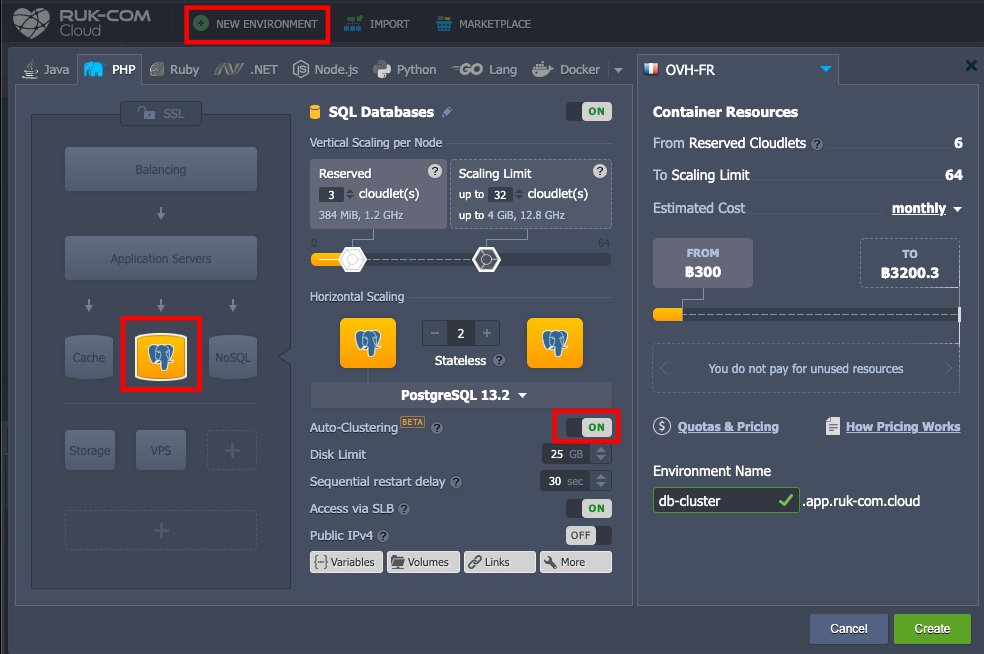
On the Ruk-Com Cloud Dashbard page, you will find PostgresSQL which comes with features. Auto-Clustering It can be called from the Environment Topology wizard (NEW ENVIRONMENT button). When it opens, select the database software as PostgresSQL 12.3 and turn on the switch.Auto-Clustering
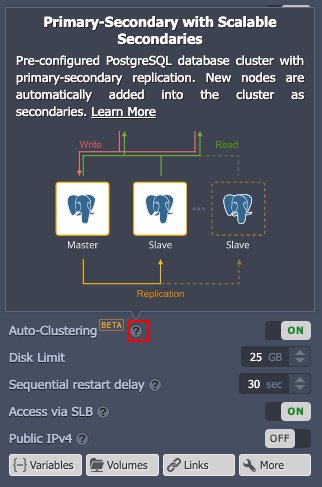
If you want more information, you can hover your mouse over the tooltip symbol. A Topology recommendation will appear.
PostgreSQL Master Settings
Let's look at the master node configuration parameters used to do this. auto-clustering
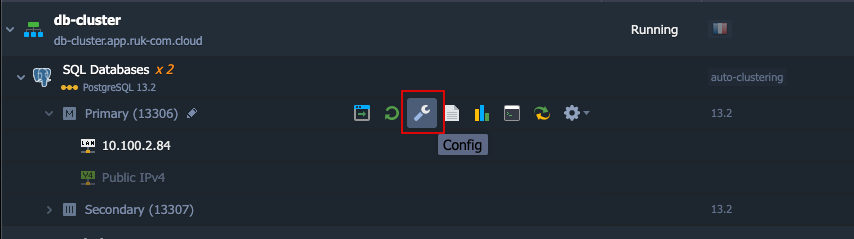
1. Find the environment of the master database in the Environment list. Click the Config button of the Master PostgreSQL node.
2. Open the conf directory and navigate to the postgresql.conf file.
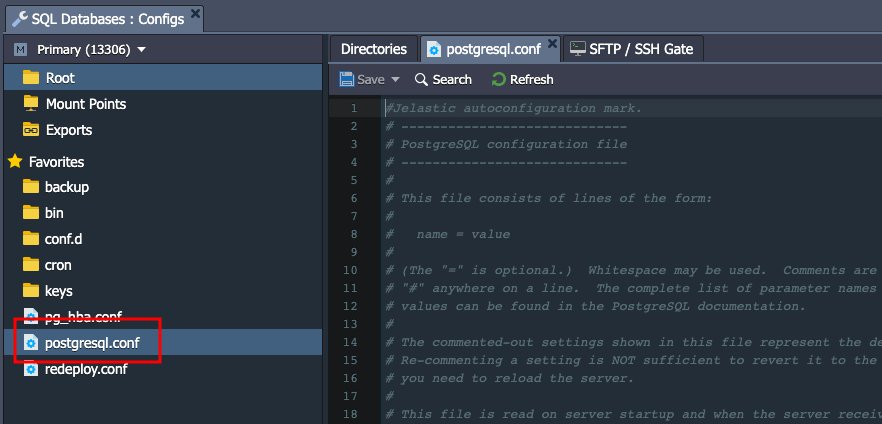
The following settings are related to WAL. They can be changed as required:
wal_level = hot_standby
max_wal_senders = 10
archive_mode = on
archive_command = 'cd .'
where:
- Parameterwal_levelSets the amount of data written to the WAL. There are three possible values:
-minimal– Only the data needed to recover from a failure or emergency shutdown is left.
-replica– The default value, which writes enough data to support archiving and WAL replication, as well as running read-only queries on the standby server. In releases earlier through 9.6, archive and hot_standby values were allowed for this parameter. In later versions this will be acceptable to use. But it is a mapping to the model.
-logical– The value adds the necessary information to support decoding logic to the model recording level. - max_wal_sendersSets the maximum number of WAL transfer processes running simultaneously.
- archive_modeAllows to store WAL along with parameters.wal_level(All values enable archiving except the lowest) - archive_command The local shell command to be executed to archive completed WAL segments. By default nothing is done by executing 'cd', that means archiving is disabled. You might try changing the following to copy the WAL's archive files to your desired destination directory (e.g. /tmp/mydata):
archive_command = 'test ! -f /var/lib/pgsql/data/pg_wal/%f && cp %p /tmp/mydata/%f'After completing the settings, press the buttonSavetop
- Open config filepg_hba.confStandby (slave) database connections are allowed by specifying the following parameters:
host replication all {standby_IP_address}/32 trust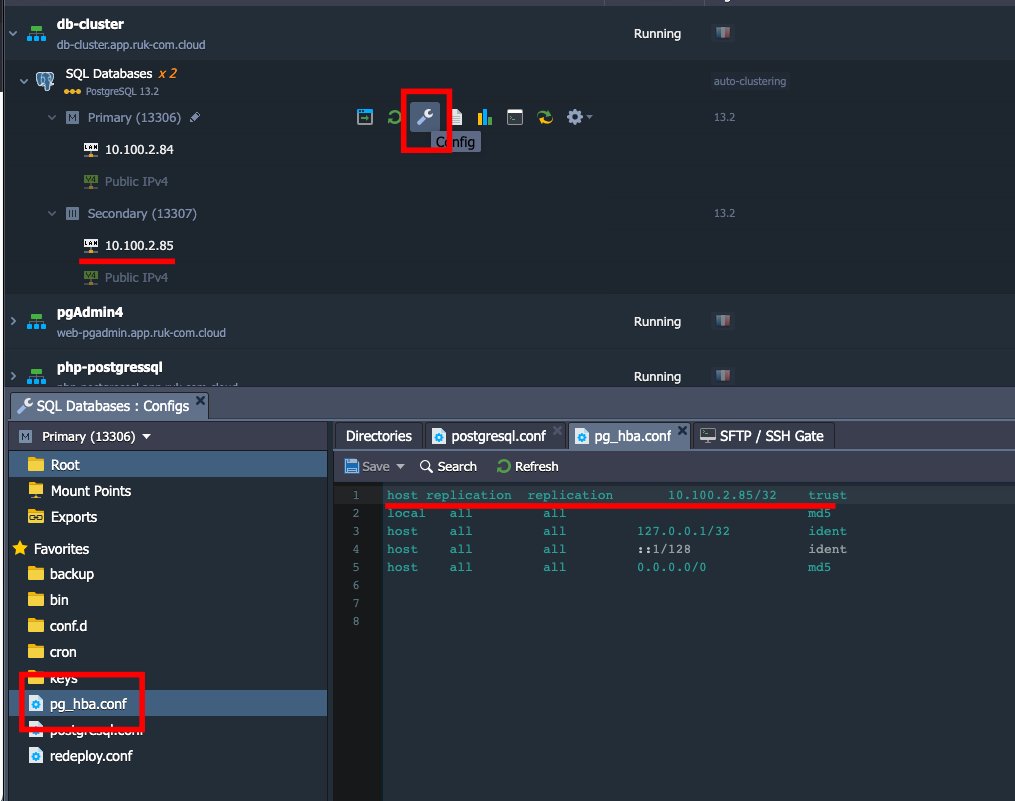
Finished with the configuration for the master node. Let's continue with the configuration for the Standby (slave) node.
Configure the Standby (slave) node
Let's examine the configuration file at the Slave node. There are only three options that distinguish slave from master:
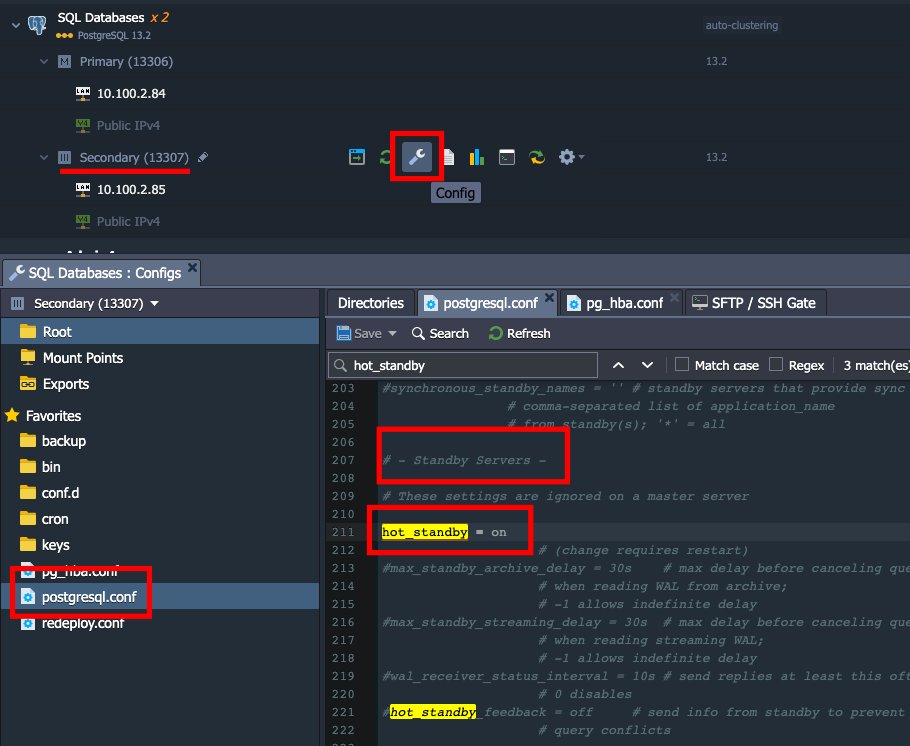
1. Open the postgresql.conf file and find the Standby Servers section. As you can see, this server is in Standby mode because the hot_standby parameter has a status of on, unlike the master node where this parameter is commented out.
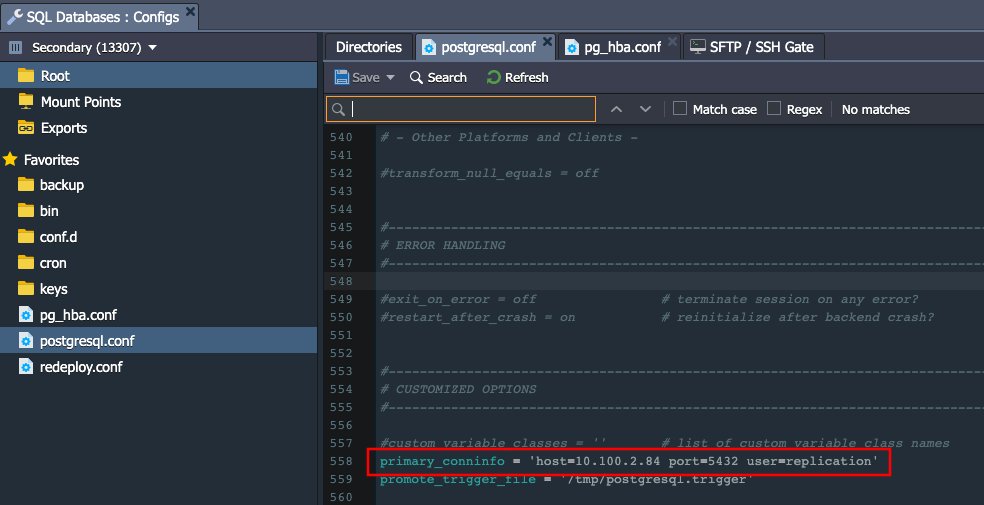
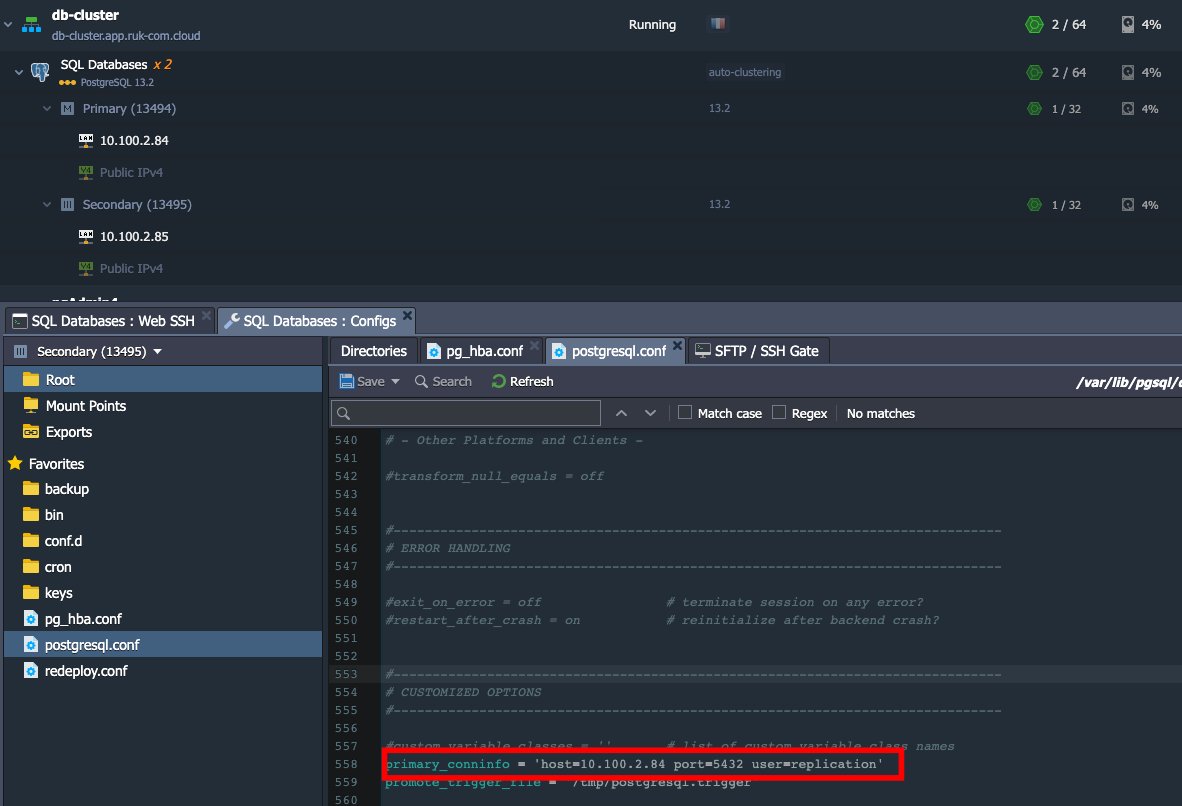
2. Scroll down to the end of the config file, there are parameters. primary_conninfo Specifies the connection that the standby server will use to connect to the sending server. The connection string must specify the hostname (or address) of the sending server as well as the port number. There is also a corresponding username with appropriate permissions on the sending server. Password must be specified in primary_conninfo or in a separate ~/.pgpass file on the backup server if the sender requires password authentication.
3. The final option that makes the database server a slave is file availability.standby.signalThis indicates that the server should be started on hot standby. The file must be in the PostgreSQL data directory and may be empty or contain any data. When the slave is promoted to master, this file is deleted.
Note:
Please note that most options being changed require a server restart. This can be done in two ways:
1. From the dashboard you can restart one or both nodes.

2. Do this through the command line interface to the Web SSH client by clicking the Web SSH button on the desired node, such as slave.
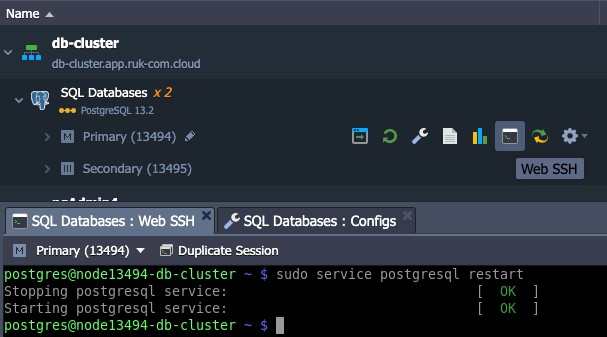
and enter the command to restart the database server:
sudo service postgresql restartCheck Replication
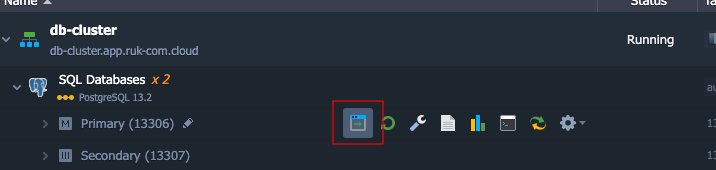
1. Open the panel.phpPgAdminfor databasemasterBy clicking the Open in Browser button next to it.
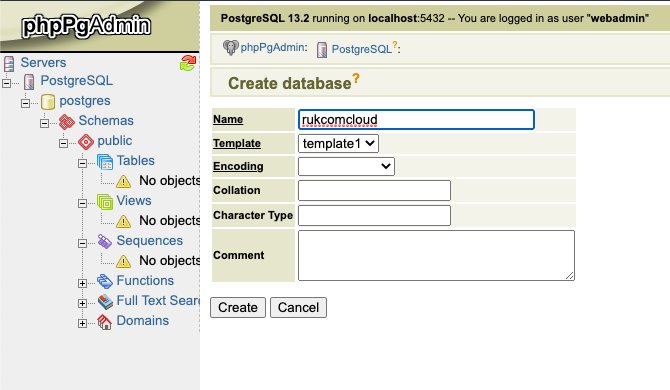
2. Log in with the database credentials received via email earlier and create a new database.
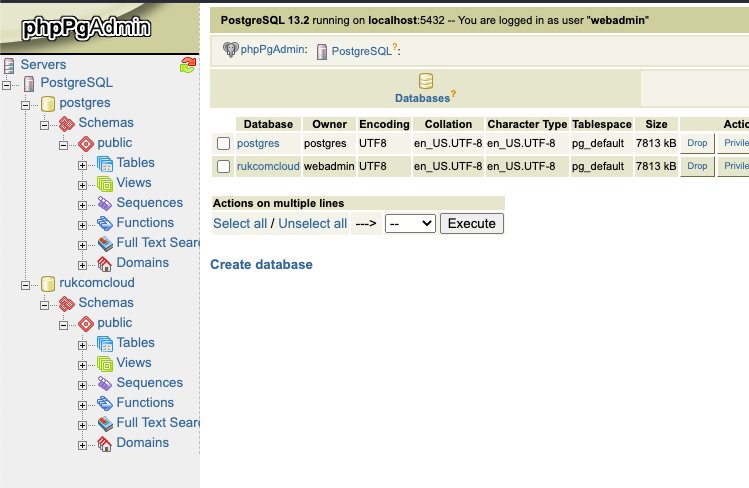
3. You should then open the admin panel of the standby node database server (in the same way as master) and check whether the new database was created successfully or not.
Failover Scenario
PostgreSQL does not have a native automatic failover scenario for database clusters, on the other hand, because there are many third-party solutions that you can deploy to ensure high availability of your system. Meanwhile, you may create your own solution to stop database cluster failure. Many situations of cluster failure are possible in real life. Here we will look at just one of the most common workflows that can help you automate a failover scenario.
The default topology consists of two nodes:
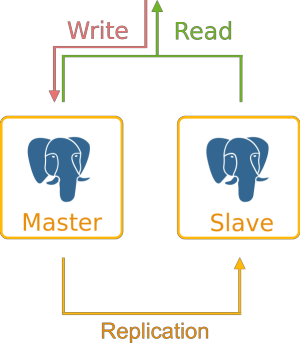
When the master node fails, the slave node must be promoted to a new master node. This can be done with the pg_ctl utility, which is used to initialize, start, stop, or control the PostgreSQL server. To log in to the standby server via Web SSH and use the command as follows:
/usr/pgsql-13/bin/pg_ctl promote -D /var/lib/pgsql/datawhere /var/lib/pgsql/data is the database's data directory.
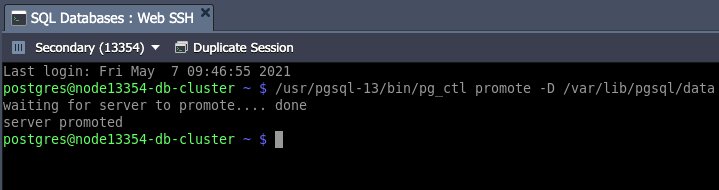
Once the slave database is promoted to master, you should change the application connection string. Change the database cluster entry point to the new hostname or IP address.
The failover process can rely on the use ofpg_isreadyA utility that can check connections to PostgreSQL databases.
You can create a simple script that checks the availability of the master database server and promotes standby in the event of a master failure. Run the script via link # crontab at the slave node with appropriate intervals. The script might look like this, called failover.sh:
#!/bin/bash
master="10.100.2.84"
slave="10.100.2.85"
status=$(/usr/pgsql-13/bin/pg_isready -d postgres -h $master)
response="$master:5432 - no response"
if [ "$status" == "$response" ]
then
/usr/pgsql-13/bin/pg_ctl promote -D /var/lib/pgsql/data
echo "Slave promoted to new Master. Change your app connection string to new Master address $slave"
else
echo "Master is alive. Nothing to do."
fi
When the script is triggered to promote slave to master, the output of the script should look like this:
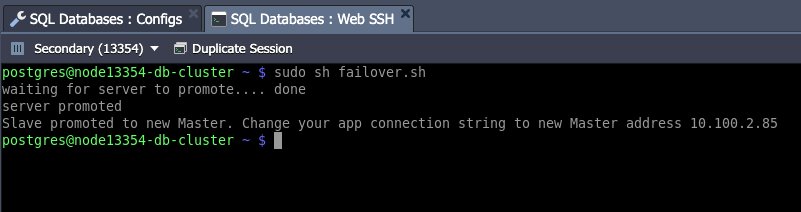
Your database is now back up and ready to handle read/write operations based on the new master address.
Cluster Restoration
With the new master address you can avoid having to customize your application connection string by easily changing the master database ip address. To do this, you need to place a load balancer at the front of the cluster that will monitor the health of the components and route traffic to the current master, but this is outside the scope of this document. We will demonstrate how to restore the original cluster topology so no frontend changes are required.
Another reason why the topology should be restored involves ensuring the scalability of the cluster. Only traditional topologies can scale in/out horizontally.
Let's look at how to recover a PostgreSQL database cluster after the old master is dropped from the cluster and the original slave is promoted to master.
So the task is: the abandoned master should become the true master and the current master (promoted from slave) should become the true slave instead.
Basic information is:
- The default data is a database cluster consisting of two nodes master (IP: 10.2.100.84) and slave (IP: 10.2.100.85).
- Master node stops working and main database stops working.
- Standby database has been promoted to master.
- now slave still reads/writes
- The original master node has been fixed. and is ready to introduce it primarily to replication.
Complete the following steps to get the default topology cluster:
- To simulate a database crash To delete data, go to web SSH at the master node and enter the command:
rm -rf /var/lib/pgsql/data/*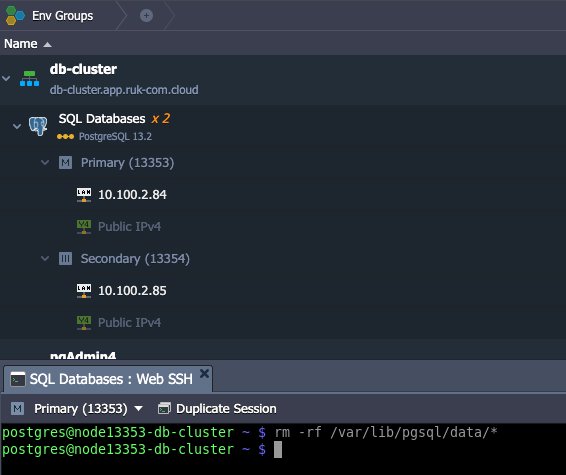
2. Add the original master IP address 10.100.2.84 topg_hba.confAt the current master node (now secondary node):
host replication replication 10.100.2.84/32 trust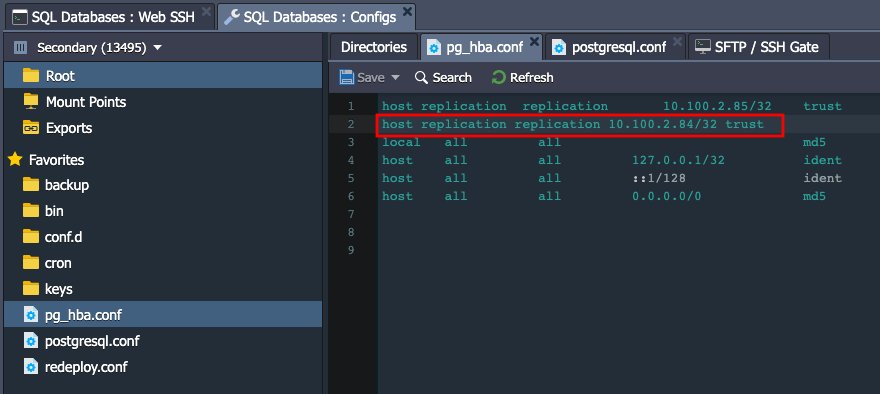
This will allow the original master node to have access to the current master and then restart the current master database. (now a secondary node) to change the value.
sudo service postgresql restart3. Go to the original master node via Web SSH and enter the command:
pg_basebackup -U replication -h 10.100.2.85 -D /var/lib/pgsql/data -Fp -Xs -P -R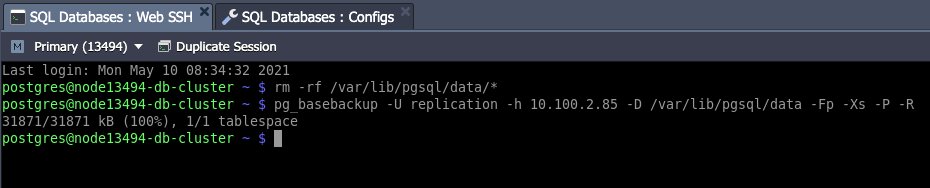
where:
- link #pg_basebackup- Used to perform a basic backup of a running PostgreSQL database cluster.
- 10.100.2.85 - IP address of current master node
- /var/lib/pgsql/data - PostgreSQL data directory
4. Make sure that the ip address in the host parameter is described in point #2 of the link #.Configuring StandbyHave an IP address that is suitable for the original master.
5. Create a standby.signal file at the current master:
touch /var/lib/pgsql/data/standby.signal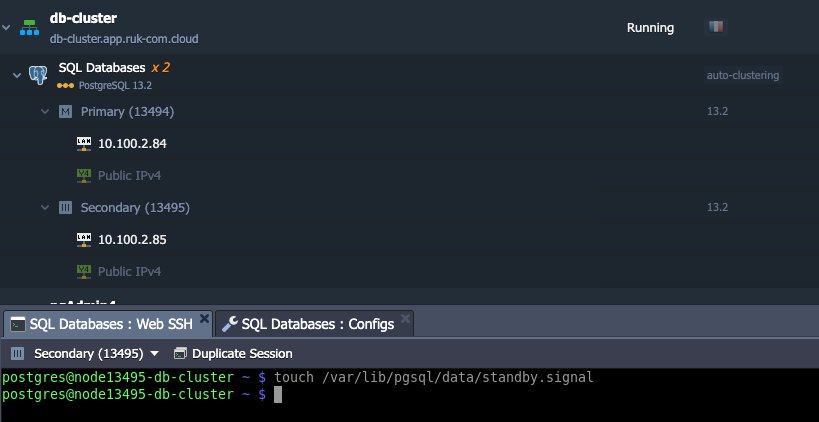
and restart the node to get the new slave database:
sudo service postgresql restartDelete the standby.signal file on the original master:
rm /var/lib/pgsql/data/standby.signal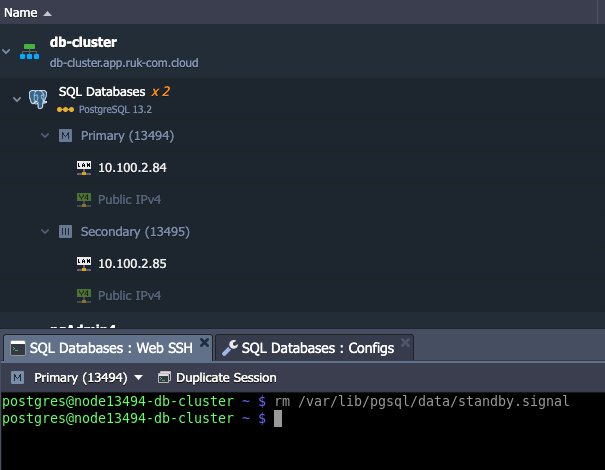
and restart the node to get the new master database.
sudo service postgresql restart6. Finally, to achieve a consistent recovery state for both the master and standby databases, a final restart is required, which can be done through the dashboard as follows:
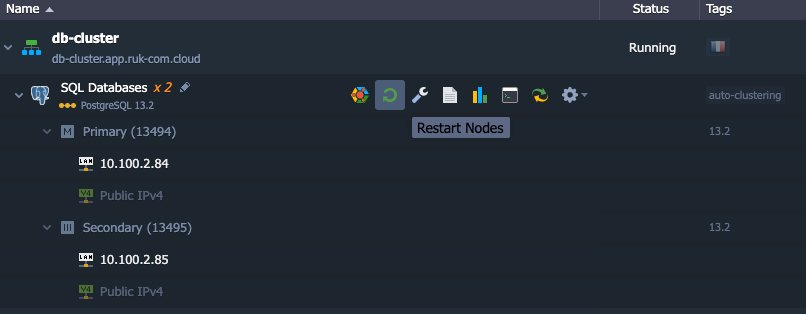
When the restart process is complete, the cluster will return to its original topology and may be scaled horizontally.