
Dump Import/Export
This guide is maintained for Ruk-Com PaaS. Screens and options may vary by platform version and account permissions.
Confirm the environment, region and account permissions, and back up current settings before changing a production system.
Dump Import
- Create a new server instance using any desktop client for MySQL/MariaDB/Percona (we use MySQL Workbench as an example).
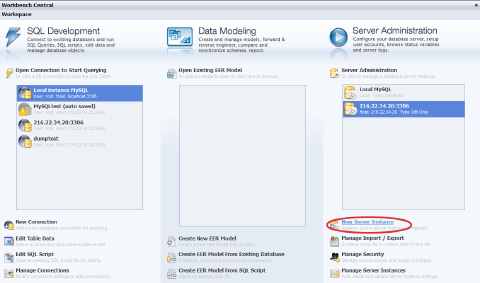 2. Specify your host machine (just paste your public IP into the address field) and click Next.
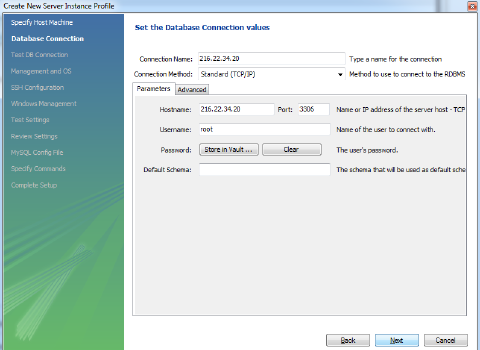
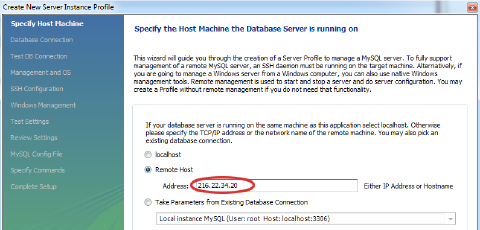 3. Set the database connection values: IP address, port number, username and password (when you created the environment, the platform sent you an email with credentials to the database).
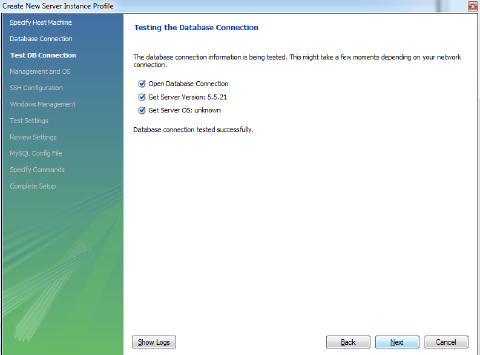
 4. Then your database connection will be tested for a couple of minutes.
 5. Set the type of remote management you want to use.
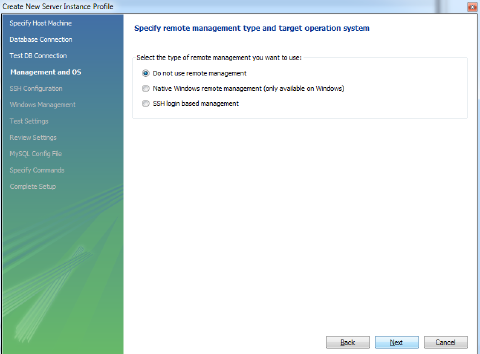 6. Enter the name for your server instance.
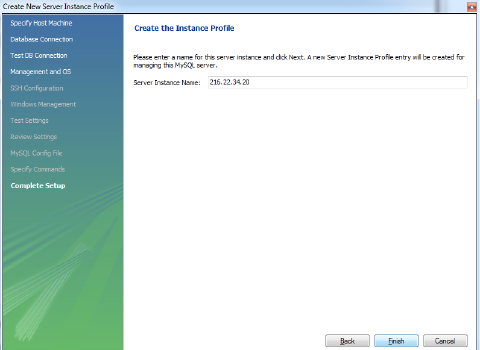 7. You can see that your server instance is successfully created.
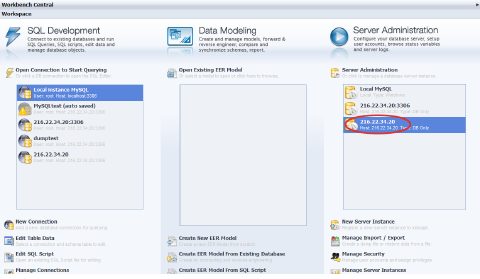 8. Open your instance and pick Data Import/Restore and choose the dump you want to import.
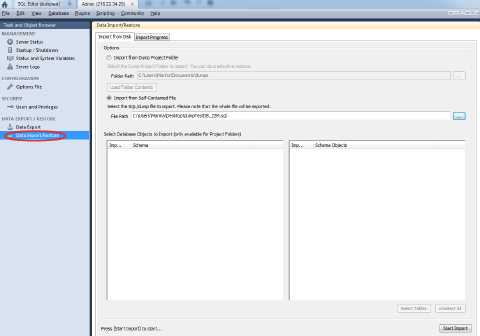 The import process can take several minutes.
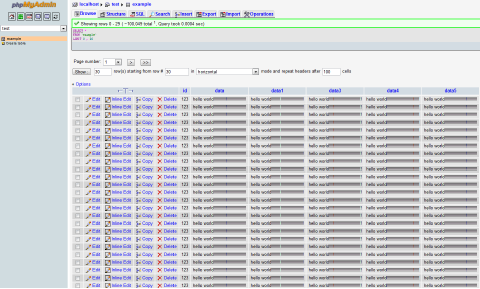
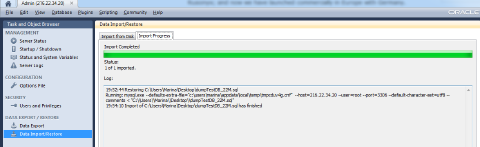 9. Go back to the platform dashboard and open MySQL (MariaDB) in a browser. Using the credentials, which the platform sent you, sign in into admin page. Select test, click on example and you’ll see your imported dump.
Dump Export
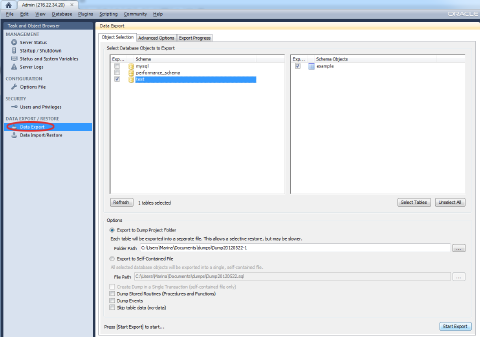
- Open the server instance you have created earlier in your desktop client and pick Data Export and select database objects to export. Specify the path to the directory, in which you want to export the dump.
 2. The export process can take several minutes, depending on the size of exported data.
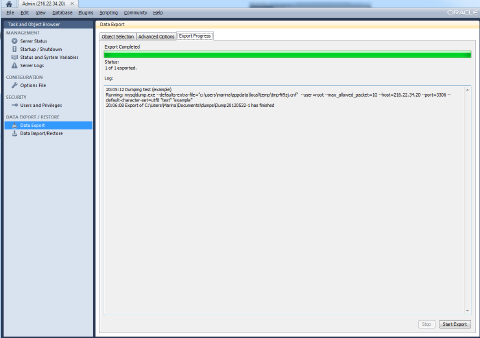 Your dump file will be in the directory, the path to which you have specified.