
PHP Connection to PostgreSQL
This guide is maintained for Ruk-Com PaaS. Screens and options may vary by platform version and account permissions.
Confirm the environment, region and account permissions, and back up current settings before changing a production system.
Follow the instruction below to learn how to connect your PHP application, hosted within the platform, to the PostgreSQL database server:
Create Environment
-
Log into the platform dashboard.
-
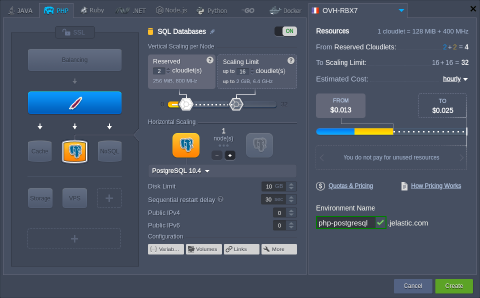
Create an environment with the PHP application server (e.g., Apache PHP) and the PostgreSQL database.
 3. Check your email inbox for a message with database credentials (login and password).
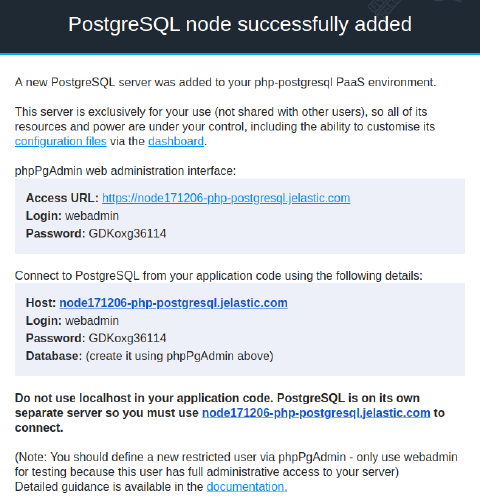 Now, you can access your database via web admin panel and connect it to your PHP application.
Configure Database Connection
- Click the Config button for your Apache server.
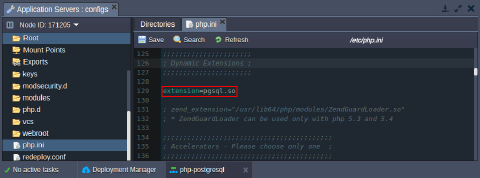
 2. Navigate to the etc folder and open the php.ini file.
Add the extension=pgsql.so line like it is shown in the image below.
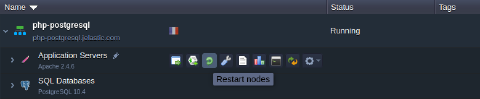
 3. Save the changes and Restart nodes for your Apache server(s).
 4. There are two main PG functions for operating with a database server:
- opening PostgreSQL connection:
Copy
pg_connect("host={host} port={port} dbname={dbname} user={user} password={password}");
where:
- {host} - the PostgreSQL server Host (i.e., access URL without http://) that you’ve received via email, for example node.example.ruk-com.cloud
- {port} - a connection port (the default one is 5432)
- {dbname} - a name of your database
- {user} - an account name to access database with (we’ll use the default webadmin one)
- {password} - a password for the appropriate user
- closing PostgreSQL connection: pg_close()
- You need to write the necessary functions in every *.php page, which should be connected to the database.
Connection Check Up
- check the connection using this code:
php Copy
<?php
$dbconn = pg_connect("host=node.example.ruk-com.cloud port=5432 dbname=postgres user=webadmin password=passw0rd");
//connect to a database named "postgres" on the host "host" with a username and password
if (!$dbconn){
echo "<center><h1>Doesn't work =(</h1></center>";
}else
 echo "<center><h1>Good connection</h1></center>";
pg_close($dbconn);
?>
- execute simple request and output it into table:
php Copy
<?php
$conn = pg_connect("host=node.example.ruk-com.cloud port=5432 dbname=postgres user=webadmin password=passw0rd");
if (!$conn) {
 echo "An error occurred.\n";
 exit;
}
$result = pg_query($conn, "SELECT * FROM test_table");
if (!$result) {
 echo "An error occurred.\n";
 exit;
}
while ($row = pg_fetch_row($result)) {
 echo "value1: $row[0]  value2: $row[1]";
 echo "<br />\n";
}
?>
You can use the above-described examples to create your own PHP application, which utilizes connection to the PostgreSQL database.