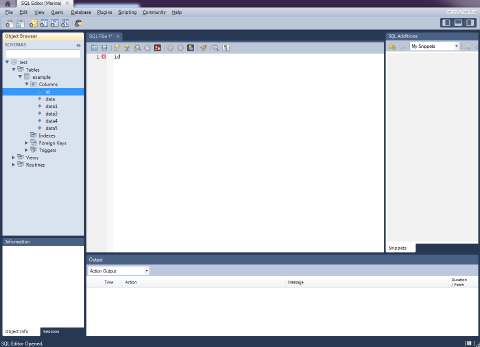
Remote Access
This guide is maintained for Ruk-Com PaaS. Screens and options may vary by platform version and account permissions.
Confirm the environment, region and account permissions, and back up current settings before changing a production system.
You can work with your databases remotely from your computer without having to login to our dashboard. So here are some instructions on how to access with MySQL. They can be used both for Java and PHP environments.
Tip: The same steps can be used for remote access to MariaDB and Percona.
Create Environment
-
Log into the platform.
-
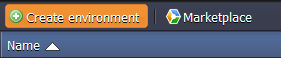
Click the Create environment button at the top left.
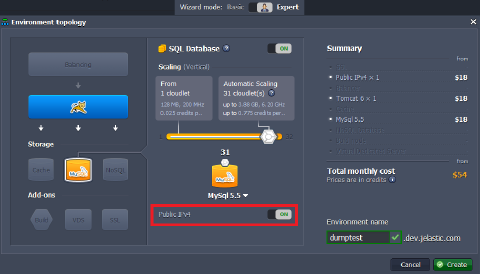
 3. In the Environment Topology dialog, pick your application server (for example, Tomcat) and MySQL as the database you want to use. Switch on Public IPv4 for MySQL. Then type your environment name, for example, dumptest.
 Wait just a minute for your environment to be created.
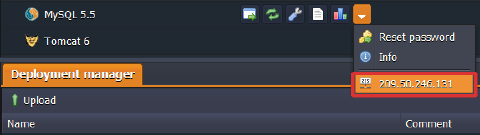
- Click info button for MySQL and you’ll see your public IP in the end of the dropdown list.
Remote Connection to MySQL
- Create a new open connection to start querying using any desktop client for MySQL (we’ll use MySQL Workbench as an example). Specify the connection name, enter the host name (your Public IP), port number (3306), username and password (when you created the environment, the platform sent you an email with credentials to the database).
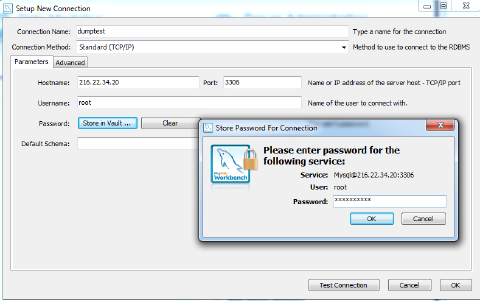 2. Now MySQL remote access is configured and you can start querying.