
TomEE Server
This guide is maintained for Ruk-Com PaaS. Screens and options may vary by platform version and account permissions.
Confirm the environment, region and account permissions, and back up current settings before changing a production system.
Apache TomEE is an enterprise-ready Java server, created based on Apache Tomcat with the implementation of the MicroProfile and Jakarta EE features. The extended comparison of the supported functionality is provided on the official documentation page.
The platform provides four different distributions of TomEE:
- WebProfile - delivers the Jakarta EE implementation, including Servlets, JSP, JSF, JTA, JPA, CDI, Bean Validation and EJB Lite
- MicroProfile - extends WebProfile options with full support for MicroProfile
- Plus - contains all technologies in the MicroProfile with addition of JAX-WS, JEE Connectors, and JMS
- PluME - supports all in the Plus profile, includes Eclipse Mojarra and EclipseLink (this distribution is needed for organizations that are migrating from Eclipse Glassfish to the Apache TomEE project)
Note: This template utilizes a modern systemd initialization daemon.
TomEE application server runs without any additional runtime requirements or startup time for larger applications and is compatible with most of the Tomcat-aware and Tomcat-tested tools. Below, we’ll describe how to get Apache TomEE up and running on the platform.
- Log into the PaaS dashboard and click the New Environment button.
 2. In the topology wizard dialog, select TomEE as your application server (on the Java tab). If needed, configure node scaling (vertical and horizontal), public IPs, environment name, etc. Click Create when ready.
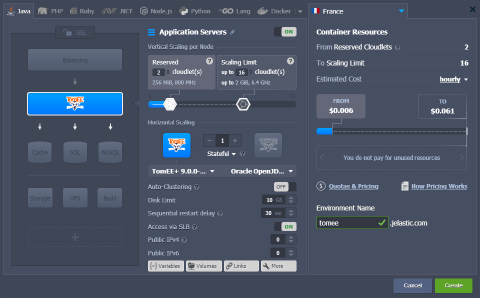
Tip: The platform provides a one-click Auto-Clustering option that automatically configures a highly available TomEE cluster.
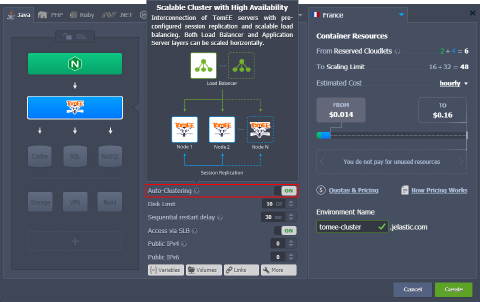 As a result, you’ll get a ready-to-go Java cluster with the scalable number of the interconnected TomEE servers with pre-configured session replication and load balancing.
- Your new environment with the Apache TomEE Java application server will be created in a minute.
 Click the Open in Browser button to access the server’s default page.
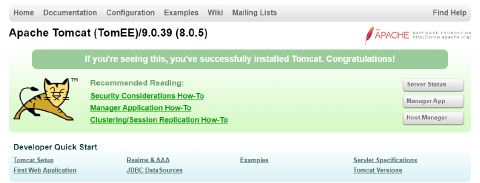 Now, you can proceed to the application deployment.
Tip: Tomcat and TomEE servers are provided with a special HOT_DEPLOY variable (not set by default) that defines whether the server should be restarted (false, disabled, 0) or not (true, enabled, 1) during the application deployment.
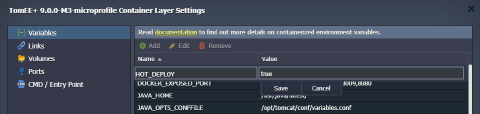 Hot deploy (without restart) is relatively faster and allows avoiding downtime during the deployment process. However, it is not supported by some applications and thus is disabled by default.