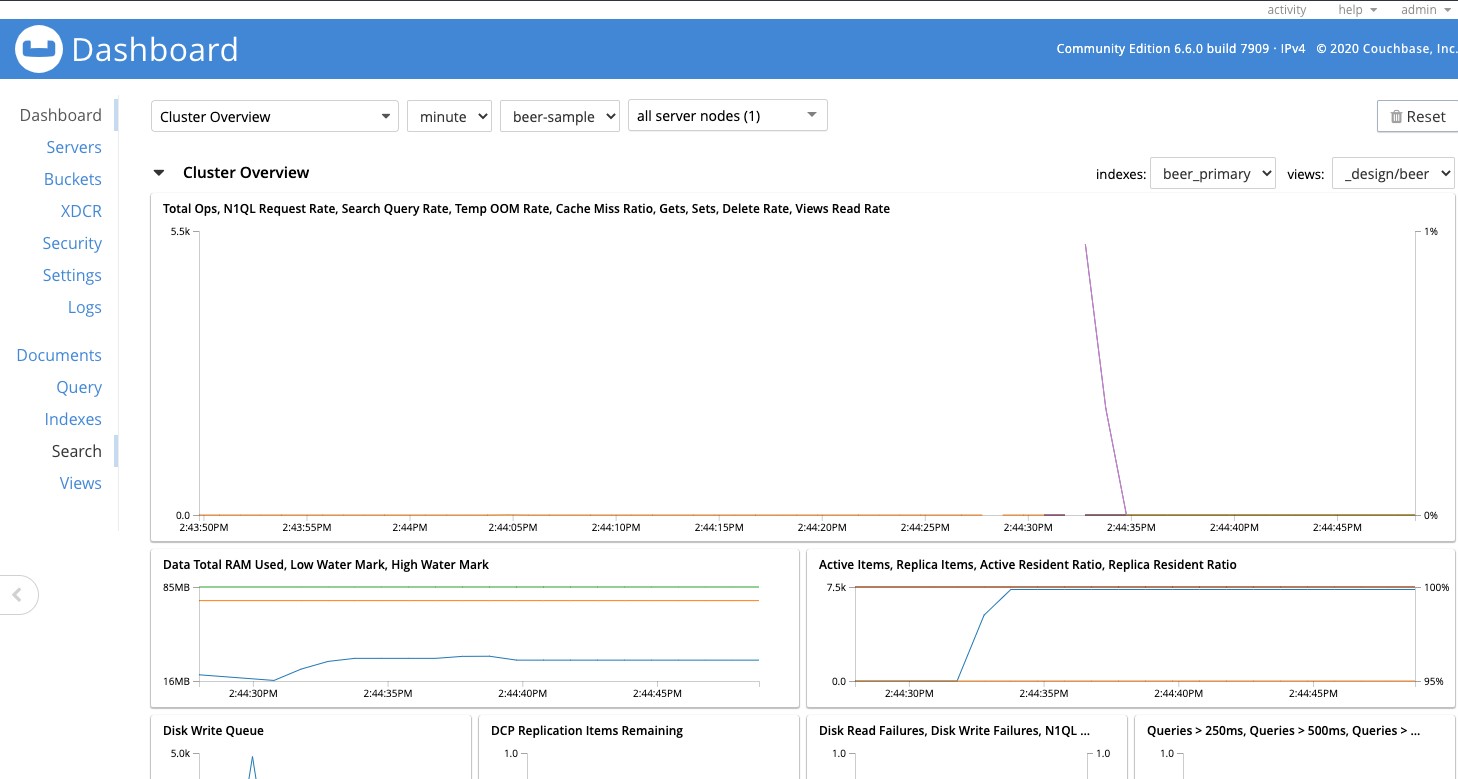
Connecting Java to CouchDB
This guide is maintained for Ruk-Com PaaS. Screens and options may vary by platform version and account permissions.
Confirm the environment, region and account permissions, and back up current settings before changing a production system.
Objective
This guide explains how to use Connecting Java to CouchDB on Ruk-Com Cloud PaaS, with ordered procedures and practical verification points.
Before you begin
- Sign in with an account permitted to manage the relevant environment.
- Confirm the target environment, region and resources before saving changes.
- Create a backup or rollback plan before changing a production system.
1. Log in to Ruk-Com Cloud.
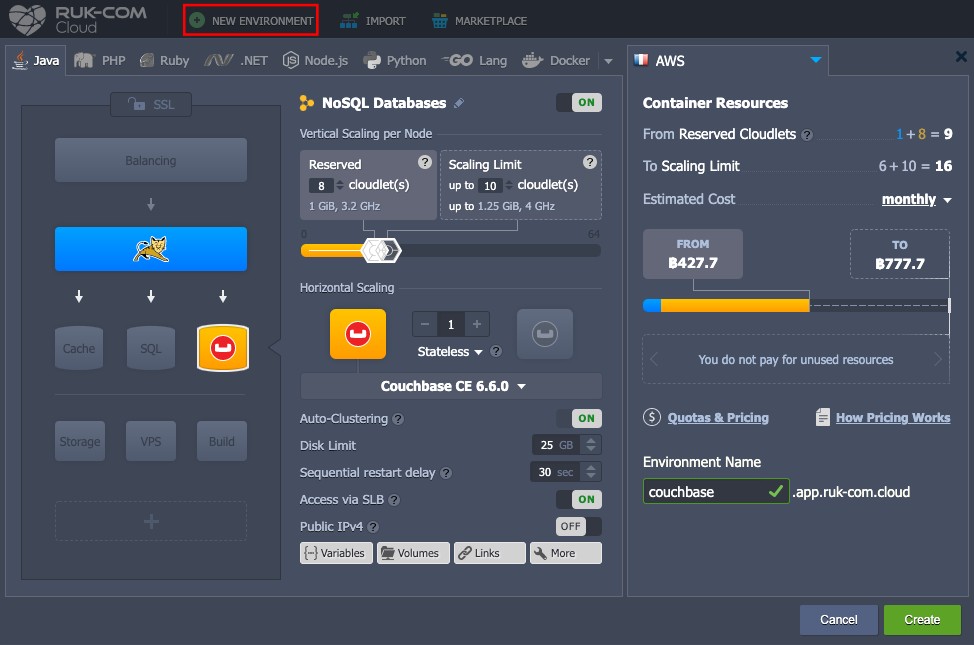
2. Create the CouchDB database environment:
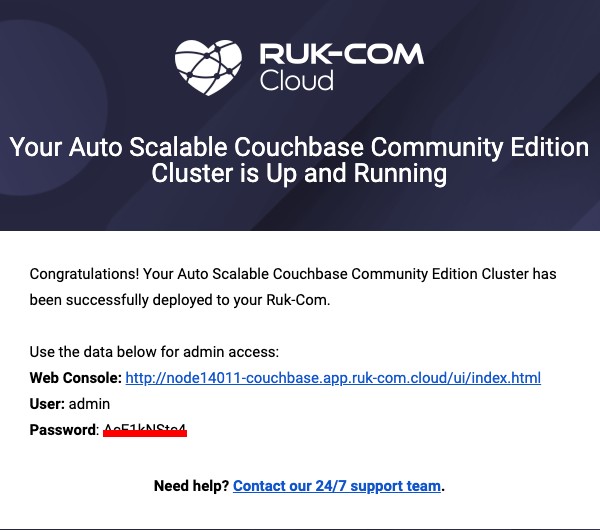
3. Verify your email to get credentials to access CouchDB Node.
4. Then create the filemydb.cfgIn Config Manager (HOME folder), this file contains information about connecting to CouchDB. Your application will read this information.
5. In this step you need to prepare a piece of Java code that creates a connection to your database.
import com.fourspaces.couchdb.*;
import java.io.FileInputStream;
import java.io.IOException;
import java.util.Properties;
import java.util.logging.Level;
import java.util.logging.Logger;

public class CouchdbConnector {

    public boolean createDatabase(String name) {
        try {
            //Read file mydb.cfg
            Properties prop = new Properties();
            prop.load(new FileInputStream(System.getProperty("user.home") + "/mydb.cfg"));

            //Getting info we need: host, port, username, password
            String host = prop.getProperty("host").toString();
            int port = Integer.parseInt(prop.getProperty("port").toString());
            String username = prop.getProperty("username").toString();
            String password = prop.getProperty("password").toString();

            Session dbSession = new Session(host, port, username, password);

            dbSession.createDatabase(name);

            try {
                dbSession.getDatabase(name);
            } catch (Exception e) {
                return false;
            }
        } catch (IOException ex) {
            Logger.getLogger(CouchdbConnector.class.getName()).log(Level.SEVERE, null, ex);
        }

        return true;
    }
}NOTE:you have to upload all libraries that CouchDB connection needs!
6. Deploy the application:couchdb.war
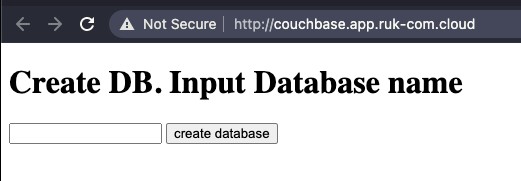
7. Run the Deployed application and enter the name of the database you want to create:
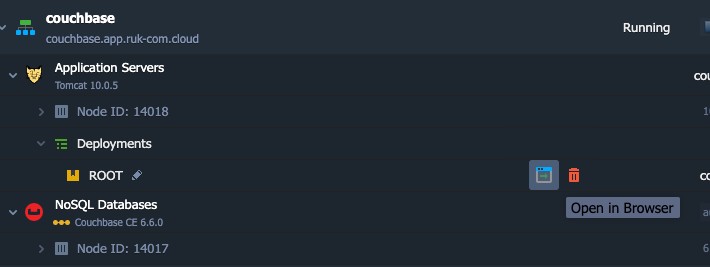
Enter the database name:
8. Check the serverCouchDBWhether there is a new database or not:
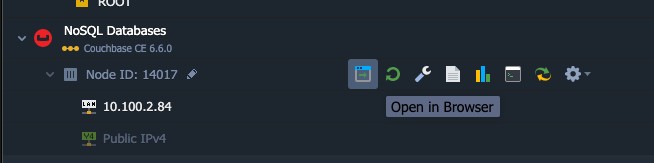
- Run the CouchDB instance in the browser.
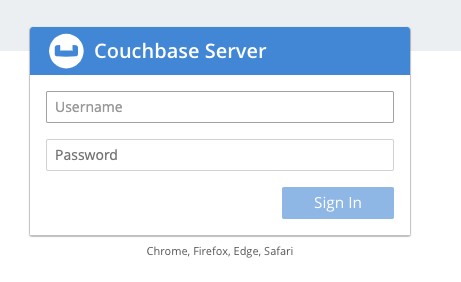
- Enter the credentials received from the email.
- Verify database existence