
Maven Configuration
This guide is maintained for Ruk-Com PaaS. Screens and options may vary by platform version and account permissions.
Confirm the environment, region and account permissions, and back up current settings before changing a production system.
Maven is a tool for compiling and managing Java projects. At PaaS, it’s provisioned out-of-box to cover all the main stages of your Java application lifecycle - from building & deploying till their pushing onto production.
All the adjustable Maven server settings can be set and/or changed with:
Maven Configuration Files
The main Maven build node configuration files can be located within the following server directories:
| Folder | Path |
|---|---|
| PROJECTS | /var/lib/Ruk-Com PaaS/PROJECTS |
| conf | /opt/maven/conf |
| hooks | /var/lib/Ruk-Com PaaS/hooks |
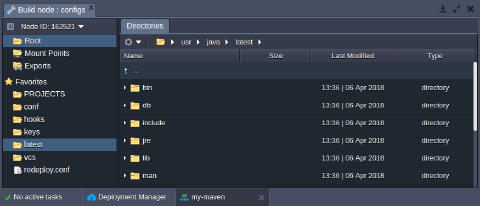
| latest | /usr/java/latest |
| keys | /var/lib/Ruk-Com PaaS/keys |
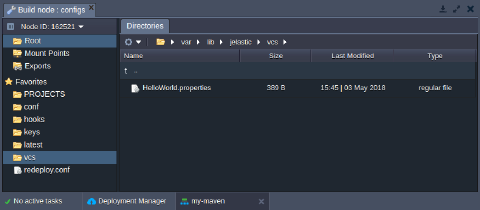
| vcs | /var/lib/Ruk-Com PaaS/vcs |
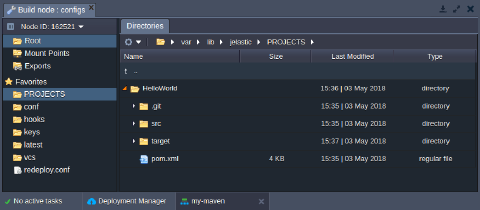
PROJECTS
The PROJECTS folder is used for storing files of the unpacked project that were added to, built and deployed via Maven node.
conf
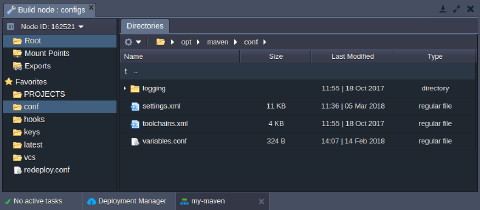
The conf directory contains the following files:
- settings.xml - contains the main Maven configurations
- toolchains.xml - allows to set which JDK (or other tool) should be used by embedded plugins during the project build
- variables.conf - is used to set your custom variables, to configure memory settings, etc
hooks
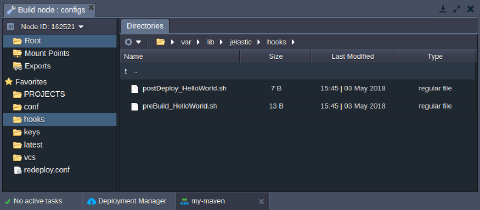
The hooks folder stores custom scripts (so-called hooks), which should be executed prior or after application build/deploy operations.
keys
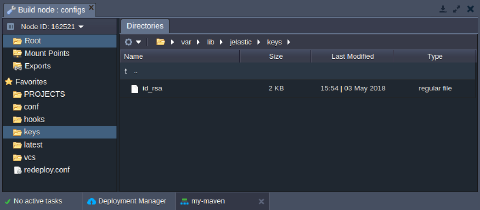
The keys directory is used as a location for uploading private keys which are needed for your application.
Just generate your key, save it as a simple file and upload to the keys folder. Now, you can use it for different cases (e.g., for authentication between nodes) by simply stating the appropriate /var/lib/Ruk-Com PaaS/keys/{key} path.
latest
The latest folder contains all JDK libraries, tools, binaries, etc. Here you can edit already available files or upload additional if required.
vcs
In the vcs directory, you can find a list of {project_name}.properties files, which contain all information about your projects. Herewith, these configuration files are not editable, but can be viewed to inspect parameters for a particular project.
Maven-Specific Variables
In addition to the configuration files, Maven build node can be managed through providing (or adjusting) some of the environment variables, integrated specifically for this stack template:
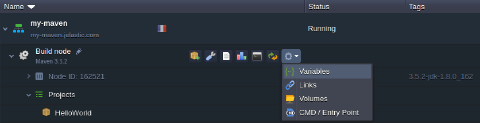
- Click the Additionally button next to your Maven node and navigate to the Variables section.
 2. In the opened window, you’ll see the list of default variables for the stack, which can be adjusted up to your needs.
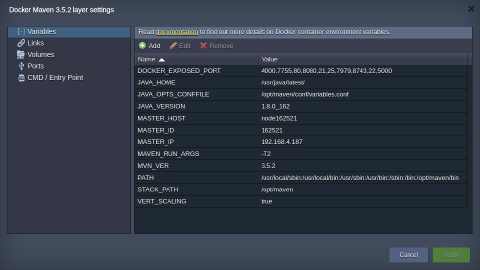 Below, the Maven-specific variables are listed:
- MAVEN_OPTS - allows to define values for the most essential Java server options, e.g., -Xmx, -Xms, -Xmn, etc
- MAVEN_RUN_ARGS - specifies additional Maven command-line parameters, which should be set for all Maven projects (for example, to define the number of process threads)
- MAVEN_RUN_ARGS_{project} - sets additional parameters for a particular project; herewith, note that the {project} name should be stated with underscores “_” instead of spaces and dashes
- MAVEN_DEPLOY_ARTIFACT - defines an artifact to be deployed (all projects)
- MAVEN_DEPLOY_ARTIFACT_{project} - provides an artifact for a particular project (higher priority than MAVEN_DEPLOY_ARTIFACT)
In this way, with the platform you can take a full control over the Maven build node and configure it as required according to your Java project specifics.