
DNS Hostnames for Direct Connection to Containers
This guide is maintained for Ruk-Com PaaS. Screens and options may vary by platform version and account permissions.
Confirm the environment, region and account permissions, and back up current settings before changing a production system.
Objective
This guide explains how to use DNS Hostnames for Direct Connection to Containers on Ruk-Com Cloud PaaS, with ordered procedures and practical verification points.
Before you begin
- Sign in with an account permitted to manage the relevant environment.
- Confirm the target environment, region and resources before saving changes.
- Create a backup or rollback plan before changing a production system.
Simple connection to cloud services is an extremely important criterion for developers: each newly created node is automatically assigned a hostname pointing to its internal IP/outsideof the appropriate server
Depending on the type of node created and the set of hostnames for the node may be different. The sections below discuss how to reference nodes specifically for hosts at Ruk-Com Cloud internally (e.g. when managed throughSSH Gate) or outside the Cloud:
- The hostname is specific to the container.
- Optional hostname for a specific node type.
- The hostname for a particular layer.
- Short host name for containers within one environment.
- The host name for the container association.
The hostname is specific to the container.
Each container at the platform can be reached by its internal IP address with a URL in one of the following formats:
- node${nodeId}-${envName}.${platformDomain}
- node${nodeId}.${envName}.${platformDomain}
In this case, replace the placeholder value with the following value:
- ${nodeId} - Automatic generation of a unique number that is assigned to every container within the platform.
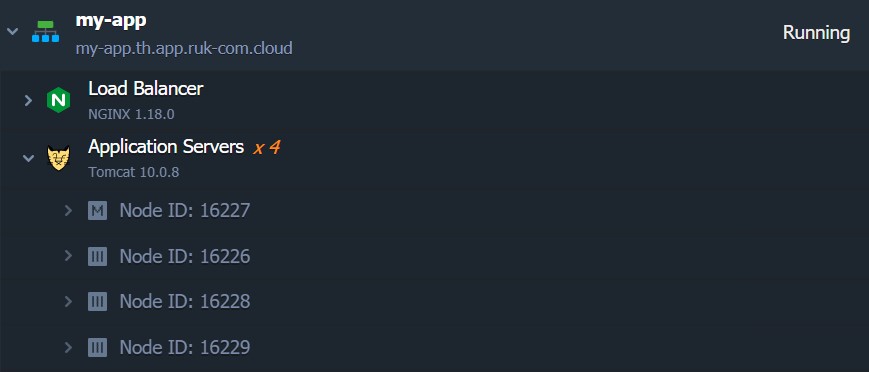
- ${envName} - environment name (not alias) specified during creation
- ${platformDomain} - Domain name of the Ruk-Com Cloud installation.Hosting provider
Both variables can be used to refer to nodes from within or outside the platform (e.g. allowing both internal and external connections to be established).
Optional hostname for a specific node type.
Qualified stacks have an additional hostname prefix (e.g., use the appropriate stack name instead of a node string) to make management easier.
Note:This prefix can only be used for domains with a hyphen (-) as a separator.
All secondary domains listed in the table above can be used as host names for specific containers.
The hostname for a particular layer.
For a new environment, you can get the internal IP address of a container in the same layer node using the following hostname:
- ${nodeGroup}.${envName}.${platformDomain}
${nodeGroup} is the name of the specific layer that the container needs to reside on. By default Layers are named according to the appropriate nodeGroup specific role.
Note:Node groups added through extra layers in the topology wizard are named in the same way but with${N}appropriate index Also, the default layer in the topology wizard (e.g. bl, cp, sqldb, etc.) is considered the first index, so counting additional layers starts with the second, e.g. cp2, cp3, cp4, … (except extra, extra2, extra3, …). For example: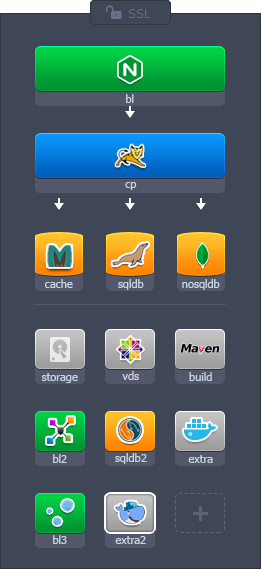
For example, this command can be used to get a list of application servers for any environment within the platform:
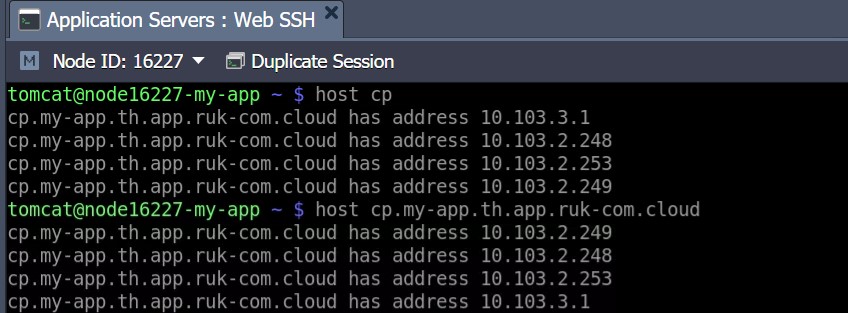
Tips:To get a list of containers for the current environment, you can only use the short hostname.
Also, every time a new container is created (deleted) in the system, the appropriate history is automatically added to (removed from) DNS for the layer's hostname.
Short host name for containers within one environment.
All newly built Docker containers and stacks managed with Ruk-Com Cloud provide DNS-specific rules that allow additional simple hostnames:
- node${nodeId} - An alias to refer to containers in the scope of a single environment.
- ${nodeGroup} - An alias to refer to the scope of a single environment layer.
Using short hostnames The application's source code and SSH console (frequently used internal commands such as ping, host, dig, etc.) make it easier to work with Dockerized stacks across the platform's internal network. In addition, this method also helpsMoving the environmenttohardware regionOthers are not difficult and do not require modifying your code due to changing server locations.
The host name for the container association.
When linking two Docker environment layers, a set of DNS records is automatically added to the global Ruk-Com Cloud database. This helps refer to nodes within the target layer from the source node. (but not vice versa) when operating in the scope of two layers using the following alias hostname:
- ${linkAlias}- Refers to a random node within the target layer. The correct nodes to respond are selected using a Round-Robin algorithm - this ensures even distribution of the load.
- ${linkAlias}_${N}- to access a specific container within the target layer The appropriate placeholder will be replaced.
- ${linkAlias}- link name specified during setup (e.g. tomcat in the image below)
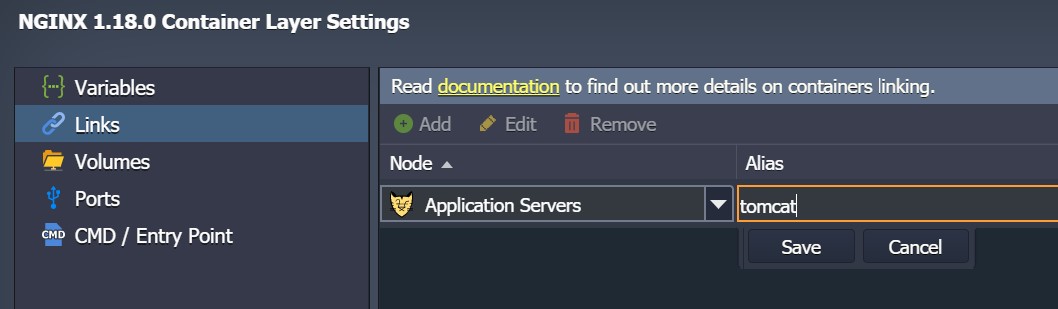
- ${N}- Number in the range (1…N) of a specific container within the linked layer target (e.g. tomcat_1, tomcat_2), etc. Also, the parent container is always considered instance 1, while the remaining layer nodes are numbered based on their nodeID values in ascending order. (start with index _2, then _3, _4, etc.)
For example, if there are 3 containers on the layer - with ID 123, 124 (master) and 125 according to the usage described above. The alias will be defined as follows:
- alias_1- Link to container 124 as parent node
- alias_2- will point to instance 123 as it has the lowest ID among the remaining containers.
- alias_3- Reference to container 125 is the next one with the lowest nodeID.
Tips:When connecting environment domain to alias${linkAlias}.${envName}.${platformDomain}The associated layer names are editable and externally accessible, that is, accessible from anywhere on the Internet and. ${linkAlias}_${N}The corresponding container of a linked layer can only be edited internally.
Now you know all the specifics and shortcuts that can be used to refer to your node. This helps organize connections between your application instances quickly and efficiently.