
Custom Container SSH Access
This guide is maintained for Ruk-Com PaaS. Screens and options may vary by platform version and account permissions.
Confirm the environment, region and account permissions, and back up current settings before changing a production system.
Since custom containers don’t have the embedded GUI for their management, the most common way to take the full control over such an instance is connecting to it under the SSH protocol and perform any desired operations inside using the corresponding terminal commands.
Note: With the PaaS, the majority of the required configurations can be performed directly through the dashboard without the necessity to use SSH, thanks to the following tools:
- Container Configurations - allows to customize the main container settings (like variables, volumes, linking, run options, opened ports, etc.)
- Configuration Manager - provides the full root access to the container’s file system, allowing to operate with all of the comprised files
In addition, you can leverage the platform-dedicated CLI client, which provides the advanced remote management for all types of environments and nodes and allows to automate your app’s lifecycle via scripts.
SSH connection to a container can be established in two ways:
-
through the SSH Gateway as for any other environment. The flow will be the following:
- generate an SSH keypair
- add your public SSH key to the dashboard
- access your account via SSH protocol
-
or, if you don’t want to use SSH keys, you need to attach the public IP address to the required node and perform the next steps:
- open your terminal emulator
- enter the ssh [username]@[hostname] string, where the username is your login, and hostname is the Public IP address (you receive these credentials via email everytime a new container is created or added to the environment)
- specify the requested password (can be found in the email also)
Once you’ve entered your container, you can perform any required configurations, thanks to the full root permissions granted.
Note: If you’ve faced any problems during establishing the connection, check the firewall rules for your container and ensure it has the openssh server running.
Reset Password
In case you’ve forgotten your container’s credentials or lost/deleted the appropriate email, you can restore them at any time - simply choose the Reset password option within the expandable Additional list (the gear icon) for the necessary node (or set of them):
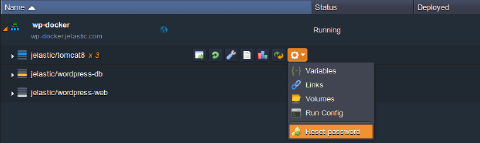 As a result, you’ll receive a new password via email and can use it for operating your container(s).