
How to Update Installed New Relic Monitoring Add-on
This guide is maintained for Ruk-Com PaaS. Screens and options may vary by platform version and account permissions.
Confirm the environment, region and account permissions, and back up current settings before changing a production system.
Objective
This guide explains how to use How to Update Installed New Relic Monitoring Add-on on Ruk-Com Cloud PaaS, with ordered procedures and practical verification points.
Before you begin
- Sign in with an account permitted to manage the relevant environment.
- Confirm the target environment, region and resources before saving changes.
- Create a backup or rollback plan before changing a production system.
To keep up with the featuresNew RelicThe platform's latest monitoring provides an embedded update option specifically for add-ons. It checks newly released agent versions for match with their respective repositories and allows updates in just a few clicks without the need for manual intervention. Let's see how to do this.
New Relic Agent Updates
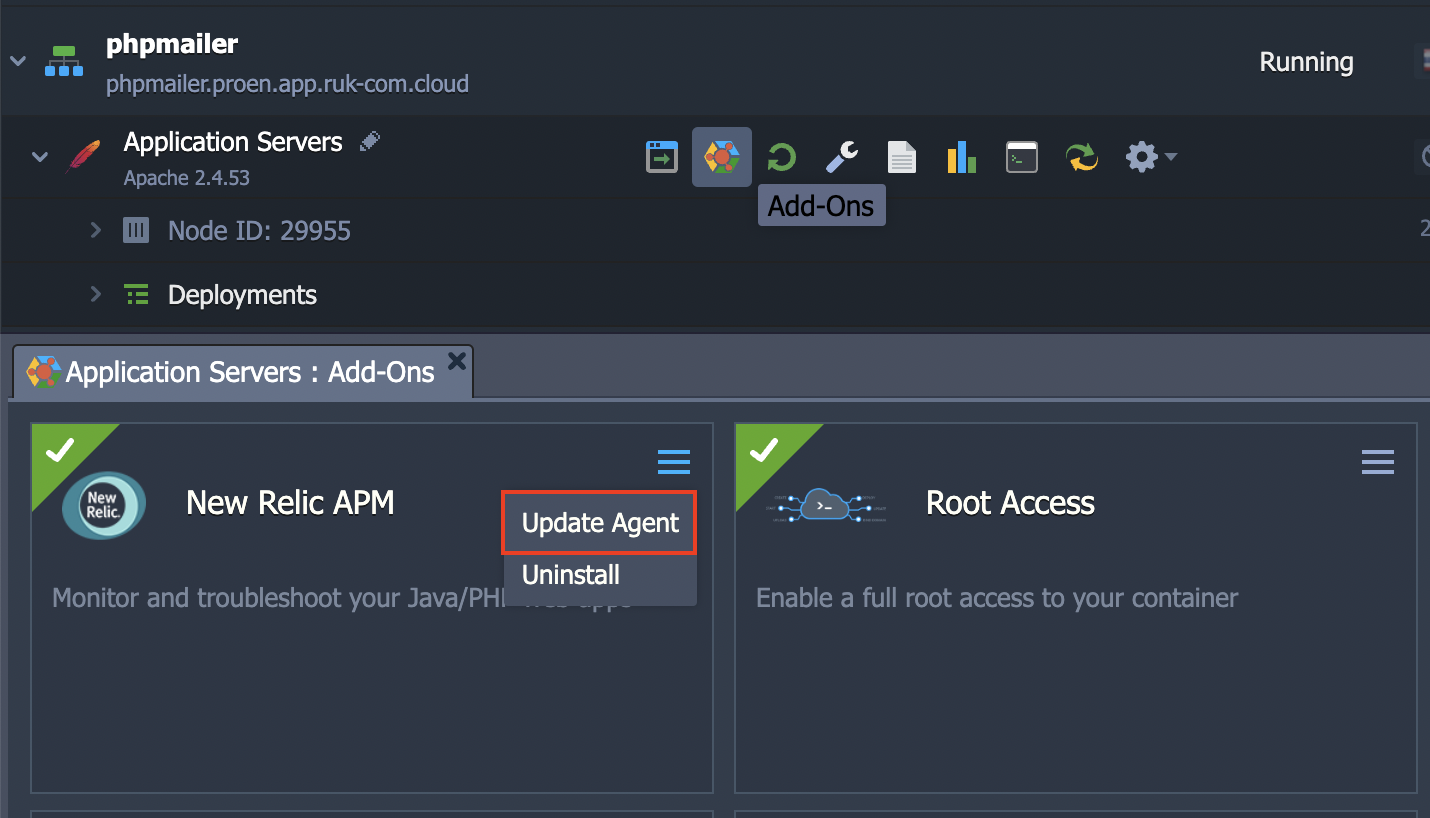
To know if there are any updates to the New Relic agent available, click on the "New Relic agent" section.Add-onsfor the desired node and search for the marked New Relic.
Click on the gear icon in the top corner and select options.Update AgentIn the right menu item:
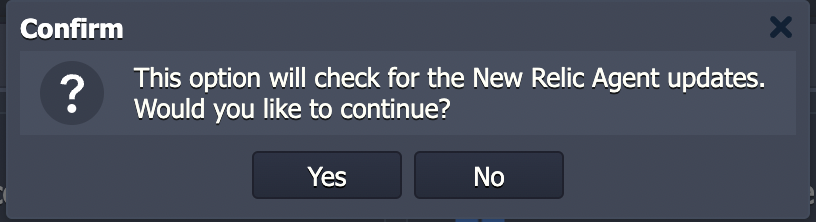
A Confirm popup will appear to begin checking for available updates. Click it.Yes
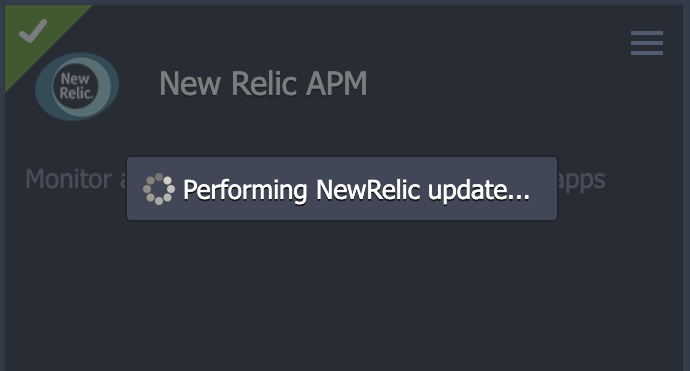
The required files (if any) will be downloaded and installed.
After the add-on has been successfully updated, you will see a corresponding popup on the top right of the dashboard instructing you to restart your instance to apply these changes.
So follow this trick by clicking the appropriate button next to your application server.
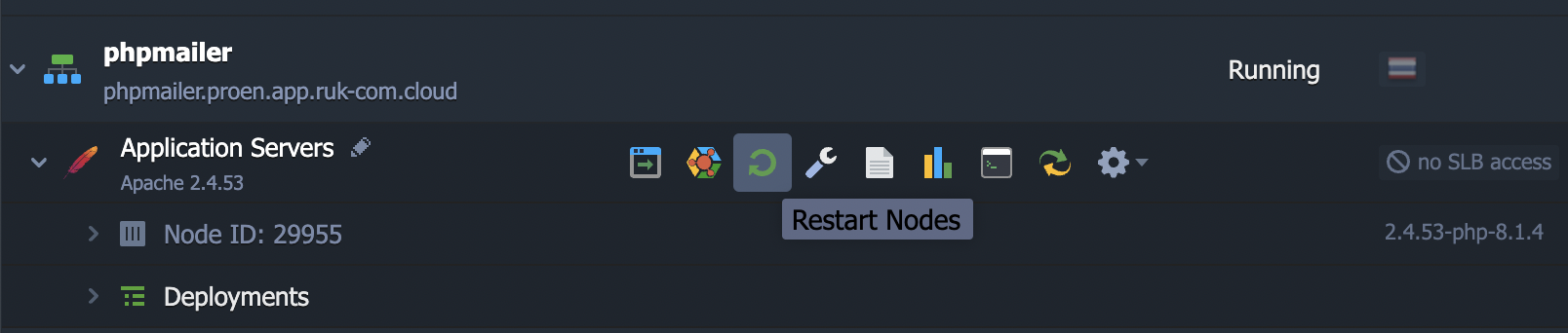
Note that if your project is running in a single app server node, restarting it will pause your application, so you can decide when to execute it.
However, in case your server app isResize horizontallyDowntime is reduced because all server instances are restarted sequentially. You can fix this inconvenience by setting a delay for this operation on each subsequent node within the layer. While one node is undergoing maintenance, the remaining nodes will remain operational.
That's it, your New Relic is now updated and ready to use.
You can check the current version as follows:
- forJava app servers: inside filelogs/newrelic_agent.logLocated in a specific directory with add-on files (path list depends on server)
- forPHP servers: passphpinfo()output
This way you can always stay updated with the latest features from New Relic.