
Built-In SSL
This guide is maintained for Ruk-Com PaaS. Screens and options may vary by platform version and account permissions.
Confirm the environment, region and account permissions, and back up current settings before changing a production system.
Built-in wildcard SSL by the platform is an excellent solution for those who are searching for a quick and reliable way to secure their website. The built-in SSL certificate (can be referred to as {hosterName} SSL in the dashboard) offers:
- Convenient Management - configured and working SSL with a single click in the topology wizard.
- Fast Validation - domain level verification, including your site check and security seal issuing, is performed in a matter of minutes.
- Enterprise-Level Data Encryption - the strength provided by built-in SSL certificates makes your customers feel comfortable with their security.
The built-in SSL certificate is enabled by default for all environments but can be disabled from the topology wizard if not needed. For example, for new environments:
- Log into your platform dashboard and open the topology wizard by clicking the New Environment button at the top-left corner.
 To adjust an existing environment, hover over it in the dashboard and select the Change Environment Topology button.
- In the opened topology wizard, you can set up an environment up to your needs. The SSL configuration is available at the top-left part of the frame. Here, the built-in SSL (enabled by default) can be disabled.
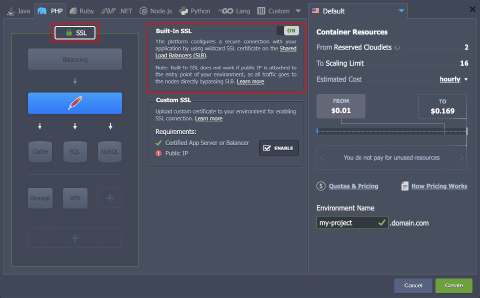
Note: Built-in SSL is incompatible with public IP address attached to your servers and is applied to the specified environment name domain only (e.g., my-project.domain.com for the image above).
Finish the configuration and click the Create button to initiate your environment installation.
When accessing an environment from the dashboard (e.g., by clicking the Open in Browser button), the communication will be automatically established over the secure HTTPS protocol.
Note: In case the built-in SSL is disabled, you may need to manually change the opened URL to HTTP to access your application.