
Running Sendmail Inside a Container
This guide is maintained for Ruk-Com PaaS. Screens and options may vary by platform version and account permissions.
Confirm the environment, region and account permissions, and back up current settings before changing a production system.
Objective
This guide explains how to use Running Sendmail Inside a Container on Ruk-Com Cloud PaaS, with ordered procedures and practical verification points.
Before you begin
- Sign in with an account permitted to manage the relevant environment.
- Confirm the target environment, region and resources before saving changes.
- Create a backup or rollback plan before changing a production system.

SendmailIt is a very popular open-source mail transfer for UNIX systems, most commonly shipped as a package with Linux, and supports many mail transfer protocols (e.g. SMTP, ESMTP, etc.) designed to route email across the Internet and internal networks.
Sendmail is included by default in all server application builds (except IIS). However, the ability to run this service in a container depends on the hosting provider's settings. The public key must be activated.
You can use Sendmail at Ruk-Com Cloud by following these steps:
Enabling Sendmail
The easiest way to enable Sendmail is to open it.public IPat your application server through the topology wizard (whileCreate environmentor you can press the buttonChange Environment Topologyfor the environment already created)
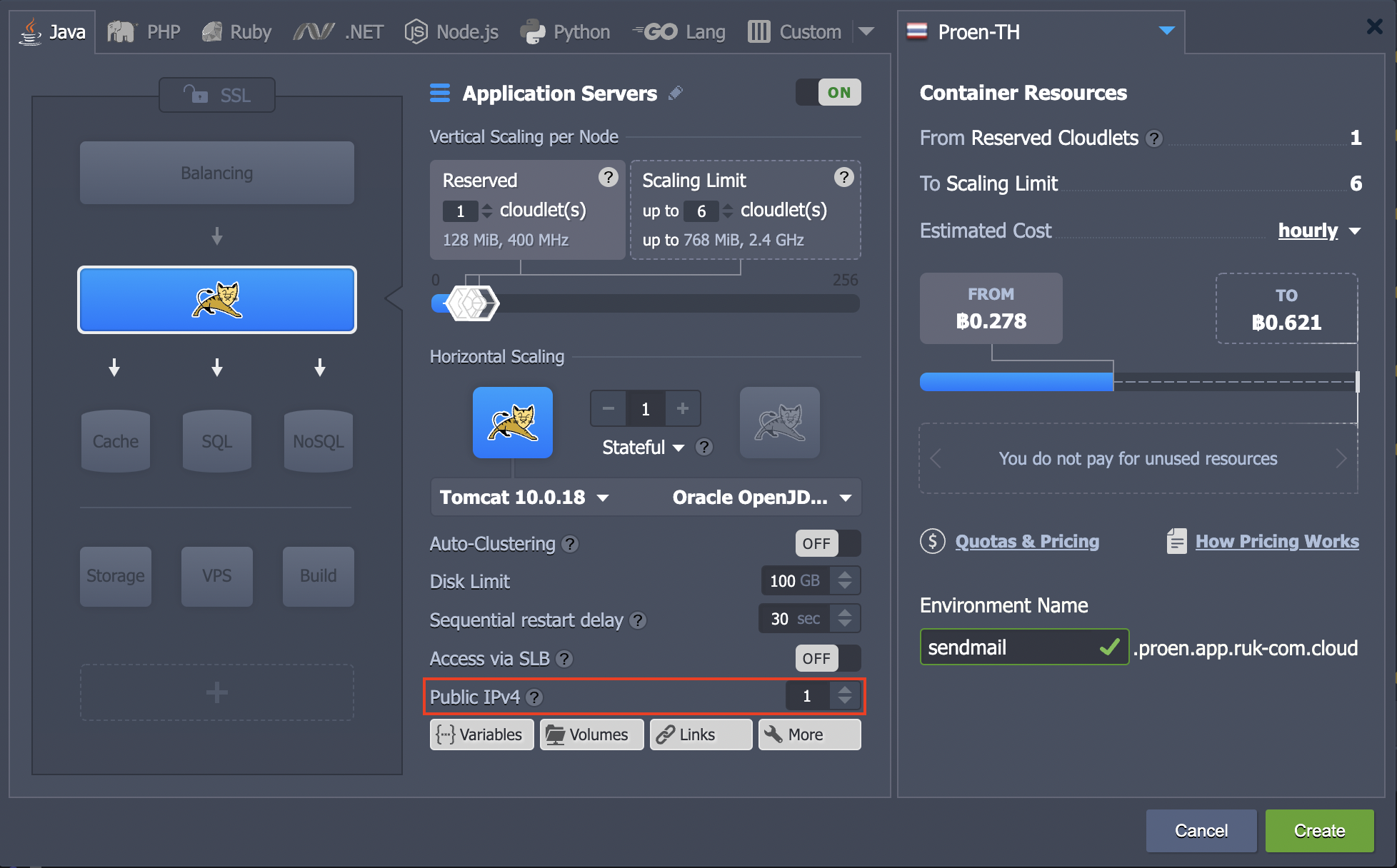
Once your environment has a public IP, the Sendmail service will automatically start. You can start using it right away.
Sending messages via Sendmail
You can see how Sendmail works by sending a simple test email.
1. Connect your application server viaSSH
2. Type the instructions below to send the letter.
echo "{text}" | sendmail -f {from_address} -v {to_address}where:
- {text}- Text in your letter such as Ruk-Com PaaS - Unlimited PaaS and Container-Based IaaS
- {from_address}- Sender's email address in format[email protected]
- {to_address}- Recipient's email address in format[email protected]
3. To make sure everything is working properly. You go into the email account you sent the message to and check your inbox for new messages. (Delivery may take 2-3 minutes)
You can now use Sendemail. If you are interested in more detailed configuration and complex workarounds, you can check outthis documentYou can add more.