
CLI Overview
This guide is maintained for Ruk-Com PaaS. Screens and options may vary by platform version and account permissions.
Confirm the environment, region and account permissions, and back up current settings before changing a production system.
Objective
This guide explains how to use CLI Overview on Ruk-Com Cloud PaaS, with ordered procedures and practical verification points.
Before you begin
- Sign in with an account permitted to manage the relevant environment.
- Confirm the target environment, region and resources before saving changes.
- Create a backup or rollback plan before changing a production system.
The Command-Line Interface (CLI) is designed to simplify interaction with the cloud platform, helping to execute necessary commands through your local terminal. You can manage remote working and many other capabilities through the dashboard and API.
The main benefit of the CLI for developers is that it provides advanced automation tools and is relatively easy to use. There are simple commands that can be grouped into scripts, and that way you can achieve a variety of purposes: from automation of common tasks. Monitoring app operations and managing complex DevOps processes
Let's install Ruk-Com PaaS CLI and learn the important points of using it before proceeding further.
After that, you can dive into the Ruk-Com PaaS CLI tutorial on specific operations.
CLI Installation
To install Ruk-Com PaaS CLI, you need to run this command on your machine via terminal.
curl -s ftp://node.example.ruk-com.cloud/pub/cli/jelastic-cli-installer.sh | bashNote:
- Please make sure you installJavaYour device is version 1.7 or higher.
- If you are using a Windows OS, you will need to install a Unix-like environment first, e.g.Cygwinand run all appropriate commands within it.
So Ruk-Com PaaS CLI will be installed to the folderRuk-Com PaaSat directoryhomeYour folder structure and the bash scripts within it reflect the hierarchy.Ruk-Com PaaS APIThis results in complete similarity of the work processes involved. So you can quickly become familiar with our CLI.
Getting Started
The basics of Ruk-Com PaaS CLI are illustrated with an executable.jar file and pre-configured commands (bash script) for executing these commands. You can check the work Control and automate the cycle of the environment.
1. The first step should be through authentication which is automatically called when the CLI command is used for the first time, such as:
Answer the questionnaire questions that appear by specifying the values:
- Platform URL- Ruk-Com Cloud installation URL in the app"app.manage.Ruk-Com.cloud"
- Email- Email (login) associated with your account
- Password- Password for your account
If the entered information is correct You'll see the Ruk-Com PaaS logo and the current platform version.
Tips:Authentication can be initiated manually. For example, if you want to switch the current session and log in as a different user or at a different Ruk-Com PaaS installation, you can use the following command:
~/Ruk-Com PaaS/users/authentication/signin --login {email} --password {password} --platformUrl {platformUrl}
The value in the curly braces { } is replaced with the relevant account parameter. (described above)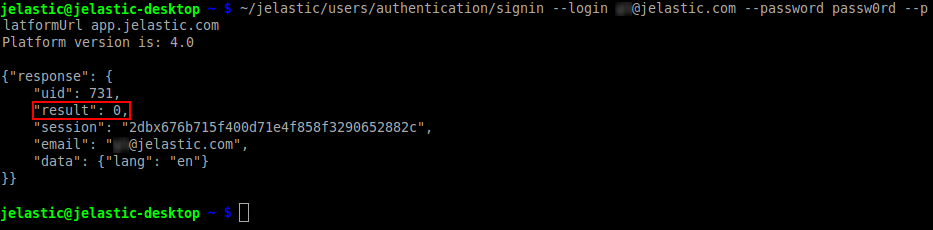
“result”: 0 means that the operation passed successfully and without errors. This behavior means that all of your commands are running.
2. Information about the actual user session (such as your platform address and credentials) is stored in a file.~/.config/Ruk-Com PaaS/Ruk-Com PaaS.propertiesAutomatically generated and will automatically retrieve data when needed. This allows you to focus on operations without having to go through repetitive authentication steps.
By default, CLI commands are considered successful even if the API method called returns an error. You can change this behavior with the parameter.Ruk-Com PaaS.non_zero_exit_codeBy adding a configuration file It determines whether the CLI command should respond with zero code as normal (false - default) or with a non-zero code when the API method that executed it returns an error (true).
3. In case you are new to the API and need details on the command-line interface structure, you can access the embedded help file.
~/jelastic/helpWith this command you can view a hierarchical list of available command types (methods). Each method has a unique folder with the same name that contains several scripts (i.e. available functions) within it.
4. List of all possible actions for a specific method. You can use a simple command to display entries for the appropriate directory. For example:
ls ~/jelastic/environment/controlEach proposed function can be called using the full path to that function.
5. Additional information for specific relevant operations. You can run it without parameters to see a list of all missed requirements.
You can check the documents.APIFor more information
6. By default"loading"It is displayed while waiting for any command to be executed. This image shows the action currently in progress.
However, if you want to save the response to a file (such as for use in some automation tasks), this element may be redundant and break the JSON formatting. Hiding the loading animation can be done using the following command:
--silent trueThis way your automation script can immediately use the output it receives without further editing.
Tips:The installed CLI will automatically check for updates. When there is a new version You'll see a relevant notification with upgrade instructions.
CLI Tutorials
Ruk-Com PaaS CLI guarantees full remote management functionality, working for all types of environments and applications, supporting all suitable operations from the simplest to the most complex. We offer some examples of usage:
- Creating the environment
- Starting/stopping the environment
- Cloning an environment
- Moving the environment
- Scaling the server
- Redeploying a container
- Container volume
- Mount Points
- Redeploying a VCS project
- Switching public IPs
- Installing JPS
Once you understand the concept of how to work with Ruk-Com PaaS CLI, you can start creating your own automation scripts for frequent actions for environment cycles. You can find complete information about all available commands and methods in the documentation.Ruk-Com PaaS API