
Install PalWorld on Ruk-Com Cloud
This guide is maintained for Ruk-Com PaaS. Screens and options may vary by platform version and account permissions.
Confirm the environment, region and account permissions, and back up current settings before changing a production system.
Objective
This guide explains how to use Install PalWorld on Ruk-Com Cloud on Ruk-Com Cloud PaaS, with ordered procedures and practical verification points.
Before you begin
- Sign in with an account permitted to manage the relevant environment.
- Confirm the target environment, region and resources before saving changes.
- Create a backup or rollback plan before changing a production system.

“Palworld” is an open-world game that combines raising and training fantasy creatures called “Pals,” exploring, gathering resources, building, and fighting. It is similar to “Pokémon,” but more violent and fun, including the use of “Pals” in a variety of activities. Currently, we can open the server and play with friends through Ruk-Com Cloud.
Apply for membership and top up credit
First of all, we recommend that everyone apply for membership and upgrade their account to be able to use sufficient resources for Palworld Server. If you do not upgrade, you will not be able to start the server because Trial customers will have resource limits.
Installing Server Palworld via Marketplace
1. LoginRuk-Com Cloud
(Account Trial cannot be used because it requires more than 4GB of CPU and Memory.)
For new customers, register at the menu.Signup
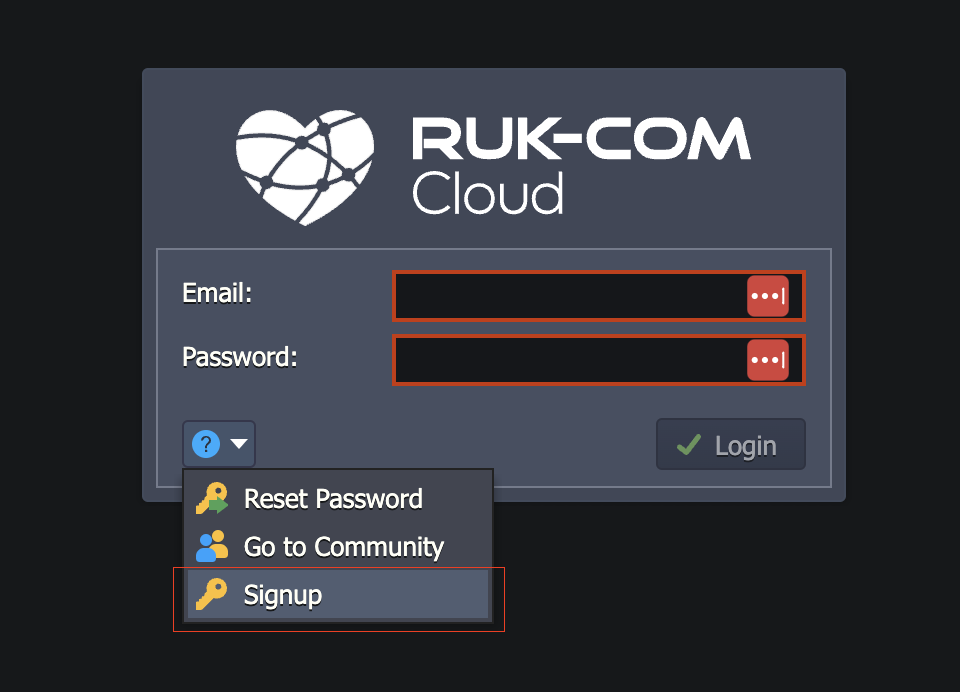
After successful registration, top up credit for using the service.

After successfully upgrading the account, the customer will receive credit for using the service.
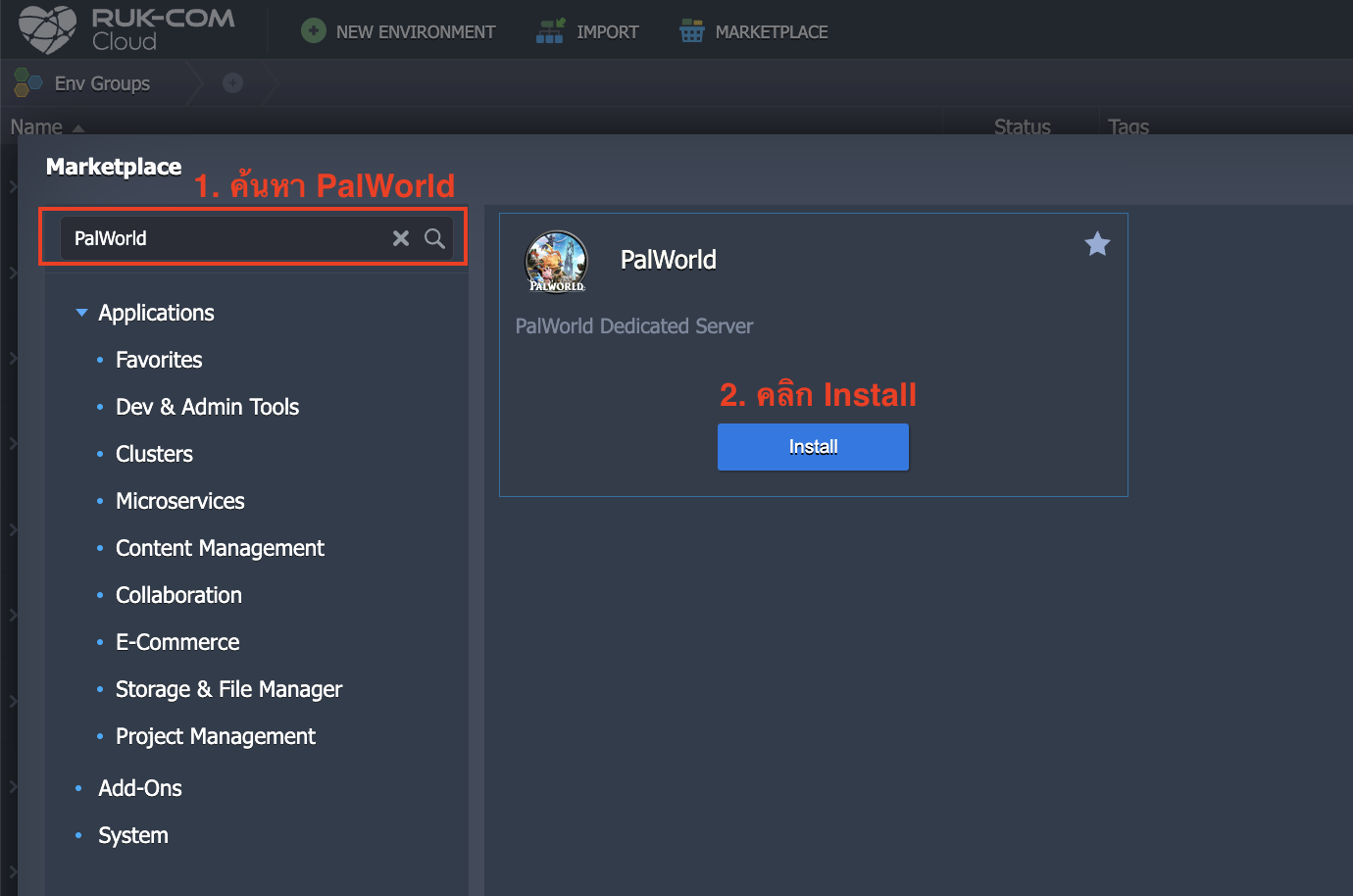
2. Enter the menuMarketPlacethen searchPalWorld-> ClickInstallTo create Environment
3. SelectRegionPalworld name (only)
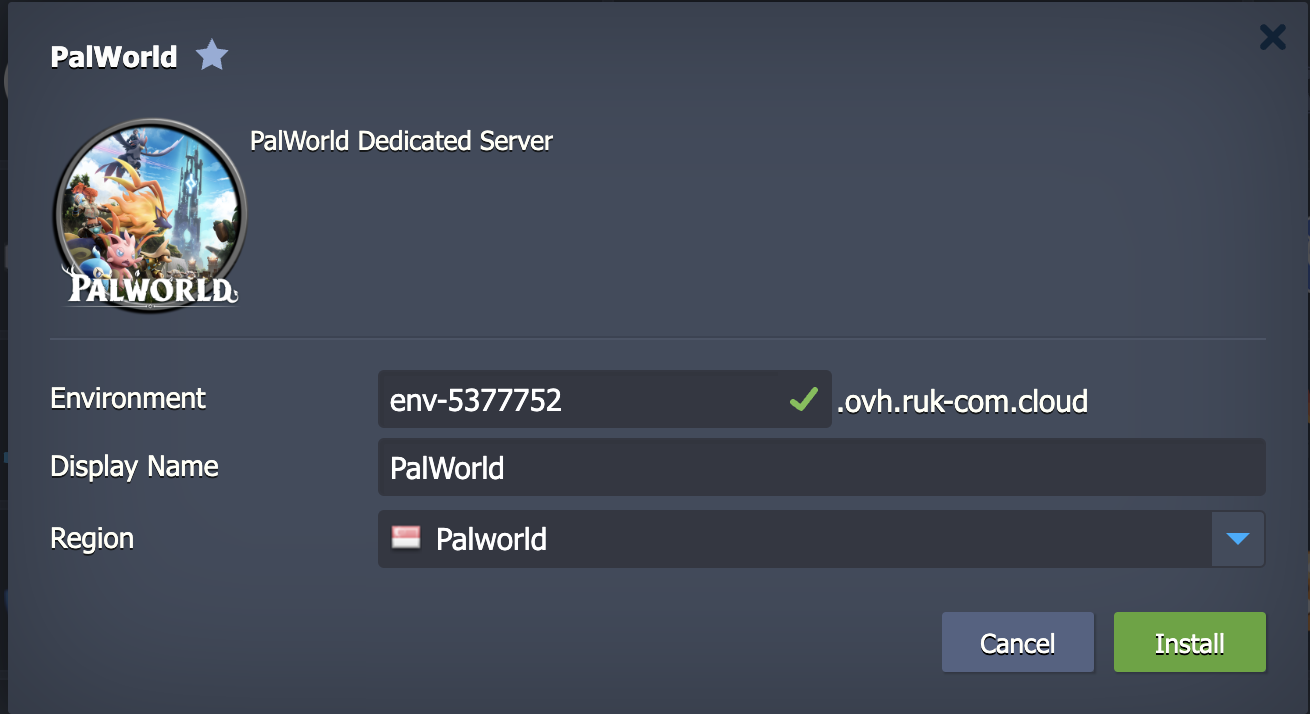
** Palworld Server is a special zone that has a DDOS Protection system and is specifically designed for running game servers.
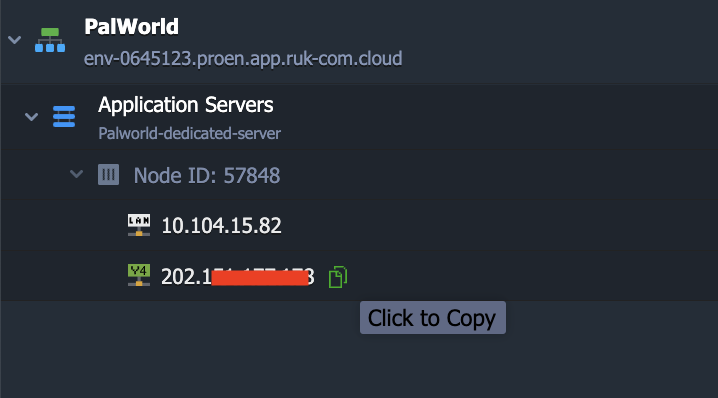
4. After creating the Environment, the customer will receivePublicIPTo be used to connect to the game By working through port 8211
Example
121.200.121.15:8211
Connecting to the game
Download games via Stream athttps://store.steampowered.com/app/1623730/Palworld/

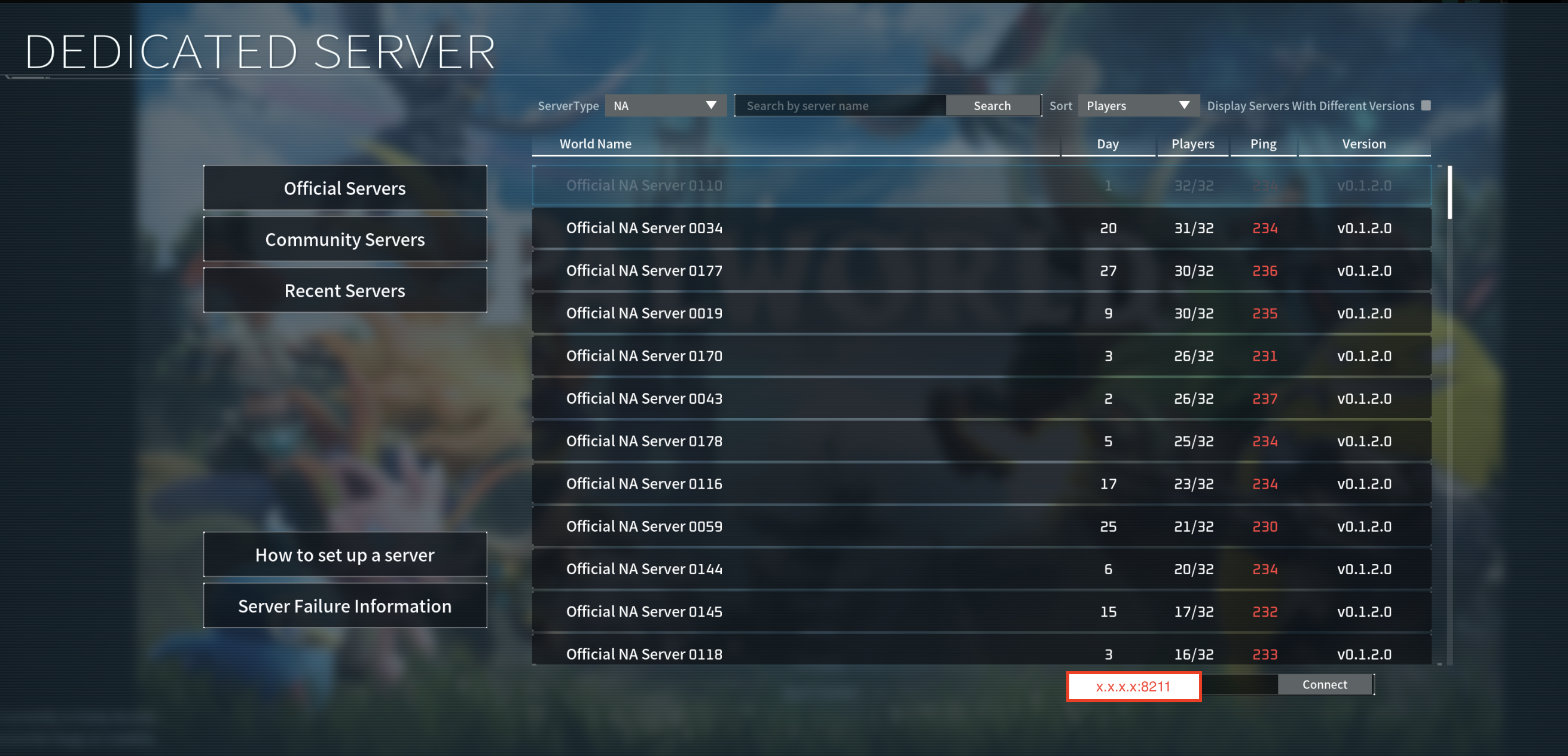
You can enter the IP Address from the system and connect via port 8211 and press Connect to connect to the game.
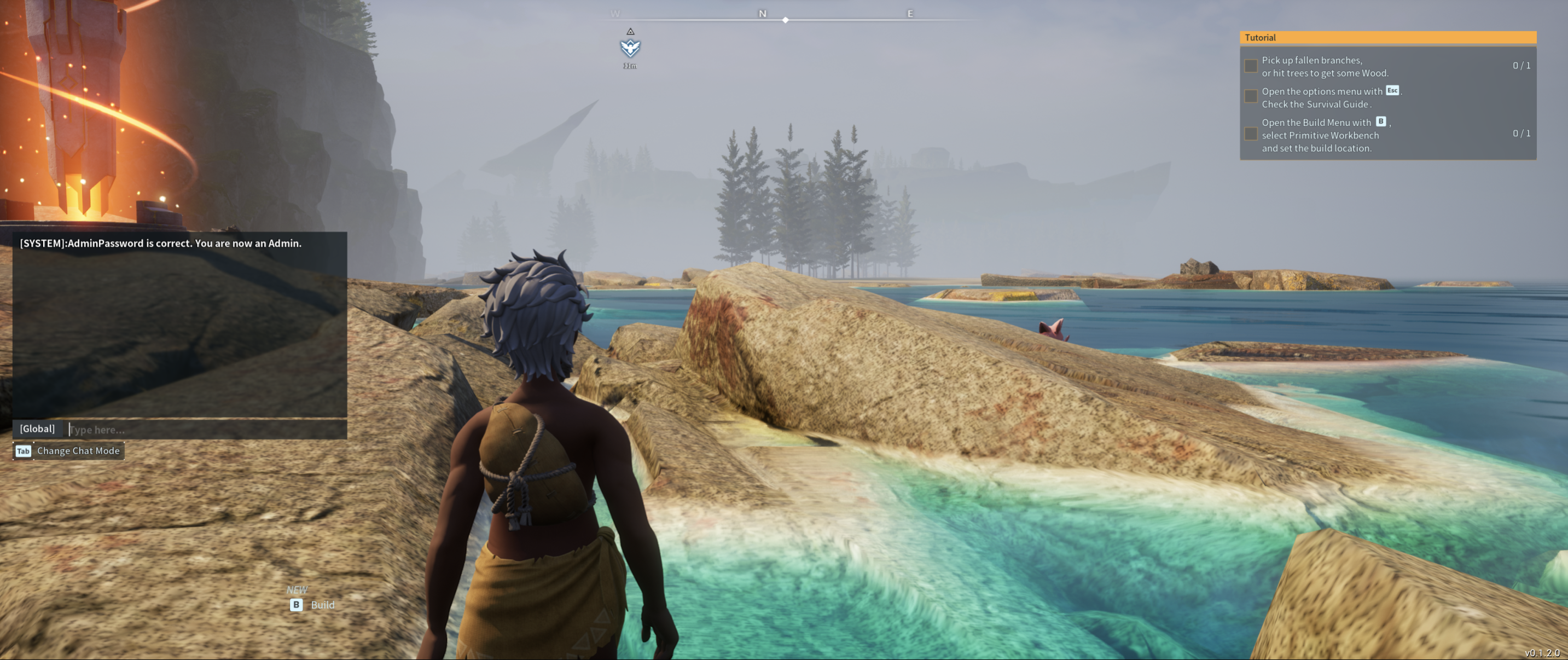
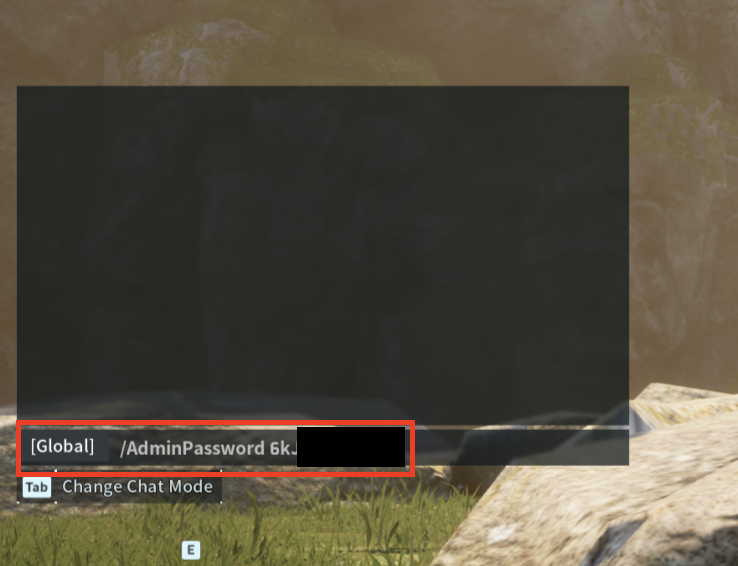
You can change to Admin Mode by typing a command in the game's chat box. /AdminPassword {password}
Customizing basic game settings
Before editing the Config every time, we recommend that all customers save the game and Shutdown the server first through the Command Line of Ruk-Com Cloud.
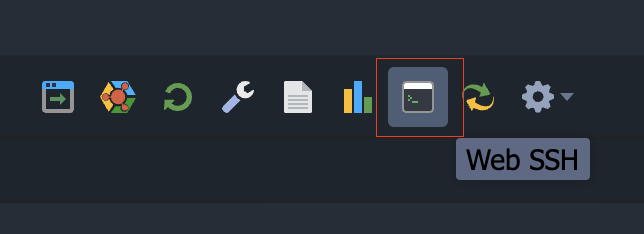
Type the command below.
rcon -a 127.0.0.1:25575 -p $ADMIN_PASSWORD save
rcon -a 127.0.0.1:25575 -p $ADMIN_PASSWORD shutdown
After shutting down the game server, customers can adjust various game config values in the Variable menu.
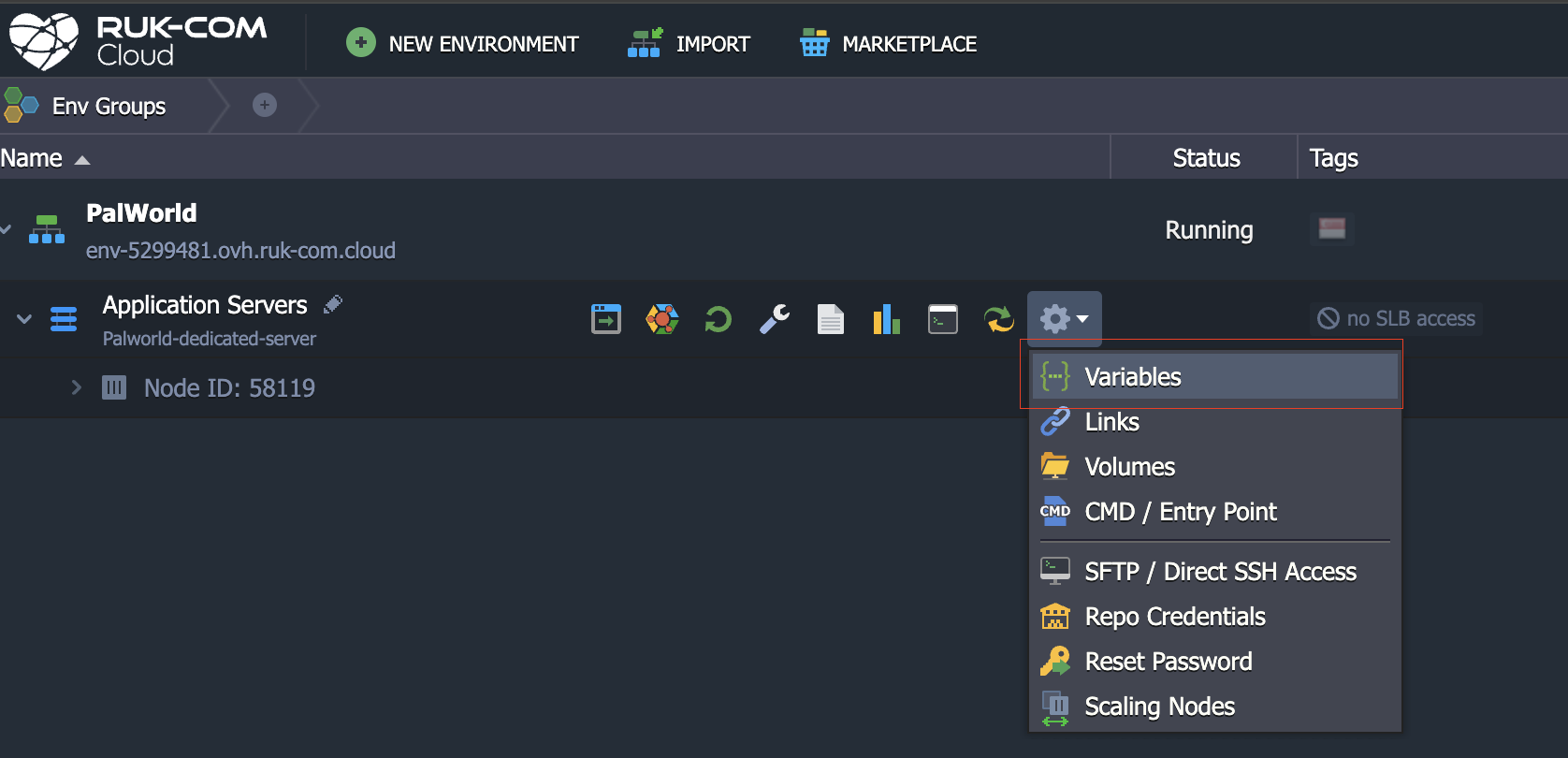
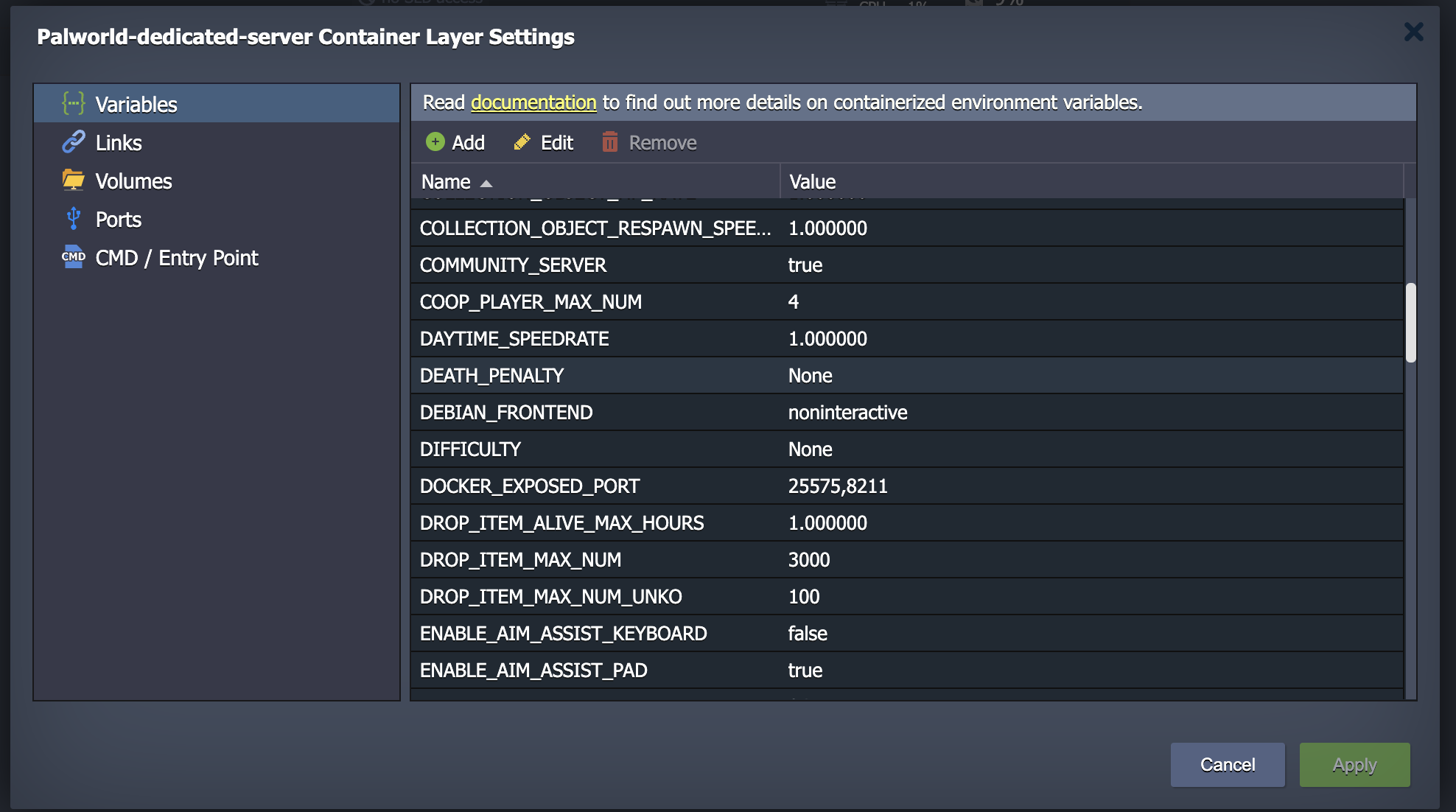
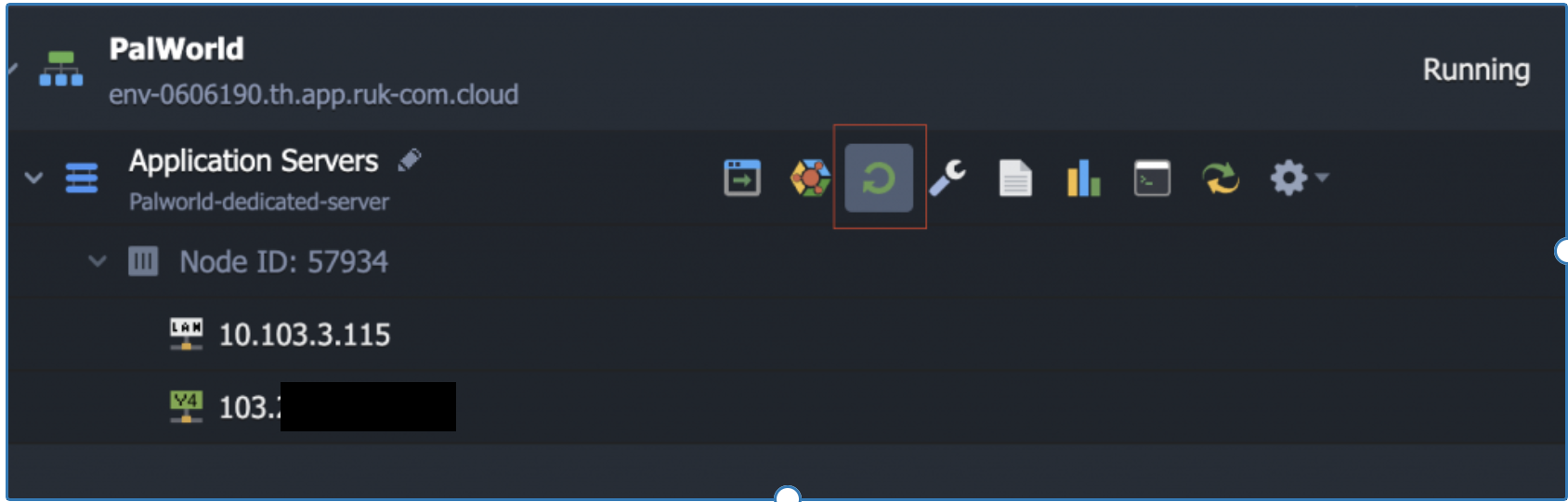
When finished adjusting the settings, press Save and start the game server again.
Calculation of price/cost of Server
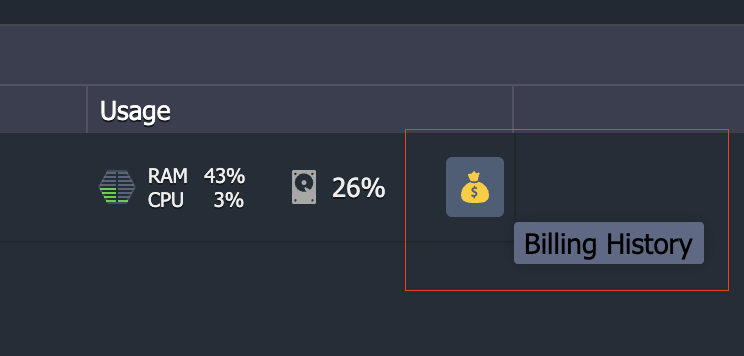
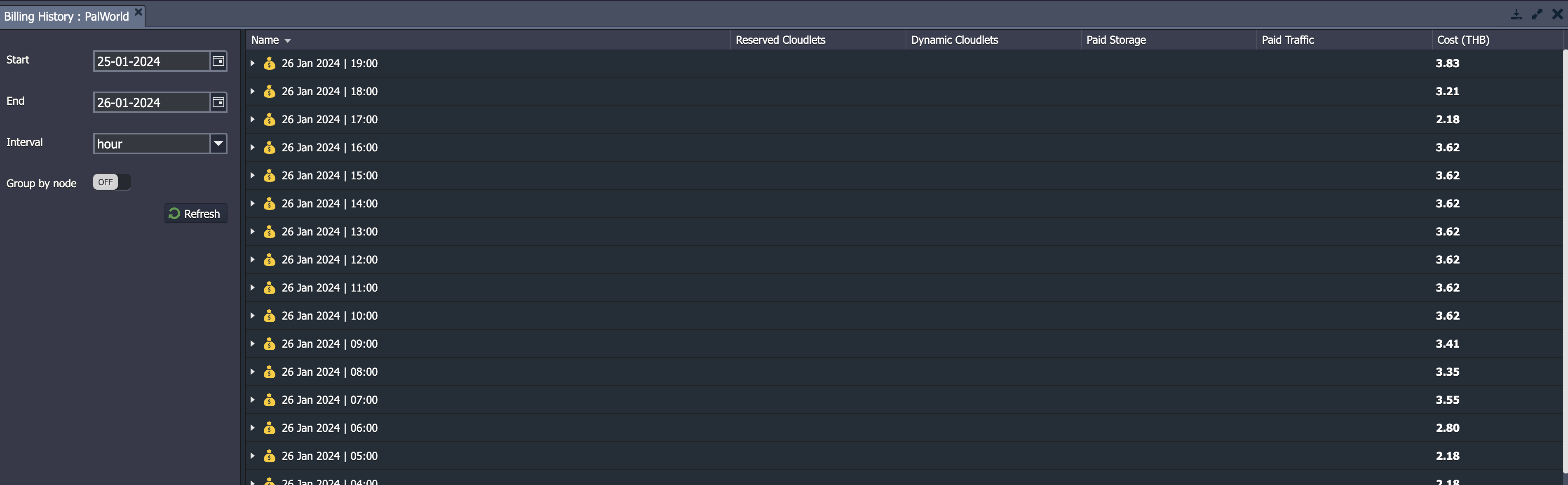
Rakcom's service is based on Pay as you go (pay according to actual use). You can see the credit deduction history in the Billing History menu.
How to use the Cloud to save money
Cloud service providers usually charge service fees based on actual hourly usage.