
Deployment Manager
This guide is maintained for Ruk-Com PaaS. Screens and options may vary by platform version and account permissions.
Confirm the environment, region and account permissions, and back up current settings before changing a production system.
The Deployment Manager is located at the bottom of the dashboard and is used to store applications to simplify their subsequent deployment into your environments. There are two subsections to provide support for the following deployment types:
- Archive - stores the application packages, which can be uploaded from your local machine or any external link
- Git / SVN - saves the link to your project within the remote Git / SVN repository and the appropriate access credentials (if needed)
Application Archives
- The Archive tab within the Deployment Manager section allows to view all application archives stored at your account. The list provides the following information:
- Name - name of the uploaded archive
- Comment - custom note for your application
- Size - size of the application archive
- Upload Date - date of the archive addition to the Deployment Manager
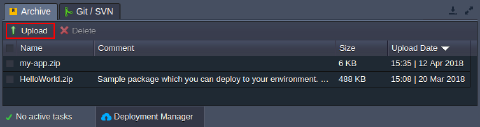 2. Click Upload and within the appeared dialog box provide the appropriate file either from your local machine (the Local File tab) or anywhere over the Internet (URL):
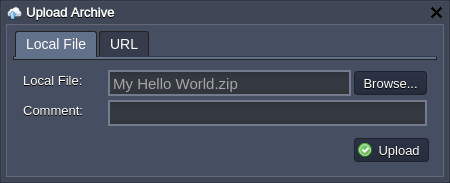
Note: The maximum archive size for the local file upload is 150 MB. If your application size exceeds this limit, please use the URL option.
Fill in the Comment field (if required) and Upload. 3. In order to deploy an application from the archive, hover over the required file and click the appeared Deploy to button.
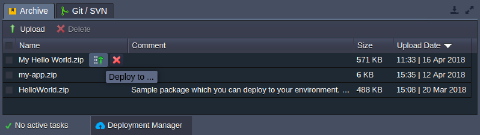 Within the opened frame you can configure deployment up to your needs.
- The no longer required archives can be removed by selecting them with the appropriate checkboxes before the name and clicking the Delete button at the top panel.
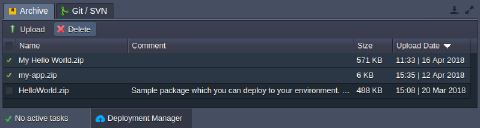 Now, you know how the archive tab of the Deployment Manager works and can use it to organize your deployment packages.
Git / SVN Projects
- The Git / SVN section of the Deployment Manager stores the link to the remote repository with your projects and, if required, the appropriate authentication credentials.
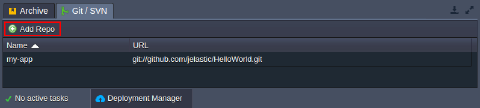 2. In order to add a new project, click the Add Repo button and fill in the fields of the appeared Add Repository window:
-
Name - name of your application (no spaces and special symbols are allowed)
-
choose the Git repo type
- URL - the appropriate URL to the repository
- Branch - the required branch of the project (master by default)
- optionally, tick the Use Authentication check box and provide either Password or Token or SSH Key based credentialsNote: If your repository is protected with two-factor authentication, you need to use the appropriate access token (e.g., for GitHub or GitLab) instead of your password.
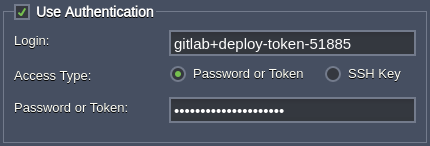 Additionally, you can manage the scope of provided permissions during the access token generation to ensure your repository safety.
-
choose the SVN repo type
- URL - link to your repository
- Login and Password - authentication credentials (if required)
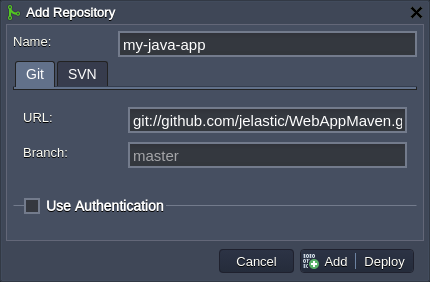 You can just Add this project into Deployment Manager or Add + Deploy to immediately initiate deployment of this application.
- Hover over the Git / SVN project in Deployment Manager to access the Deploy to, Edit and Delete options.
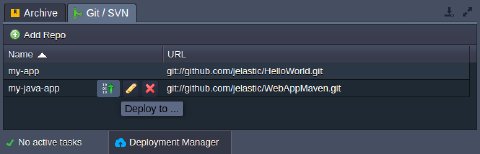 Now, you know how to manage your VCS projects within the platform Deployment Manager.