
Shared Load Balancer
This guide is maintained for Ruk-Com PaaS. Screens and options may vary by platform version and account permissions.
Confirm the environment, region and account permissions, and back up current settings before changing a production system.
The platform utilizes several Shared Load Balancer (SLB) infrastructure components to process all incoming requests (except direct connections via public IP) sent to the hosted environments. SLB is an NGINX proxy server that connects the client-side (browser, for example) and your applications deployed to the platform.
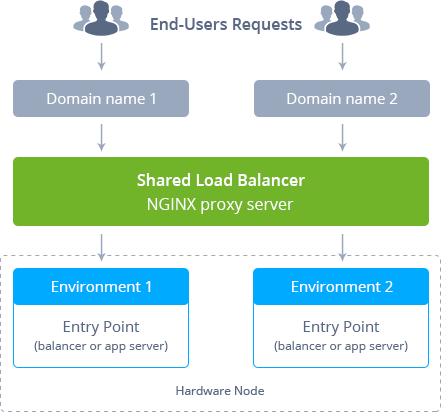 So, Shared Load Balancers process requests from outside the platform and navigate them over the internal network to connect to the required applications. SLB is also limited to 50 simultaneous connections per the request’s source address to prevent DDoS attacks.
To ensure the platform’s high availability, it uses several synchronized Shared Load Balancers (placed at different hosts) for handling requests simultaneously. All of them work with the same data storage so that they are fully interchangeable if one of the instances goes down.
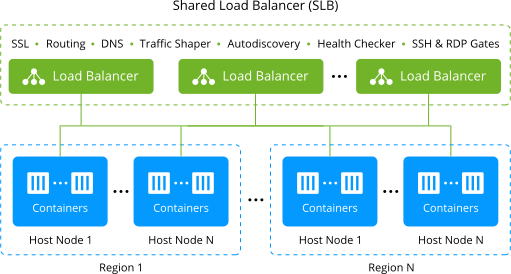
As a result, there can be several entry points for users’ environments, and the incoming load can be efficiently distributed.
Note: We recommend using SLB for your dev and test environments. As for production environments, which are intended to handle high traffic, it is more appropriate to use your own public IP for getting and processing the requests. Also, it allows you to apply several additional options to your application, making it more secure (e.g., with Custom SSL) and responsive (through attaching Custom Domain).
Backend Health Check with Shared Load Balancer
The platform Shared Load Balancer performs constant servers’ health checkups, utilizing the NGINX upstream check module with the following settings for that:
Copy
check interval=15000 rise=2 fall=3 timeout=2000 default_down=false;
In such a way, all containers are considered “up” after SLB starts. Then the system verifies nodes’ availability every 15 seconds. If no response is received from a container within 2 seconds, such checkup is regarded as failed. Three consecutive fails mark a node as “down” and two successful checks in a row - as “up”.
Tip: If an environment has several backends (application servers), the dedicated load balancer nodes are automatically added to manage traffic and perform health checks.
Deny Access via Shared Load Balancer
The platform provides a predefined option to disable external access to environment nodes from SLB. It prohibits access to containers over their default domain names with a single click (without public IP addition and firewall adjustment). An option is available as the Access via SLB toggle in the topology wizard.
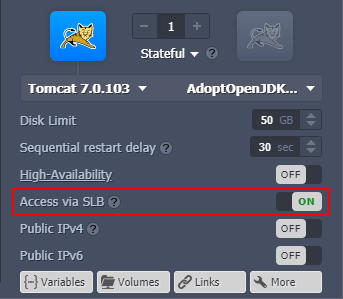
Note: The platform automatically disables Access via SLB for the layer after adding a Public IP. Such configs are recommended to provide the highest security level for your application. However, in case of necessity, you can re-enable Access via SLB to use both options simultaneously.
The option is enabled for each layer by default, which ensures the following behavior:
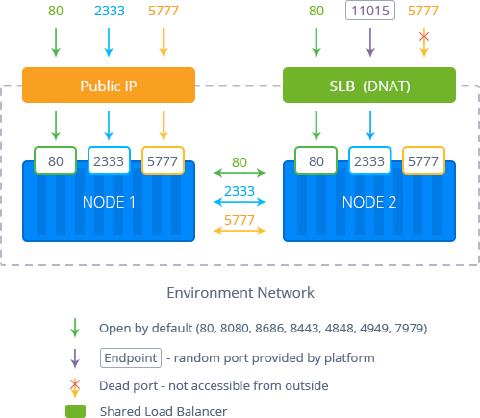
- nodes are accessible from the Shared Load Balancer via environment domain names using the default ports (80, 8080, 8686, 8443, 4848, 4949, 7979)
- the Open in Browser button opens the appropriate service (e.g., database admin panel)
- nodes’ links are present in the emails (if needed)
You can manually disable the Access via SLB feature:
- nodes are inaccessible from the Shared Load Balancer - layer is isolated from the SLB
- the pages accessible via the Open in Browser button in the dashboard return the 403 Forbidden error instead of the intended service
- nodes’ links are excluded from the emails
- access via SSH and through endpoints is not affected
For better visibility, layers with the disabled SLB access are provided with the appropriate label in the dashboard.
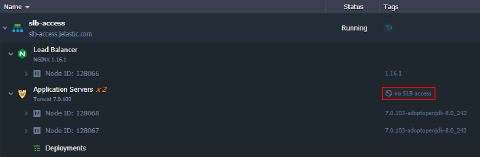 Connecting to such nodes via the default URL will return the following error page instead of the default service:
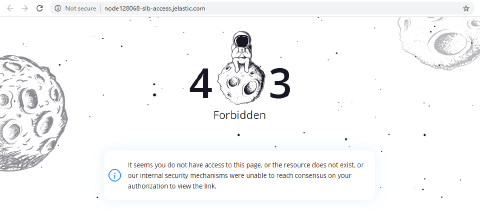 Below, we’ve prepared some of the most frequent use case examples for the feature:
- close public access via SLB to nodes that are intended for internal access only (e.g., databases)
- forbid access via SLB to nodes with public IP address attached and custom domain configured
- configure topology that allows connection via environment load balancer but prohibits access via direct URL to containers
In general, you can use the Access via SLB option for your development and testing environments. However, we recommend disabling the feature for the application in production and using public IP with a custom domain instead.