
Node.js Hosting
This guide is maintained for Ruk-Com PaaS. Screens and options may vary by platform version and account permissions.
Confirm the environment, region and account permissions, and back up current settings before changing a production system.
Objective
This guide explains how to use Node.js Hosting on Ruk-Com Cloud PaaS, with ordered procedures and practical verification points.
Before you begin
- Sign in with an account permitted to manage the relevant environment.
- Confirm the target environment, region and resources before saving changes.
- Create a backup or rollback plan before changing a production system.
In this article, we will discuss the main tools and features for NodeJS on the fast Ruk-Com Cloud platform. It is scalable and comes with powerful tools to automate management.
Environment Node.js settings
To run a Nodejs application, you will needSet upenvironment appropriately by usingTopology WizardSwitch to tabNode.jsSelect the engine version you want for your application server and other software stack, then adjust parameters such as number of nodes, cloudlets, Public IPv4.
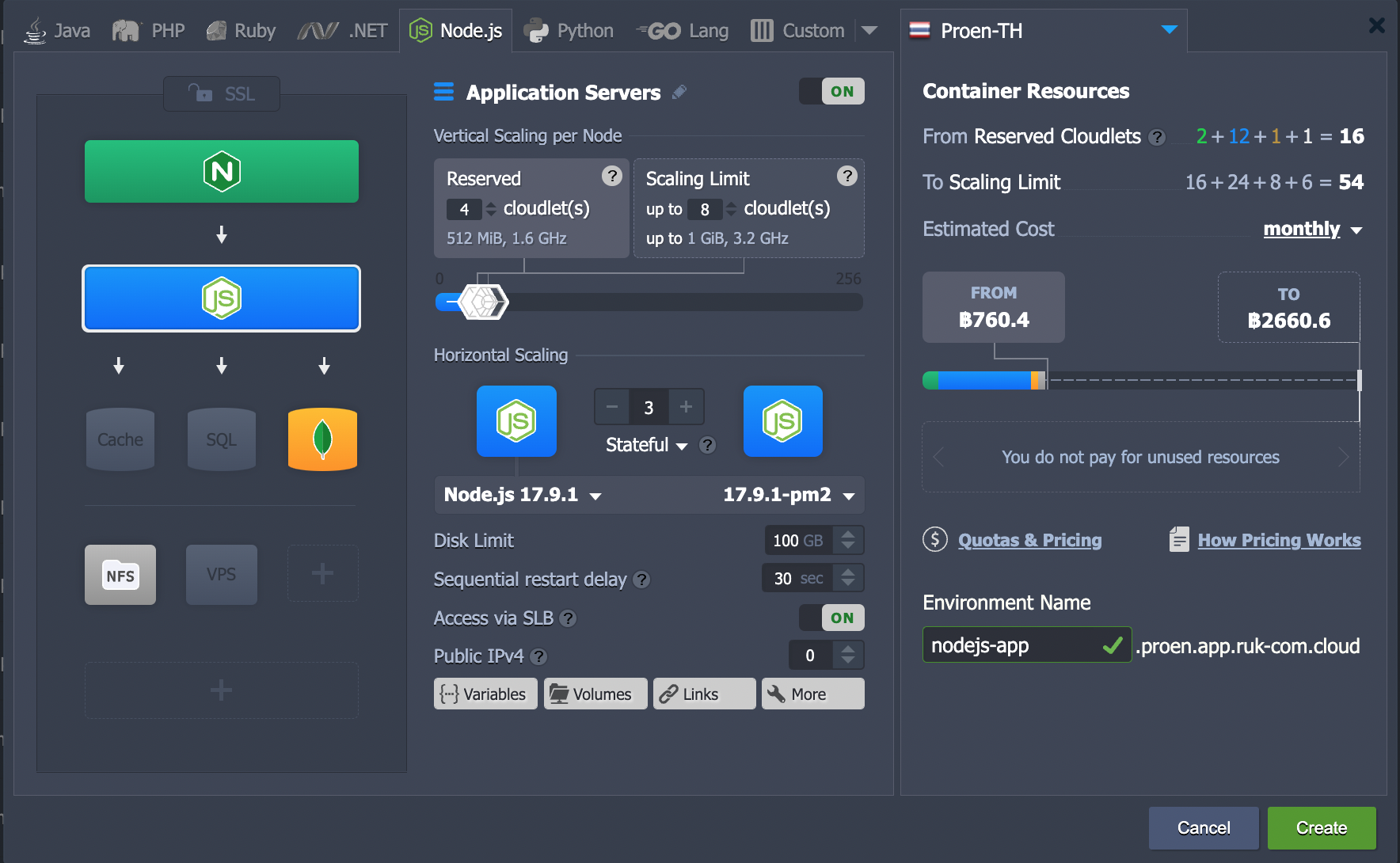
Note:Each instance is a completely separate container and Horizontal Scaling nodes are automatically distributed across physical servers (VMs) to ensurehigh availability
Node.js version
We currently support Node.js version.
- 12.x.x
- 14.x.x
- 16.x.x
- 17.x.x
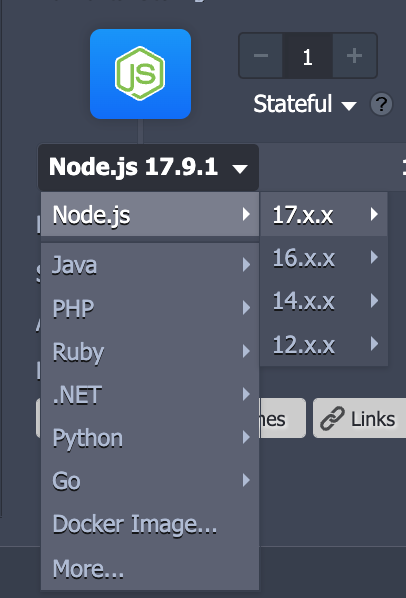
You can choose your preferred Node.js version directly through the topology wizard during creation of a new enviornment, and you can modify existing versions throughcontainer redeployment
Deploying a Node.js application
The platform automates deployment for managing Node.js server applications in the following ways:
- Local File- Upload files from your device (.zip.tar.tar.gz.tar.bz2.tar.xz)
- URL(http://... ftp://... file://...)
- Git/SVN- remoteVCSrepository (e.g.GitHub)
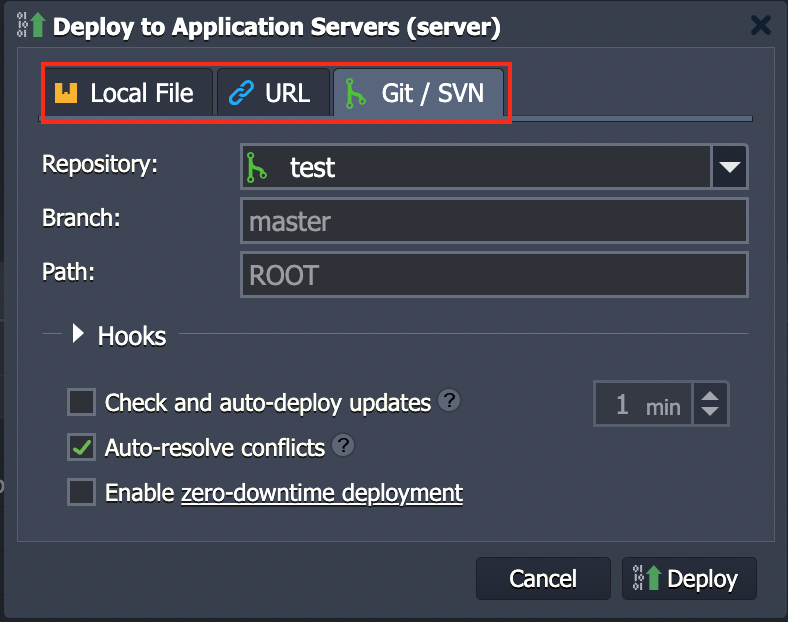
Note:You can change the route.portsauto-redirectYou can get it yourself throughVariable REDIRECT_EXCLUDE_PORTS
Additional instructions on deploying Node.js applications can be found in the sections below.
Node.js Package Managers
Process ManagersAbility to control application lifecycle, monitor service performance, and maintain functionality. The platform supports the NodeJS stack process manager:
- npm- start the application
- pm2- Rich application management features including monitoring of enabled Node.js processes
- forever- Run Node.js continuously and auto-restart on failure.
- supervisor- Check running applications for changes and automatically restart them as necessary to keep them updated.
You can choose to use the appropriate process manager during container redeployment or replacement.Variable(forever, npm, pm2, or supervisor) and restart the container to deploy the new options.
Domain management
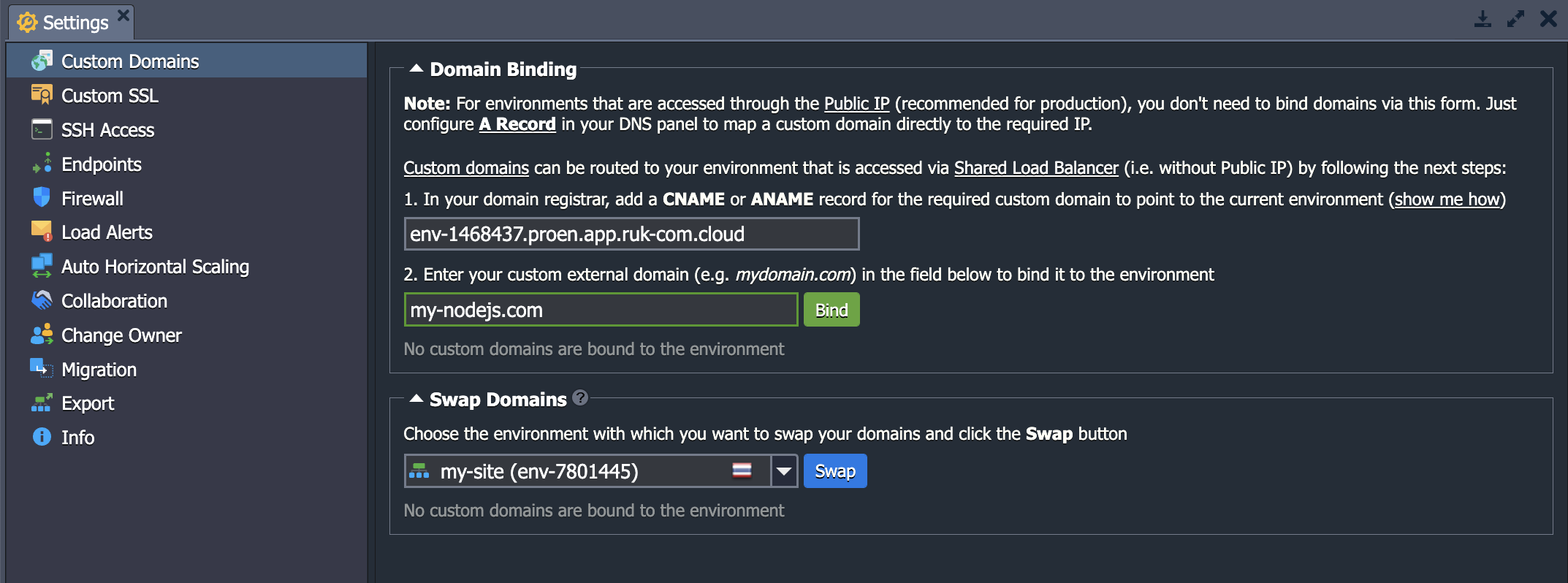
You can easily bind your own domain with 2 options based on your environment topology settings.
- CNAME redirectIf using a Shared Load Balancer, which is recommended for dev ortestenvironment
- DNS A RecordIf using Public IP; Can support high usage volumes and is suitable forproductionenvironment
Additionally, you can quickly switch traffic between your environments. (to redirect customers to a newer version of the application without downtime) using the functionswap domainsor methodSwapExtIps API/CLI
Automatic Vertical Scaling
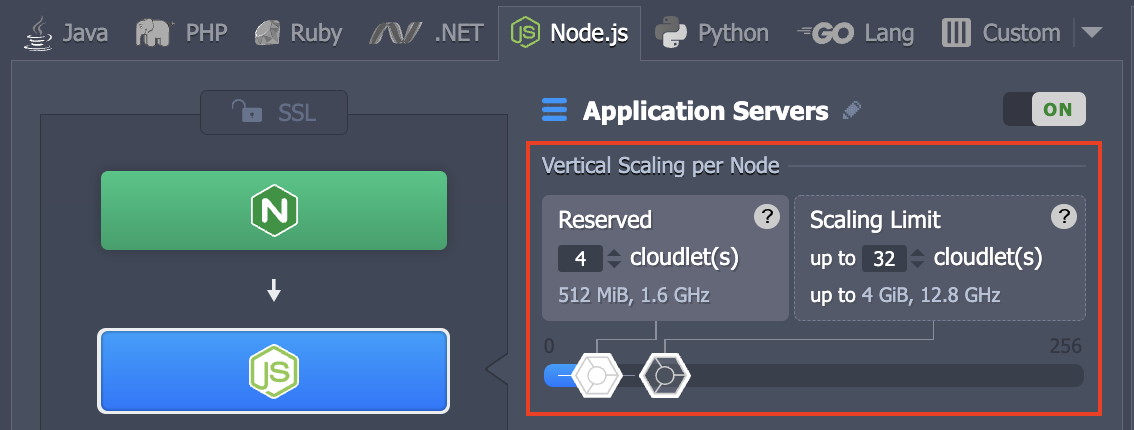
With this platform you can dynamically determine the exact amount of required resources (RAM and CPU) at your nodes based on the current load usage, so you don't overpay for idle resources.
Just set the cloudlets limit for your Nodejs application (1 cloudlet equals 128 MiB RAM and 440 MHz CPU).
Additional guide aboutAutomatic vertical scaling
Manual Horizontal Scaling
Scaling up/down application servers You can set this manually via the topology wizard. Click the +/- buttons in the Horizontal Scaling section and select the mode for scaling the nodes as you want.
- Stateless- Create a new node from the base image template.
- Stateful-Copy all files of the parent container to the new node.
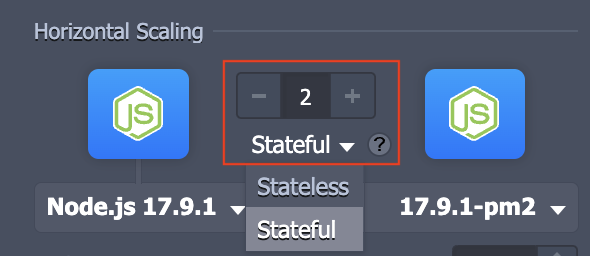
The number of application servers in the same environment layer can expand to a maximum of 16 nodes.load balancerThey are added automatically when the server is scaled to optimize functionality. Additional guide aboutHorizontal scaling
Automatic Horizontal Scaling
Setting up automatic server scaling Click the button.Settings > Auto Horizontal ScalingHere you can set triggers to increase or decrease the number of nodes based on application load.
You can configure the types of resources to monitor (CPU, RAM, Network, Disk) and set scaling conditions.
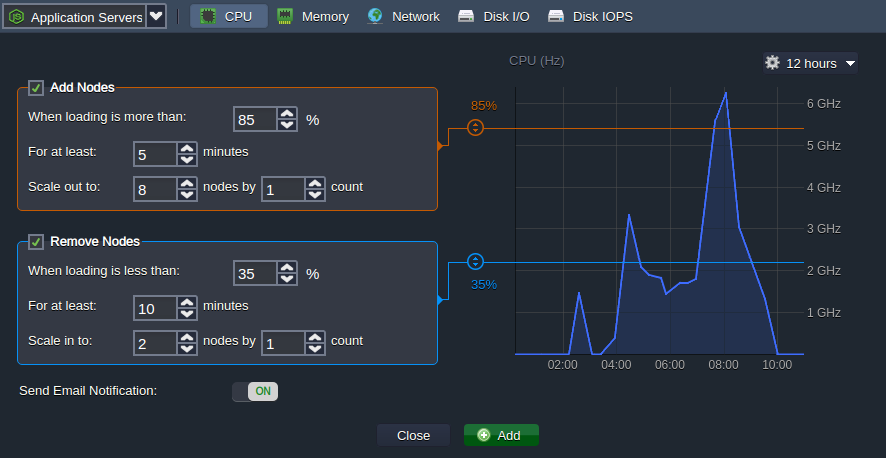
Learn more aboutAutomatic horizontal scalingClick on this link.
The Ruk-Com Cloud platform also includes other features and tools such as:
- Built-In SSL or customized
- Public IPv4
- Diverse software stack
- Container firewalls, endpoints, and environment isolation
- Direct environment management via SSH
- Enabling APIs and Cloud Scripting for automation
- Pay-as-you-go pricing model
- Collaborative functions
- Multi-cloud server distribution