
Navigation Across Environment Groups
This guide is maintained for Ruk-Com PaaS. Screens and options may vary by platform version and account permissions.
Confirm the environment, region and account permissions, and back up current settings before changing a production system.
Objective
This guide explains how to use Navigation Across Environment Groups on Ruk-Com Cloud PaaS, with ordered procedures and practical verification points.
Before you begin
- Sign in with an account permitted to manage the relevant environment.
- Confirm the target environment, region and resources before saving changes.
- Create a backup or rollback plan before changing a production system.
Organizing applications into environment groups makes your workflow more convenient, which is achieved by setting special tags to filter environments and displaying them within columns of the same name on the user dashboard.
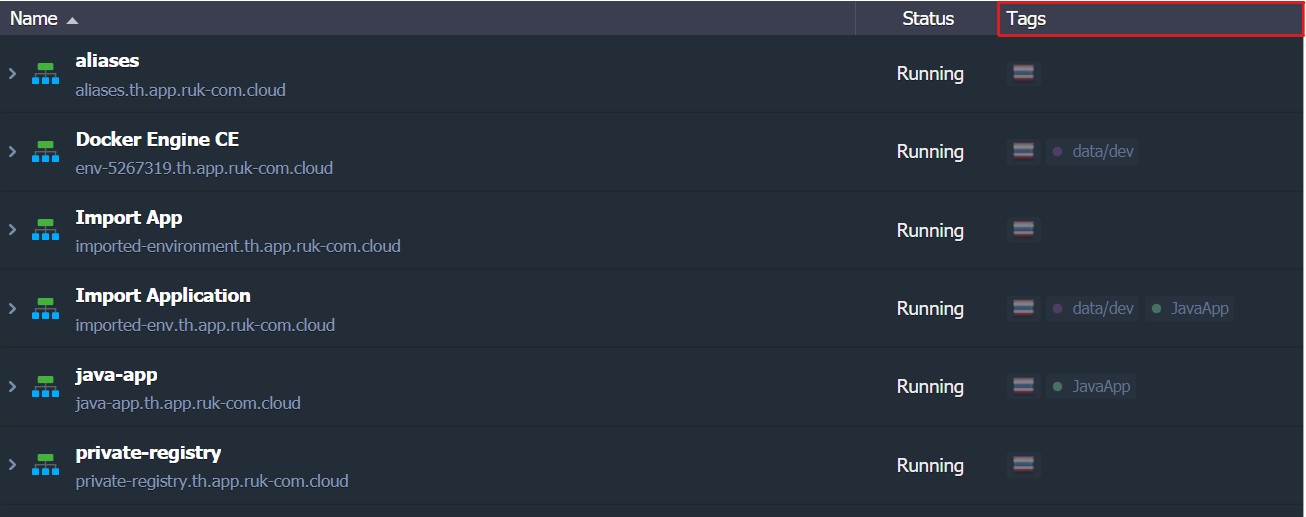
You can move between your environments with the following UI elements:
Navigation via Tags
ColumnTagsList all environment groups - click on a specific tag to view that group's environments.

Filtering is applied automatically while the selected group label is displayed as a nesting element in the Env Groups panel at the top.

This way, the appropriate group name will be temporarily hidden in the tag column. (Because you're already inside)
More:The current group selection has additional sub-items.child(such as subgroups) can be viewed in the group management menu on the top panel. Click on the dropdown of the desired environment.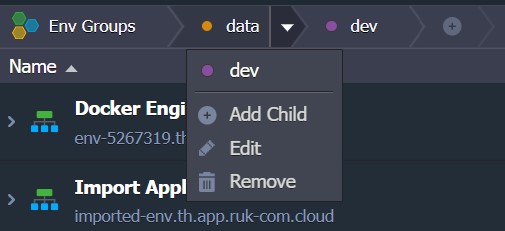
Just click on a subgroup to open it.
To cancel filtering and return to the original existing environment list, click on Env Groups.
Navigation via Env Groups Panel
By expanding the Env Groups menu on the top panel, you will see a list of all the top environment groups within your account. Including the subgroups it consists of (if any)
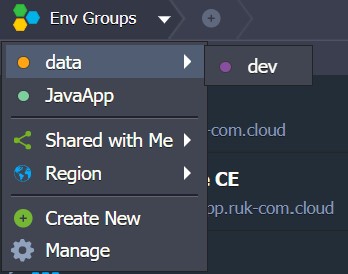
Click on one of the environments you want. There are also additional options provided. This is based on the following parameters:
- Shared with Me- Select this option to access the environment list. shared with your account

More:When hovering overShared with MeYou will see a list of collaborations that you own. Selecting this environment will show the environments that are shared with you.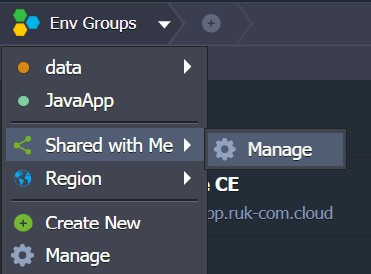
If you choose to manage this submenu, click the Manage button on the submenu. Then select the Account settings > Shared with Me tab. It will open.
- Region- Use this option to filter environments based on the regional list of environments available for your account.
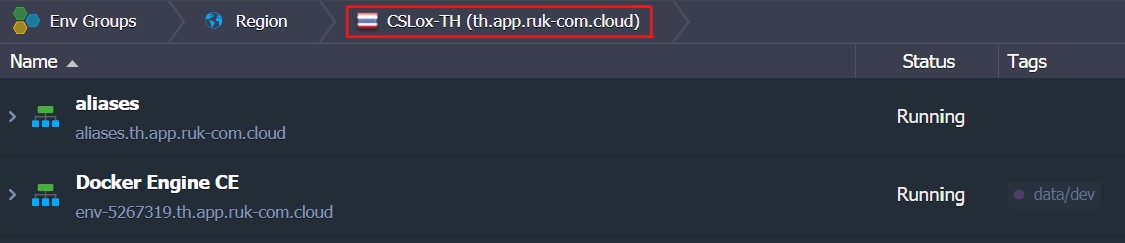
Now that you know how to easily navigate between environment groups, you can check out some additional possibilities forGroup managementAt Ruk-Com Cloud dashboard