
How to Create Environment Group
This guide is maintained for Ruk-Com PaaS. Screens and options may vary by platform version and account permissions.
Confirm the environment, region and account permissions, and back up current settings before changing a production system.
Objective
This guide explains how to use How to Create Environment Group on Ruk-Com Cloud PaaS, with ordered procedures and practical verification points.
Before you begin
- Sign in with an account permitted to manage the relevant environment.
- Confirm the target environment, region and resources before saving changes.
- Create a backup or rollback plan before changing a production system.
Setting up a new environment group involves creating special tags to which the required environments can be attached accordingly to be marked within the dashboard. You can set any name convenient for you. For example, the working version of the project.Development, testing, and productionYou can apply such tags to the relevant environment to easily distinguish them.
So, to quickly create an environment group within minutes, you can follow these steps:
1. Open the Ruk-Com Cloud Dashboard and click the button."+" (Create New)Inside the panelEnv Groupstop

Tips:Or you can access the same options through the Env Groups menu by:
-Choose buttonCreate New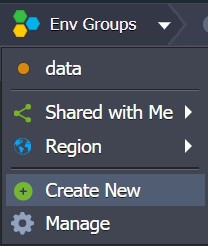
-Select the Manage button and click the Add button within the frame that opens.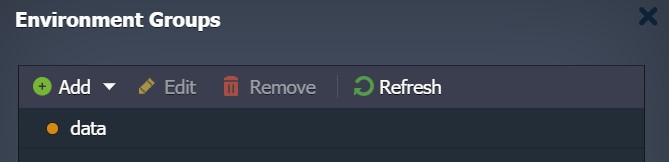
2. WindowAdd Groupwill appear.
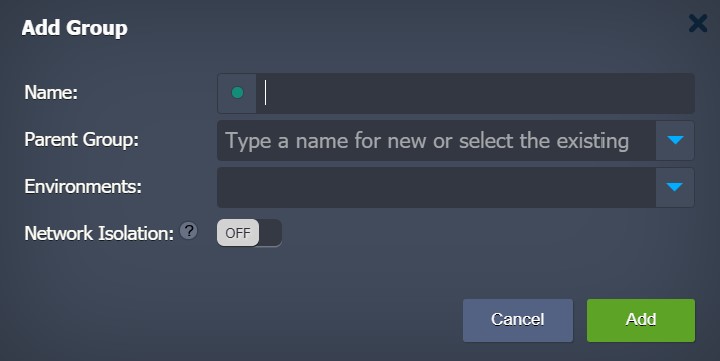
Provide the following information to create a new group:
- Name- Name the group (letters, numbers, and any special characters, including spaces).
- Parent Group- Specifies the nesting for the currently created group to be combined with other groups.subgroup
- Environments- Select the environment that should be the group; However, you can create them first and add environments later.
Tips:To increase visual recognition of groups within the dashboard You can assign different colors to each group by clicking the circle button near the group name.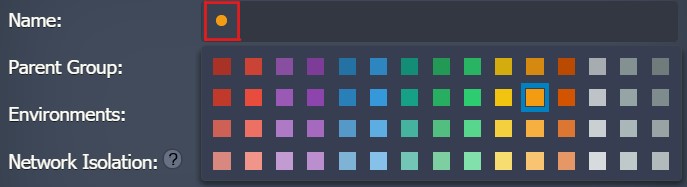
After specifying everything, press the button.Add
3. The newly created group is automatically selected and displayed as a new element on the top panel.Env Groups:

Additionally, you can learn howEnvironment group managementyours andfind locationQuickly within the dashboard