
Node.js Application Connection to MongoDB
This guide is maintained for Ruk-Com PaaS. Screens and options may vary by platform version and account permissions.
Confirm the environment, region and account permissions, and back up current settings before changing a production system.
MongoDB is a popular NoSQL database, which is natively supported by the platform and can be easily installed on the Cloud. Below, we’ll consider a simple example of how to connect this DB stack from your Node.js application server.
- In order to follow this guide, you’ll need Node.js and MongoDB servers either within the platform (you can create it at any time) or on any external resources.
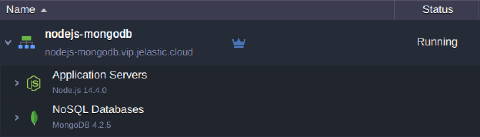 In our case, both instances are hosted within a single environment.
- Connect to your application server via SSH Gate.
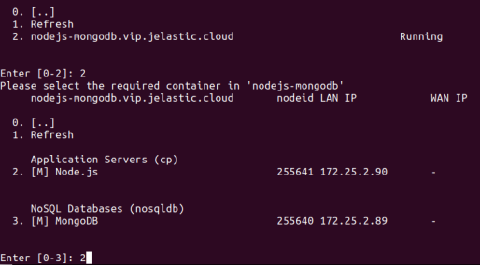 3. Next, download and install an official MongoDB driver for Node.js:
bash Copy
npm install -s mongodb
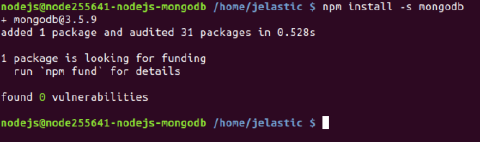 In a moment the package will be successfully installed.
- Now, create a file with a script to establish connection with your database. You can use any preferable text editor for this task, as well as any filename with the .js extension (e.g., vim script.js).
js Copy
var MongoClient = require('mongodb').MongoClient;
// Connect to the db
MongoClient.connect("mongodb://{user}:{password}@{host}:{port}/{database}", { useUnifiedTopology: true, useNewUrlParser: true }, function(err, db) {
if(!err) {
   console.log("You are connected!");
   };
      db.close();
});
Here, you need to adjust the connection string (all the required information is provided within email for your MongoDB node):
- {user} - username to log into database with
- {password} - password for the appropriate user
- {host} - link to your MongoDB container
- {port} - port to be used for connection (use the default one - 27017)
- {database} - database to be accessed (e.g., the default one - admin)
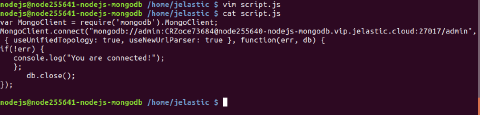 With this script you can access the specified database server and, if connection is successfully established, see the “You are connected!” phrase.
- Let’s run the code, using the appropriate command:
bash Copy
node script.js
 If everything is specified correctly, you should see the “You are connected!” string within terminal. Next, you can extend code to execute all of the required actions.