
Connecting to PostgreSQL for PHP
This guide is maintained for Ruk-Com PaaS. Screens and options may vary by platform version and account permissions.
Confirm the environment, region and account permissions, and back up current settings before changing a production system.
Objective
This guide explains how to use Connecting to PostgreSQL for PHP on Ruk-Com Cloud PaaS, with ordered procedures and practical verification points.
Before you begin
- Sign in with an account permitted to manage the relevant environment.
- Confirm the target environment, region and resources before saving changes.
- Create a backup or rollback plan before changing a production system.
Follow the instructions below to learn how to connect a PHP application hosted within Ruk-Com Cloud to a PostgreSQL database server.
Create Environment
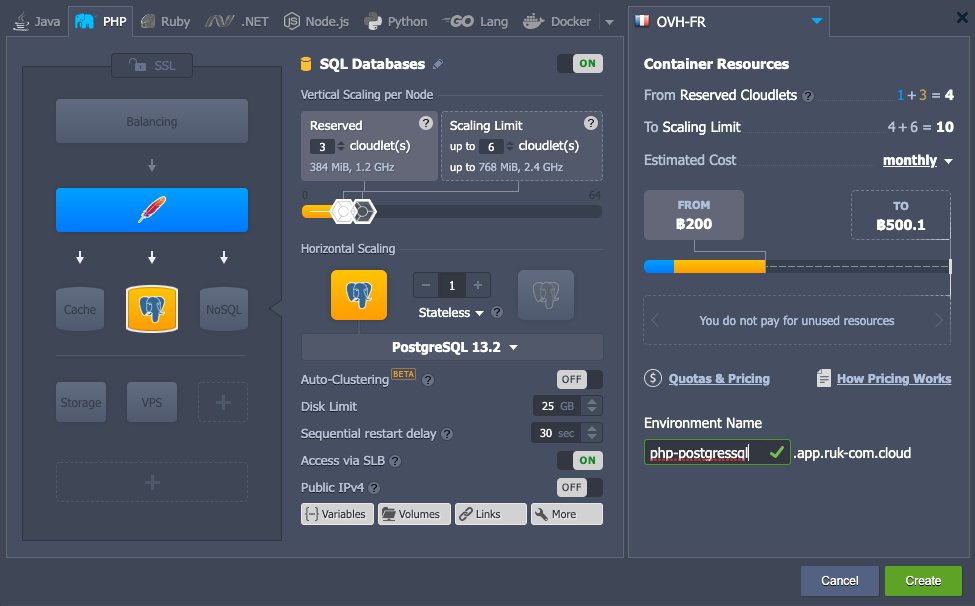
1. Login to the Ruk-Com Cloud dashboard, create an environment by selecting the PHP tab, the web server is Apache, and the PostgreSQL database system.
3. Login information will be sent to your email.
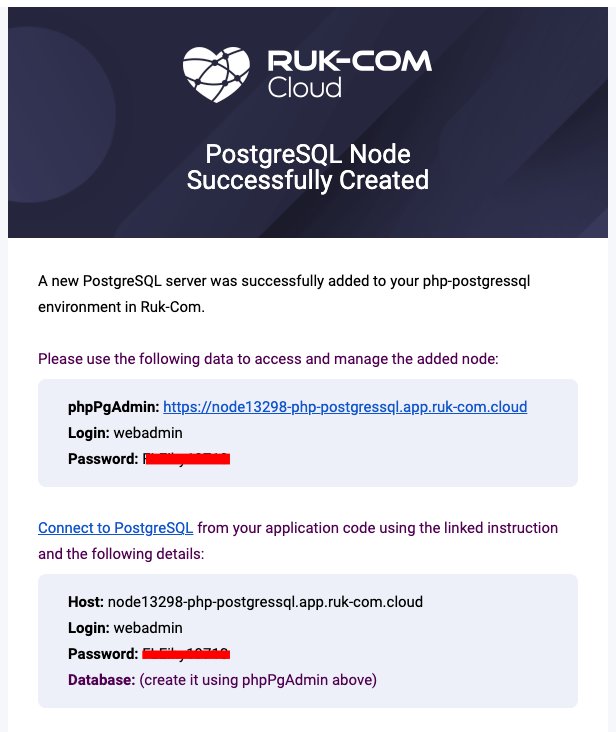
You can now access your database through the admin panel. and connect to PHP application
Configure database connection
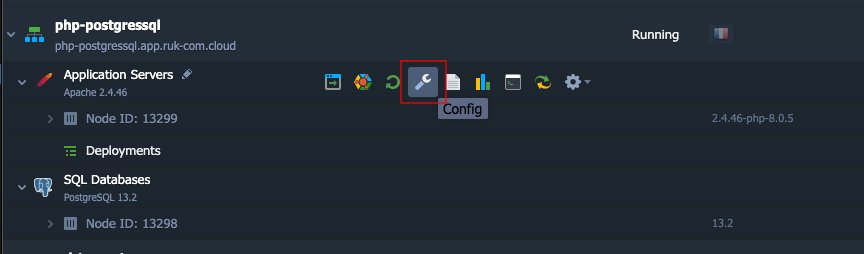
1. Click the buttonConfigof the Apache server
2. Go to the folderetcand open the filephp.ini
addextension=pgsql.soin the line as shown in the image below.
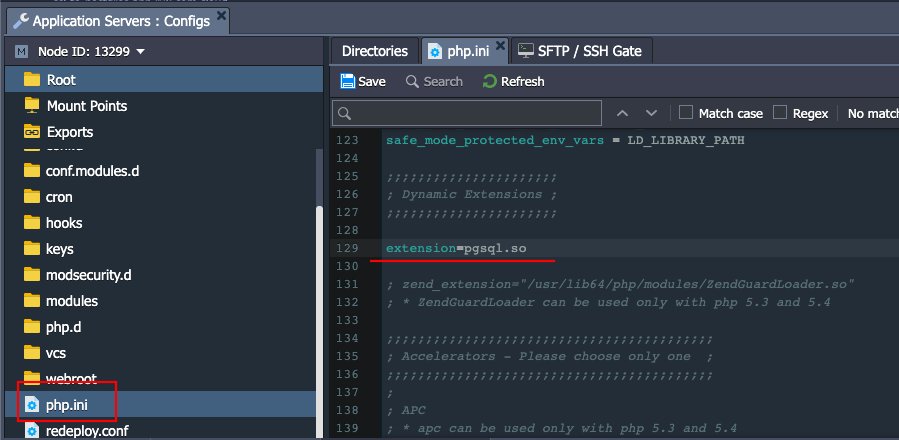
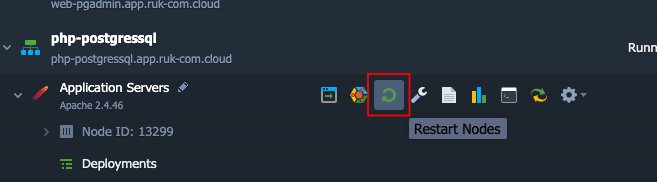
3. Save changes. and restart the Apache node.
4. There are two main PG functions.PG functions For operating with database servers
- Example code for connecting to PostgreSQL:
pg_connect(“host={host} port={port} dbname={dbname} user={user} password={password}"); - {host}- the PostgreSQL server Host (i.e. access URLwithout http://) that you’ve received via email, for examplenode.example.ruk-com.cloud
- {port}- a connection port (the default one is5432)
- {dbname}- a name of your database
- {user}- an account name to access database with (we’ll use the defaultwebadminone)
- {password}- a password for the appropriate user
- closing PostgreSQL connection:pg_close()
5. You must write the required functions on every page.*.phpconnected to the database
Check connection
- Verify connection using this code:
<?php
$dbconn = pg_connect("host=php-postgressql.app.ruk-com.cloud port=5432 dbname=postgres user=webadmin password=passw0rd");
//connect to a database named "postgres" on the host "host" with a username and password
if (!$dbconn){
echo "<center><h1>Doesn't work =(</h1></center>";
}else
 echo "<center><h1>Good connection</h1></center>";
pg_close($dbconn);
?>
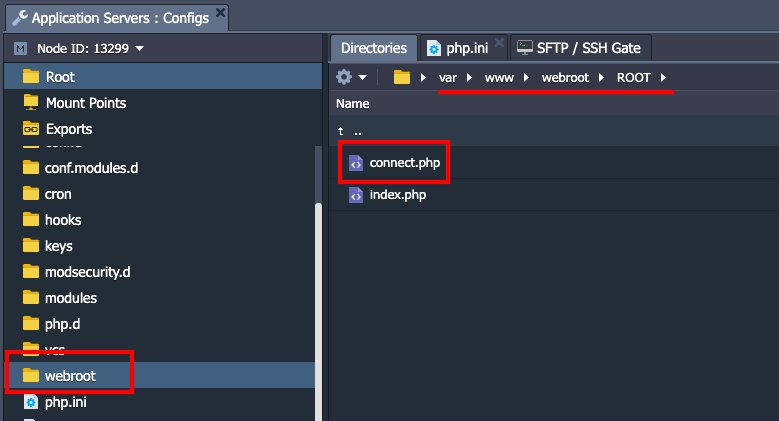
- Place the test code at Path /var/www/webroots/ROOT/connect.php
- Sample code for exporting as a table:
<?php
$conn = pg_connect("host=node.example.ruk-com.cloud port=5432 dbname=postgres user=webadmin password=passw0rd");
if (!$conn) {
 echo "An error occurred.\n";
 exit;
}
$result = pg_query($conn, "SELECT * FROM test_table");
if (!$result) {
 echo "An error occurred.\n";
 exit;
}
while ($row = pg_fetch_row($result)) {
 echo "value1: $row[0]  value2: $row[1]";
 echo "<br />\n";
}
?>
You can use the example described above to create your own PHP application that uses a connection to a PostgreSQL database.