
Node.js Versions
This guide is maintained for Ruk-Com PaaS. Screens and options may vary by platform version and account permissions.
Confirm the environment, region and account permissions, and back up current settings before changing a production system.
The platform allows to pre-select any of the latest major NodeJS application server releases and the required process and package managers. Currently, the following versions of this stack are available:
- 16.20.0
- 22.23.2
- 24.21.0
- 26.8.2
The up-to-date list of the releases available on the platform is provided via the dedicated, regularly (weekly) updated Software Stack Versions document.
The required Node.js version can be selected when creating a new environment, as well as switched for the already existing one.
Create Node.js Environment
- Click the New Environment button on the top of the dashboard to open the topology wizard:
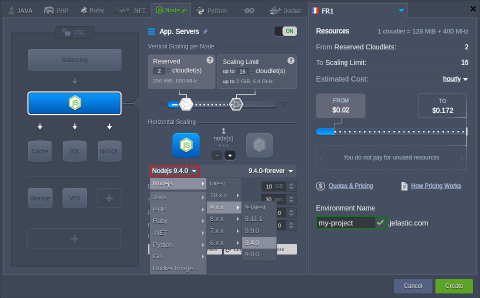
 2. Switch to the Node.js programming language tab and choose the required server version using the drop-down list in the central part of the frame:
 3. Next, you can select the preferred process manager (forever, npm or pm2) through the tags drop-down list (circled in the image below):
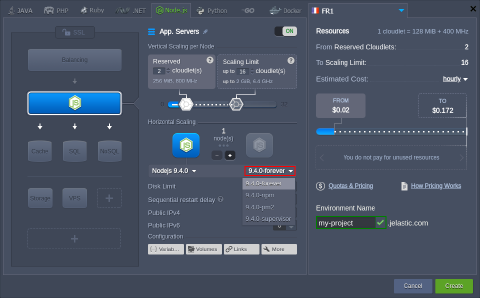 A Node.js process manager helps to control your application lifecycle, providing a simple way to start, stop and restart processes on a node. Additionally, it can be configured to automatically re-run scripts in case of an application startup failure or code update:
- npm - allows to manage additional application modules and packages by means of the package.json config file
- forever - manages node processes (i.e., service start, stop, restart) to save services alive through keeping them run continuously
- pm2 - provides you with multiple special options (like monitoring, load balancing, deployment, etc.), allowing to manage your application more effectively
Specify the remaining server and environment parameters (e.g., cloudlet limits, region, environment name, etc.) and click the Create button in the bottom right frame corner.
Change Node.js Version
You are also able to switch the version of your NodeJS server and process manager afterward, for the already existing environment.
- Access the redeploy container(s) dialog through either:
- clicking on the Change Environment Topology button next to the appropriate environment.
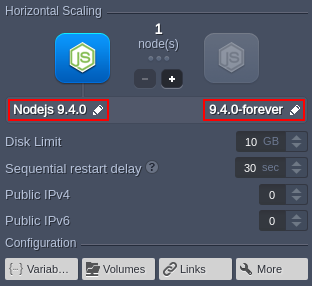
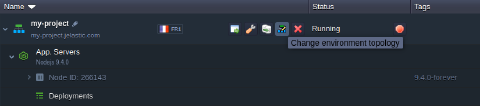 In the opened frame, select to edit your Nodejs server version or tag (i.e., click on the pencil icon within one of the appropriate fields).
 * selecting the Redeploy Container(s) button next to the required node (or the appropriate environment layer, for updating all of the comprised containers at once).
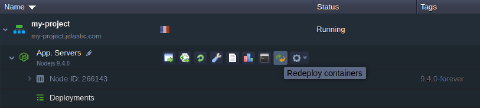
- Within the opened Redeploy container(s) dialog, re-configure the following options:
- Tag - provides a choice of needed Node.js version and preferred process manager
- Keep volumes data - allows saving data in volumes
- Simultaneous or Sequential deployment with delay (for scaled servers only) - defines whether all containers within a layer should be redeployed at once or one-by-one, to avoid downtime
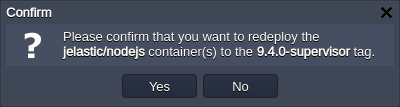
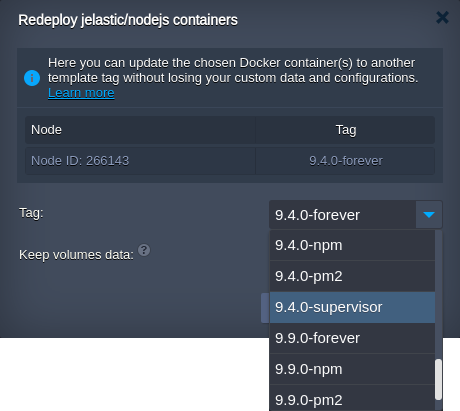 3. To finish Node.js version changing, click on Redeploy and confirm your action within the opened pop-up dialog.
Tip: For the detailed guidance on Node.js projects hosting, please, refer to the Node.js Developer’s Center guide.