
Connecting a Python application to MongoDB
This guide is maintained for Ruk-Com PaaS. Screens and options may vary by platform version and account permissions.
Confirm the environment, region and account permissions, and back up current settings before changing a production system.
Objective
This guide explains how to use Connecting a Python application to MongoDB on Ruk-Com Cloud PaaS, with ordered procedures and practical verification points.
Before you begin
- Sign in with an account permitted to manage the relevant environment.
- Confirm the target environment, region and resources before saving changes.
- Create a backup or rollback plan before changing a production system.
MongoDBIt is one of the most popular NoSQL databases that allows developers to easily work with stored data. This chapter provides an example of connecting to a MongoDB server from an application.Pythonyour
1. In our case we have an Environment that contains containers.Python and MongoDBIt's inside (you can create it at any time), but the Remote server instructions

2. Connect your compute node viaRuk-Com SSH Gate.
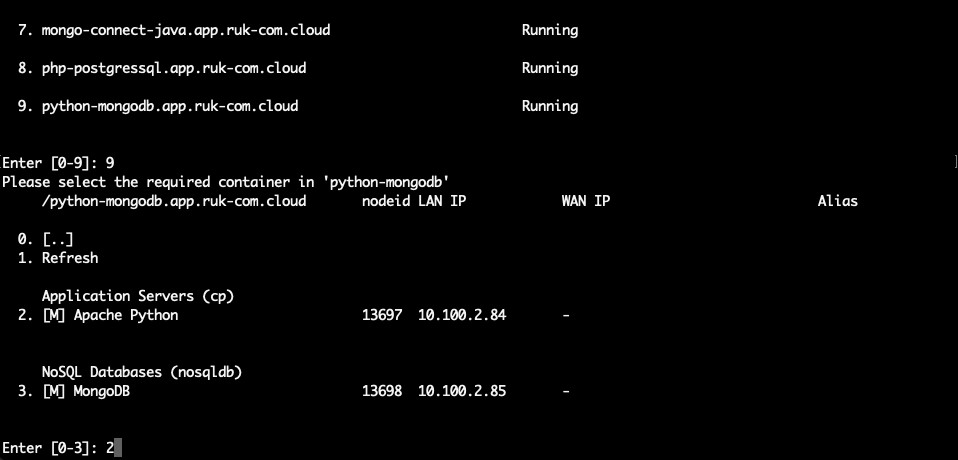
3. InstallMongoDB driver for PythonBy using the command below
pip install pymongo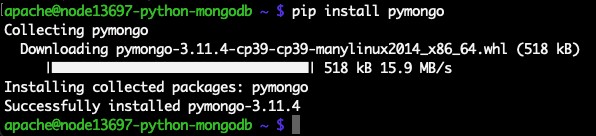
4. Set up a simple script to check your database server connection. Use your preferred text editor and create a file with the.py extension (e.g. vim script.py).
from pymongo import MongoClient
client = MongoClient("mongodb://{user}:{password}@{host}:{port}")
db = client.{database}
try: db.command("serverStatus")
except Exception as e: print(e)
else: print("You are connected!")
client.close()
Just adjustconnection stringwith the relevant date This can be obtained from the email for MongoDB Node.
- {user} - Username for logging into the database.
- {password} - Password for the appropriate user.
- {host} - Connect to MongoDB container.
- {port} - Port used for connection. (The default value is 27017)
- {database} - The database to be accessed (e.g. admin by default)
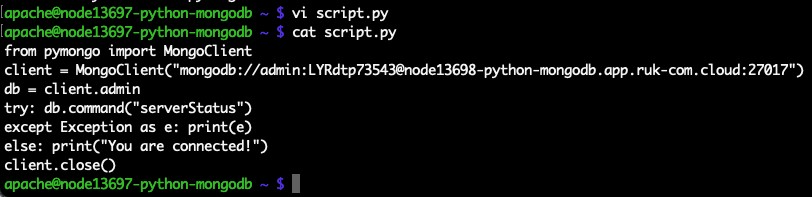
This script will connect to the specified database server and if any errors occur in the process a description will be displayed. If successful, it will display the description “You are connected!”
5. So run the code in the file using the appropriate command:
python script.py
The message “You are connected!” helps ensure that the application can successfully connect to the database server. So you can start manipulating the database nodes using additional code with other operations.