
Navigation between Groups
This guide is maintained for Ruk-Com PaaS. Screens and options may vary by platform version and account permissions.
Confirm the environment, region and account permissions, and back up current settings before changing a production system.
Organizing applications into environment groups allows to make your working process much more comfortable. This is achieved through setting special Tags, which are used for environment filtering and are displayed within the same-named column in the main user dashboard screen.
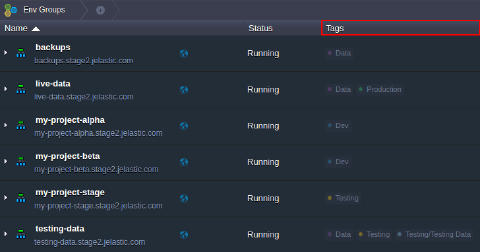 You can switch and navigate between your environment groups with the following UI elements:
Navigation via Tags
The Tags column lists all of the groups an environment belongs to - click on a particular tag in order to refer to the appropriate group.
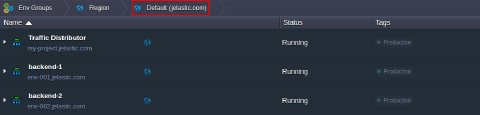
 The required filtering will be applied automatically, whilst the selected group label will be displayed as a nesting element in the Env Groups navigation panel at the top.
 Herewith, the appropriate group name will be temporarily hidden within the Tags column (as you are inside already).
Note: In case the currently selected group contains further child items (i.e., subgroups), their list can viewed at the chosen group’s management menu within the top navigation panel.
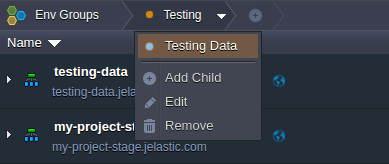 Just click on the string with such child group to open it.
In order to cancel filtering and return back to the overall list of available environments, click on Env Groups.
Navigation via Env Groups Panel
Upon expanding the main Env Groups menu at the top, you’ll be shown the list of all environment groups within your account, including the comprised subgroups (if are any).
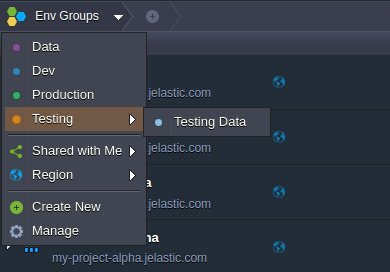 Clicking on a particular one will apply the corresponding filtering to your environment list.
Additionally, here you are provided with two predefined sorting options which are based on the following parameters:
- Shared with Me - select this option to access the list of environments shared with your account

Note: When hovering over Shared with Me, you’ll see the list of collaboration owners you belong to; choosing a particular record here will display the environments that were shared to you by this person.
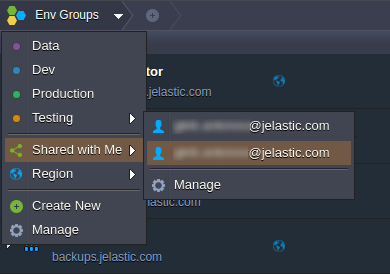 And if selecting Manage at this submenu bottom, the Account settings >Shared with Me tab will be opened.
- Region - use this option to filter environments based on the list of environment regions, available for your account
Now, when you know how to easily navigate between different environment groups, check some additional possibilities provided for group management at the platform dashboard.