
Share Environment
This guide is maintained for Ruk-Com PaaS. Screens and options may vary by platform version and account permissions.
Confirm the environment, region and account permissions, and back up current settings before changing a production system.
Environment Sharing is a particular case of the account collaboration feature - when you want to give access or some functionality of your account to other users. The only difference is that you need to share just a single environment.
Check a quick summary of the feature for better understanding:
- environment owner has complete control over the environment
- collaborators can only perform actions allowed by the owner (through the assigned roles)
- only the owner is charged for the shared environment
In order to share an environment, select it and go to the Settings > Collaboration tab. Here, you can see a list of all existing collaborators (if any) that have access to the current environment.
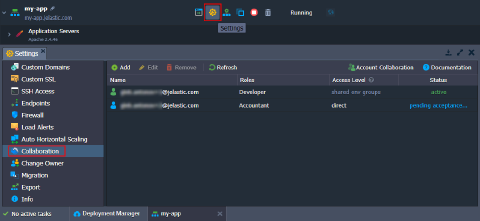
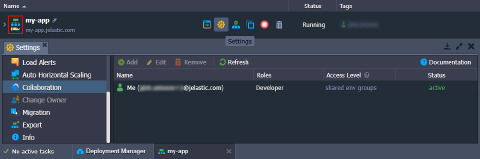
Tip: When accessing this tab as a collaborator, you can only check your own role for the current shared environment. However, the environment owner can share access and management possibilities through the Collaboration policy (cannot edit own roles).
- The table provides detailed information on access to the current environment. You can find all the required data in the following four columns:
- Name - lists emails of collaboration members that have access to the environment. Hover over to see the current member’s management options (Edit or Remove direct access).
- Roles - shows the exact access roles for the current environment per collaborator. Hover over for the combined list of policies from all roles.
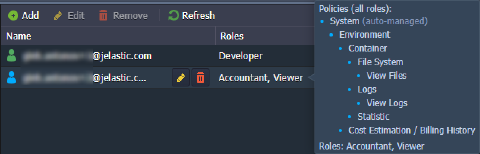 * Access Level - shows the highest access level for the current environment. Hover over for more details. Information on the access level algorithm can be found upon hovering over the column header.
 * Status - provides the collaboration status of the member (active, pending acceptance, left, suspended). The icon color at the start of each record also represents status.
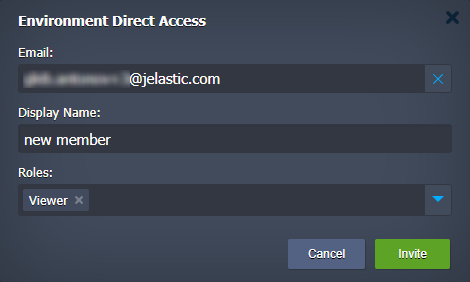
- Click the Add button at the top of the tools panel to provide direct access to the environment. Here, you need to provide the following data:
- Member - select an existing collaboration member or click the Invite Member option to provide email addresses
- Roles - choose at least one role from the list (if needed, click the Create New Role option to add a new one)
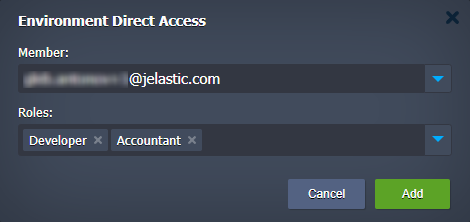
Tip: When inviting a new member, the flow is similar to the one described in the Create Collaboration guide. The user receives an invitation email and can accept or reject it.
- You can select an existing record in the list to Edit assigned direct roles or Removedirect direct access to the current environment.

Note: After removing direct access, the environment can still be available for the member through other access types, e.g., if the environment belongs to the shared group.
You can click the Account Collaboration button (displayed for the environment owner only) at the top-right of the tools panel to go to the User Settings > Collaboration > Shared by Me section and perform more complex customizations.