
SSH Gate Overview
This guide is maintained for Ruk-Com PaaS. Screens and options may vary by platform version and account permissions.
Confirm the environment, region and account permissions, and back up current settings before changing a production system.
Objective
This guide explains how to use SSH Gate Overview on Ruk-Com Cloud PaaS, with ordered procedures and practical verification points.
Before you begin
- Sign in with an account permitted to manage the relevant environment.
- Confirm the target environment, region and resources before saving changes.
- Create a backup or rollback plan before changing a production system.
SSH (Secure Shell)It is a protocol used for Securely connect and control remote systems Commands can be sent to the target system through an encrypted channel. Communication between the Client and Server has authentication using a Public/Private Key or password. All data sent and received is encrypted to prevent data interception.
Security infrastructure on Ruk-Com Cloud: SSH GateTo facilitate and secure SSH access from outside the Ruk-Com Cloud system, we have developed a new infrastructure component calledSSH GateActs as a connection point From the internet to internal systems
When a user requests an SSH connection → SSH Gate accepts the request andForward to destination containerpassInternal network (Private Network)safe place
- wp:list-item
- External Authentication
– connection from End User to SSH Gate
– Use Public/Private Key to authenticate via standard SSH Protocol.
/wp:list-item
wp:list-item
- Internal Authentication
– Connection from SSH Gate to target container within the system
– Uses the same mechanism via SSH Protocol, securely within the internal network.
/wp:list-item
Both parts of the authentication process use standard SSH protocol using public/private keypairs.
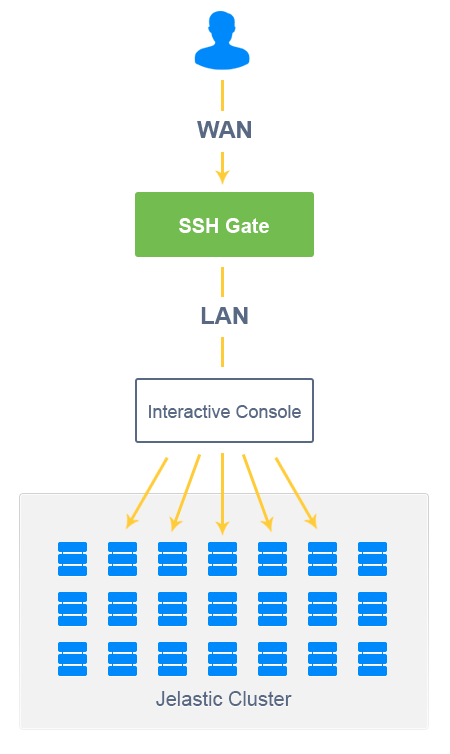
You can easily access the SSH gate:
- wp:list-item
- All accountsYou can access various environments and containers through interactive menus without additional authentication. /wp:list-item
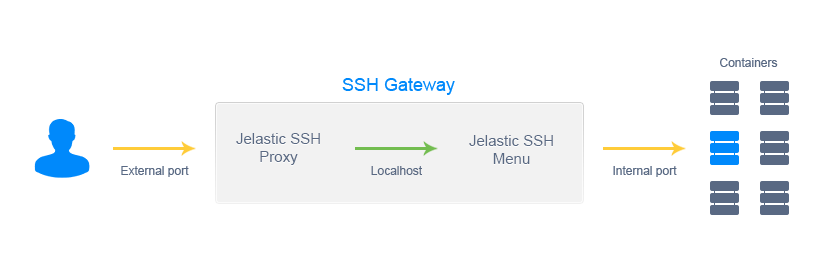
- wp:list-item
- Separately manage containerseach one directly While working remotely through additional tools (such as Capistrano) or through the SFTP and FISH protocols. /wp:list-item
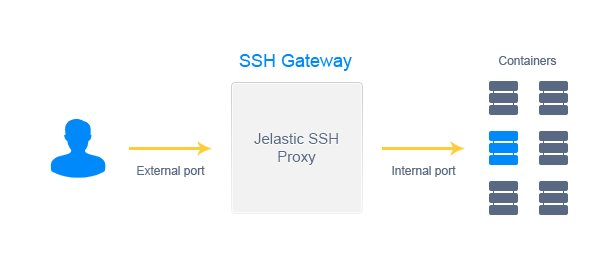
Accessing the container via SSH gives the user all necessary permissions and can manage additional core services with commands.sudoThe following types (and others as follows):
sudo /etc/init.d/jetty start
sudo /etc/init.d/mysql stop
sudo /etc/init.d/tomcat restart
sudo /etc/init.d/memcached status
sudo /etc/init.d/mongod reload
sudo /etc/init.d/nginx upgrade
sudo /etc/init.d/httpd help
Note:If you install the application Change settings or add any functionality via SSH within your environment, those changes will not be reflected on the platform dashboard.
In addition to connecting via SSHRuk-Com Cloud also supports SFTP (Secure File Transfer Protocol) connections.It uses the Threaded Daemon system to efficiently process multi-threaded connections. You can transfer data between your machine and the container. directly and safely
Supports FISH protocol (Files transferred over Shell protocol)There is also another option for accessing the file system: a protocol.FISHwhich is safe and easy to use Available through popular FTP clients or file managers (such as Midnight Commander, Konqueror, lftp, Krusader, etc.), FISH allows users to efficiently manage files within containers without complicated setup.
?You can see how to make each connection in our instruction sheet.
- wp:list-item
- Creating an SSH Key /wp:list-item wp:list-item
- Adding a Key /wp:list-item wp:list-item
- Accessing environments and containers /wp:list-item wp:list-item
- Working via SSH /wp:list-item wp:list-item
- Using SFTP and FISH protocols /wp:list-item wp:list-item
- Container management via SSH with Capistrano /wp:list-item
Note: SSH access is provided for the entire account but there is no separate environment.