PHP App Server Configuration
This guide is maintained for Ruk-Com PaaS. Screens and options may vary by platform version and account permissions.
Confirm the environment, region and account permissions, and back up current settings before changing a production system.
To perform the necessary configurations, press the Config button next to your application server. In the case you have several application servers you can configure them together or separately. To do this follow the steps:
- Open the drop-down menu at the top of the configuration tab. It includes the list of all of the app servers in your environment.
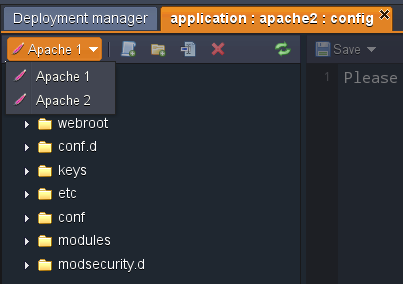 2. Choose the one you need and make the configurations.
- To apply the changes:
- only for the chosen server click Save only for the current instance button from drop-down menu;
- for all the servers click Save for all instances.
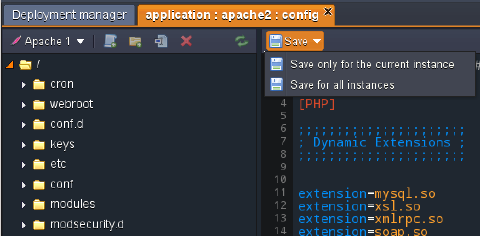
Note: if you create/rename a file or folder in the Configuration manager, this will be applied only in the list of the chosen node. You can’t save this change for all of the app servers available in the environment. If you want to also create/rename the file or folder in the other servers you need to do this manually.
Below you can see the list of the configuration files available for editing in the PHP application servers:
Apache
| Folder | File | Path |
|---|---|---|
| etc | php.ini | /etc |
| conf.d | modules.conf aliases.conf geoip.conf mod_security.conf php.conf ssl.conf welcome.conf | /etc/httpd/conf.d/ |
| conf | httpd.conf | /etc/httpd/conf/ |
| webroot | /var/www/webroot | |
| cron | apache | /var/spool/cron |
| keys | /var/lib/Ruk-Com PaaS/keys | |
| modules | /usr/lib64/php/modules |
NGINX-PHP
| Folder | File | Path |
|---|---|---|
| etc | php-fpm.conf php.ini | /etc |
| conf.d | virtual.conf ssl.conf | /etc/nginx/conf.d |
| conf | nginx.conf | /etc/nginx |
| webroot | /var/www/webroot | |
| cron | nginx | /var/spool/cron |
| keys | /var/lib/Ruk-Com PaaS/keys | |
| modules | /usr/lib64/php/modules |
Clik on the links to get more information on which settings can be changed in the appropriate folders.
ETC
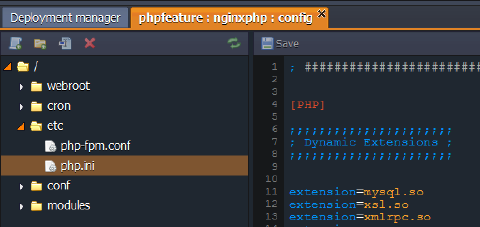
The main PHP server configurations are performed in the php.ini file which is located in the etc folder.
For example, here you can set the required:
CONF
- Apache
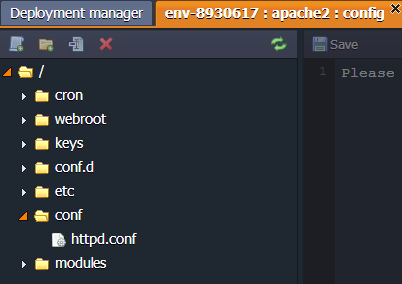
For the Apache application server the main configuration file is the httpd.conf located in the conf folder. For example, by using it, you can perform the following actions:
- set up Multiple Domains
- enable custom Apache modules
- use WebDav module
- perform necessary security configurations
- configure name-based virtual host
- enable statistics module to view your server’s statistics
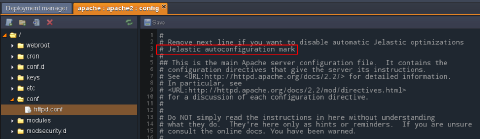
Note: In order to perform any custom configurations in the httpd.conf file, you need to remove the #Ruk-Com PaaS autoconfiguration mark string at the beginning of the file:
The number of workers for processing PHP requests is increased automatically in an Apache server depending on the cloudlet amount you stated for it.
To check this, find and remember the MaxClients value in httpd.conf file.
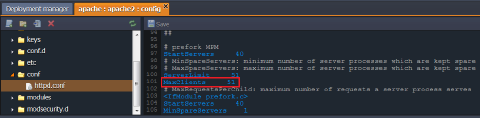 After that, change the topology of your environment by increasing or decreasing the cloudlet limit for your server.
Return to the httpd.conf file - the number of MaxClients has increased/decreased.
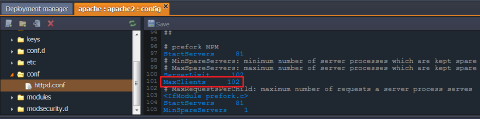
Note: This functionality will be disabled if you remove the # Ruk-Com PaaS autoconfiguration mark string at the start of the httpd.conf file
- NGINX
For performing necessary configurations for an NGINX-PHP server the nginx.conf file, located in conf folder, is used. Use it to set up the following configurations:
- set up Multiple Domains
- use WebDav module
- perform necessary security configurations
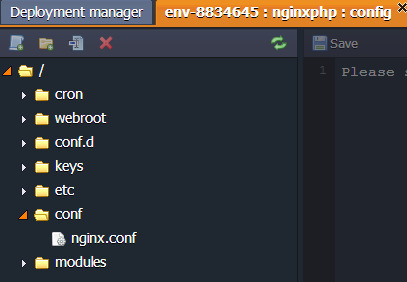
CONF.D
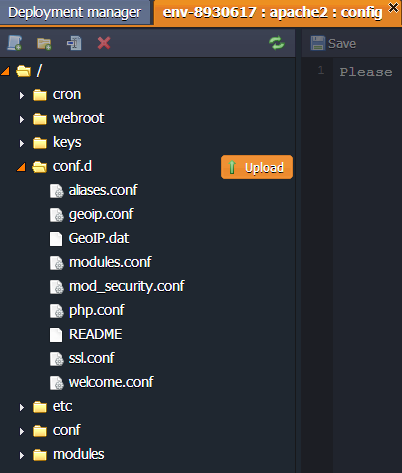
The conf.d folder is used for storing and managing sub configs.
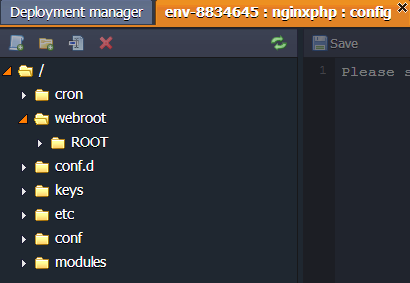
WEBROOT
The webroot folder is used for storing the unpacked application deployed to the environment.
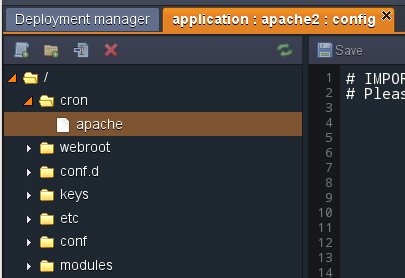
CRON
App servers include a cron folder with the config file where cronjobs can be configured.
Detailed information on Cronjob configuration can be found in the Setting Up a Cronjob document.
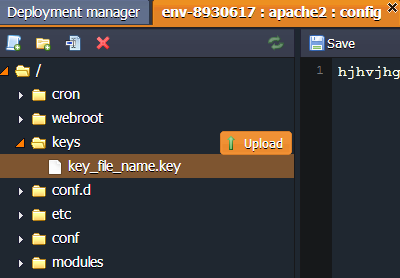
KEYS
The keys directory is used as a location for uploading any private key which is needed for your application.
Generate the key, save it as a simple file and upload to the key folder. Now, you can use it for different cases by simply stating the path to your key:
/var/lib/Ruk-Com PaaS/keys/{key_file_name}
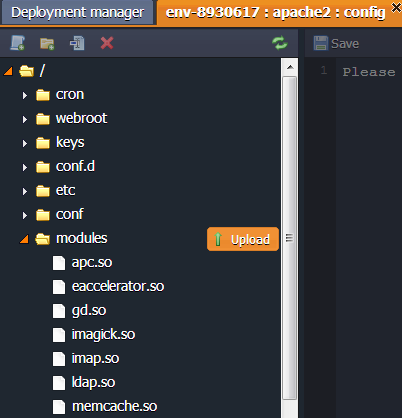
MODULES
The modules folder contains the php modules available in the platform by default. You can also upload your custom php modules to this folder, in order to activate them.
For more information navigate to PHP Modules document.