
Remote Access to MongoDB
This guide is maintained for Ruk-Com PaaS. Screens and options may vary by platform version and account permissions.
Confirm the environment, region and account permissions, and back up current settings before changing a production system.
You can access your MongoDB database remotely from your local computer or any other server. This is useful when you need to work with your database without logging into the Ruk-Com PaaS dashboard. This guide will show you how to set up your MongoDB database and connect it remotely.
Set up MongoDB Environment
In order to establish a remote connection to the database, you need to ensure that your MongoDB container is externally accessible. This can be done by attaching a public IP address or configuring an endpoint.
- You can attach a public IP address to your MongoDB container using the topology wizard. This option is recommended for production environments.
Add a public IP during the environment creation process or use the Change Environment Topology option for an existing environment.
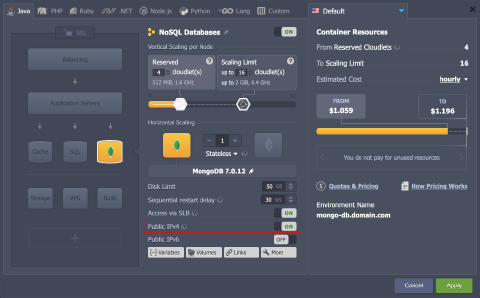 After the IP is attached, you can see and copy it directly from the dashboard.
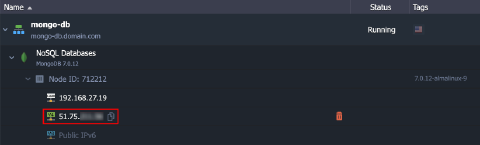 * An endpoint can be created from the environment’s Settings > Endpoints tab. This option is recommended for development/testing environments.
Select the pre-defined MongoDB template to expose the private port 27017 (default port for MongoDB connection) via the endpoint.
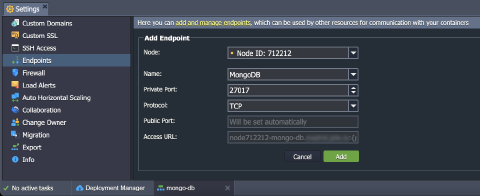 After creation, you can use the Access URL and Public Port to connect to your MongoDB database at private port 27017.
 Either of these options will make your MongoDB container remotely accessible.
Remote Connection to MongoDB
Below, we’ll provide an example of how to connect to your MongoDB database using the mongosh command-line tool. It allows setting up a direct connection from the SSH terminal on your local computer or any server.
Tip: Alternatively, you can use any other client application. The exact steps will vary depending on the exact client of your choosing, but the access credentials (host, port, username, password) will be the same as in the example below.
Use the following command to remotely connect to your MongoDB database:
shell Copy
mongosh --host {host} --port {port} -u {username} -p {password} --authenticationDatabase {authDatabase} {database}
Here:
- {host} - MongoDB database address. Use either the public IP address of your MongoDB container or the endpoint’s Access URL.
- {port} - target port number (default is 27017). Use the default port 27017 for public IP and the Public Port for the endpoint.
- {username} and {password} - database access credentials (default ones are sent via email after the environment creation). You can skip the password parameter in the command and enter it interactively.
- {authDatabase} - authentication database for the specified user (if not specified, the same database you are connecting to is used). Only needed if the user is not defined in the database you are connecting to.
- {database} - database you want to connect to (default is test).
- To connect to the MongoDB database using the public IP address, it’s enough to provide the IP address and username in the command. The default port and database will be used, and the password will be requested interactively:
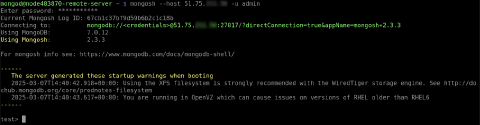 2. To connect using the endpoint, you need to specify its Access URL and Public Port. In this example, we’ll also provide the password directly in the command (which can be useful for automation):
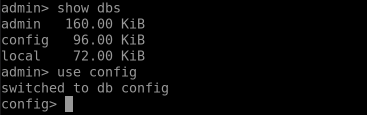
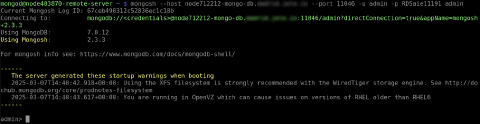 3. After the connection is established, you can start working with your MongoDB database directly from the terminal (type
 help to see available commands):
 That’s it! You’ve successfully set up remote access to your MongoDB database.