
Connecting PHP to MongoDB
This guide is maintained for Ruk-Com PaaS. Screens and options may vary by platform version and account permissions.
Confirm the environment, region and account permissions, and back up current settings before changing a production system.
Objective
This guide explains how to use Connecting PHP to MongoDB on Ruk-Com Cloud PaaS, with ordered procedures and practical verification points.
Before you begin
- Sign in with an account permitted to manage the relevant environment.
- Confirm the target environment, region and resources before saving changes.
- Create a backup or rollback plan before changing a production system.
MongoDBIt is a widely used NoSQL database using the document-oriented and is intended for storing semi-structured data. The instructions below provide suggestions on how you can easily integrate with your PHP app hosted in Ruk-Com Cloud.
Creating the Environment
Log in to your Ruk-Com Cloud account and create a new Environment with a MongoDB node of the desired version. (can be found in the NoSQL wizard section)
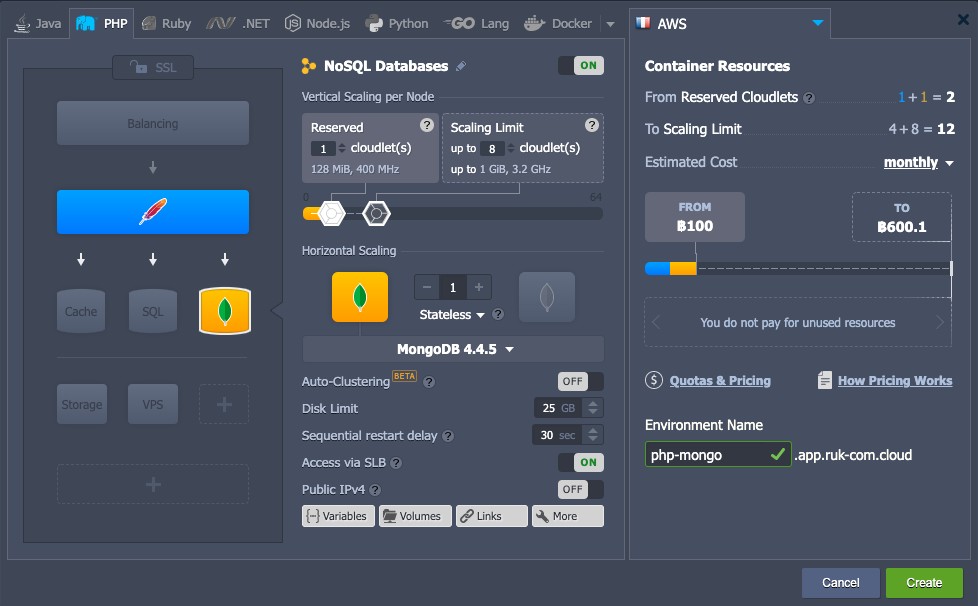
Add all remaining required instances (if any - we'll include Apache to deploy the app for testing later). However, it may also be in a separate Environment) and configure other necessary parameters such as number of resources, regions, Env names, etc.
Click the Create button when ready and wait a few minutes for your Env to be setup.
MongoDB Configurations
1. After creating the Environment, you will receive an email with details. used for managing environments sent to your inbox
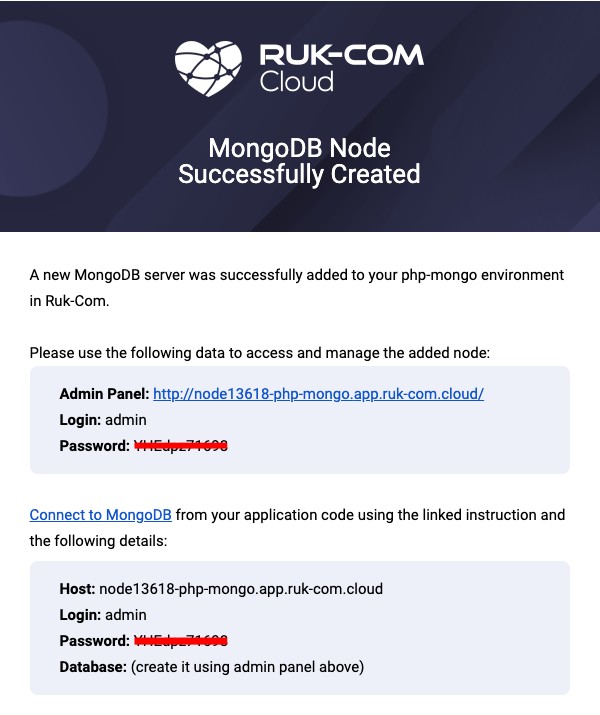
2. Click on the Access URL link or switch to the dashboard and Open in browser in the MongoDB node.
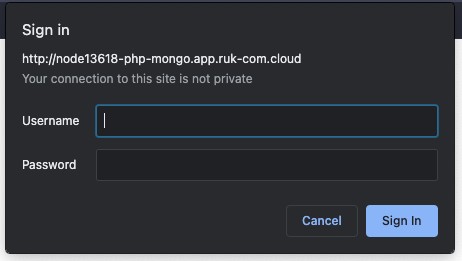
In the browser tab that opens, you will see a Sign in form for the MongoDB admin panel. Enter the admin credentials you received in the email mentioned above and click Login to gain access.
3. Create a new database by entering information in the fields on the top right. (For example, mongodb-connect) and press the Create Database button.
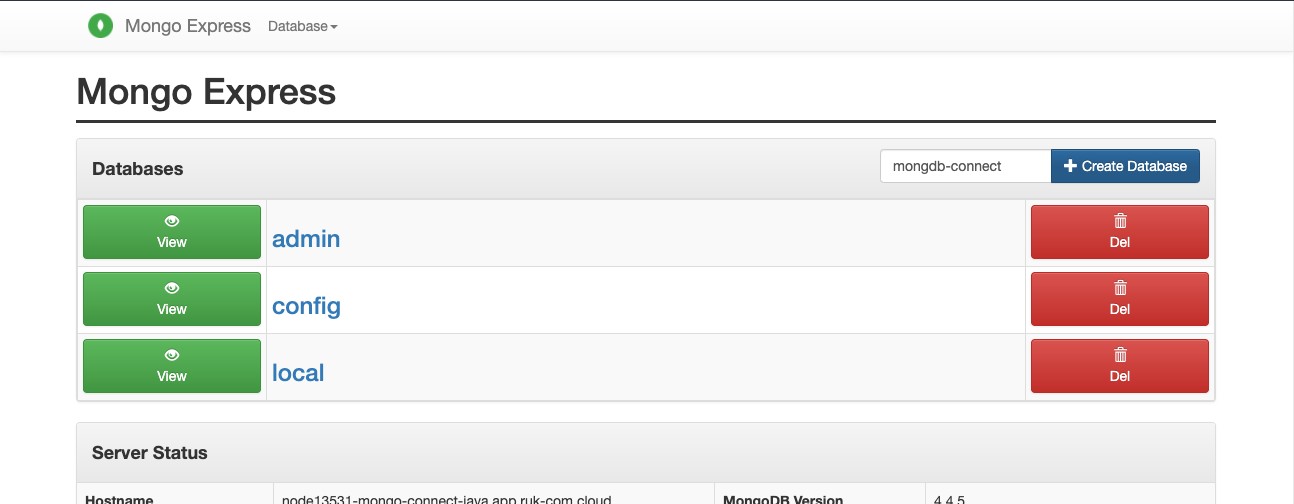
4. You then need to create a user for this database – go to the Web SSH instance of Mongodb and log in to mongodb using the command
mongo -u 'admin' -p '[ใส่รหัสผ่านในตรงนี้]'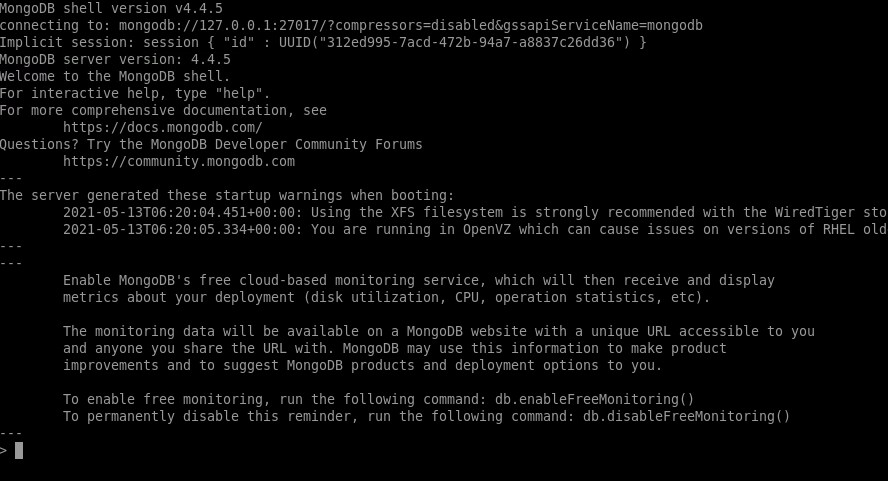
5. After that, select the database using the command
use mongodb-connectThen type the following command:
db.createUser({ user: "dbuser", pwd: "passw0rd", roles:[{ role: "readWrite", db: "mongodb-connect"}]})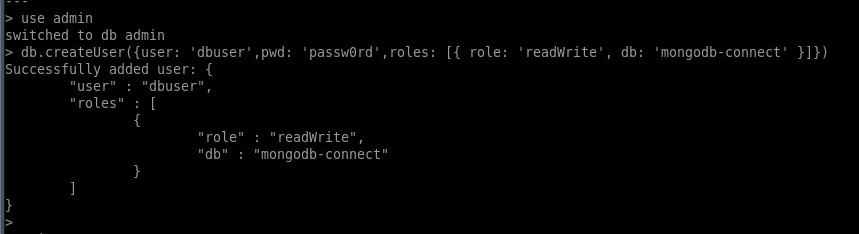
where
- user_name- name for your new DB user
- password- password for this user
- db_name- database (the above created one is suggested) this user will have theread/writepermissions for
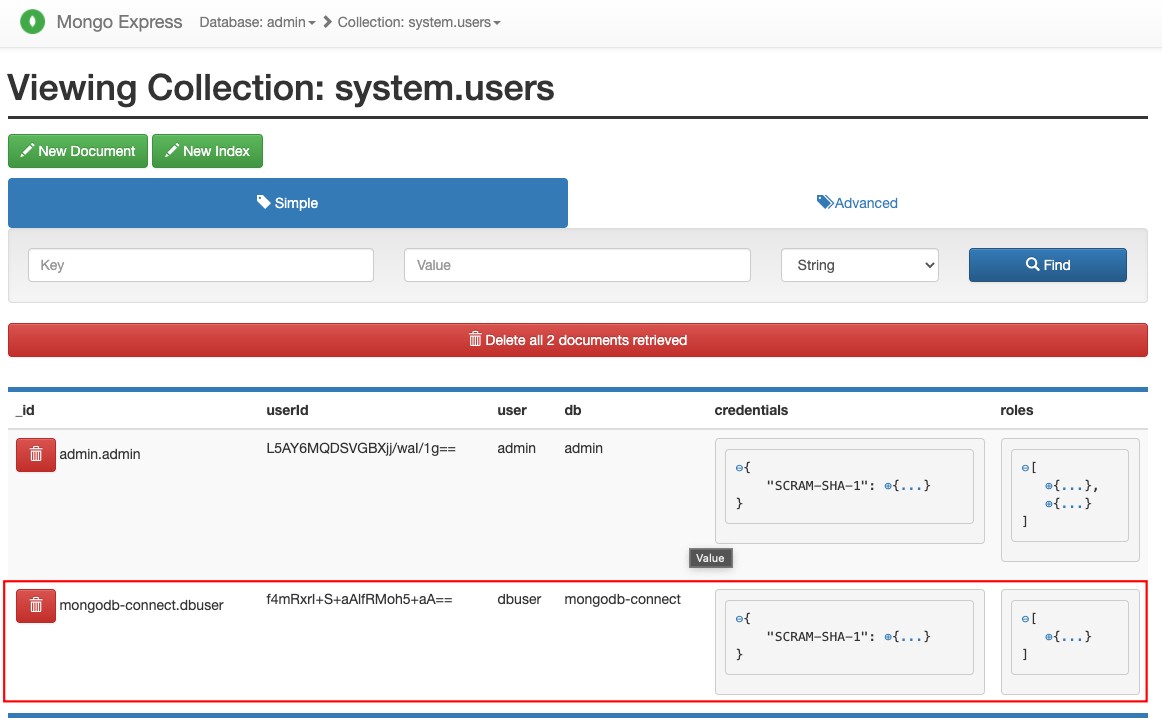
Then select the relevant database using the list and Execute the specified command with the same name button. You will receive a notification of completion in a matter of seconds.
5. The specific connection driver must now be enabled to enable interaction between your app server and MongoDB, which Ruk-Com Cloud includes in all app PHP server builds by default.
Note:
Link #Starting with the 4.3 Ruk-Com PaaS versionThere are two driver versions available for use with the PHP app server built from the ground up:
- mongo.so (currently considered deprecated)
- mongodb.so
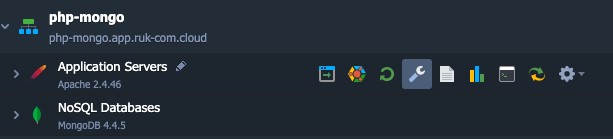
Therefore, to enable the necessary drivers, return to the dashboard. Hover over the compute node in your Env and click on the Config button that appears.
6. Within the tabconfiguration managerthat is open, expand the etc folder and select the file.php.iniinside
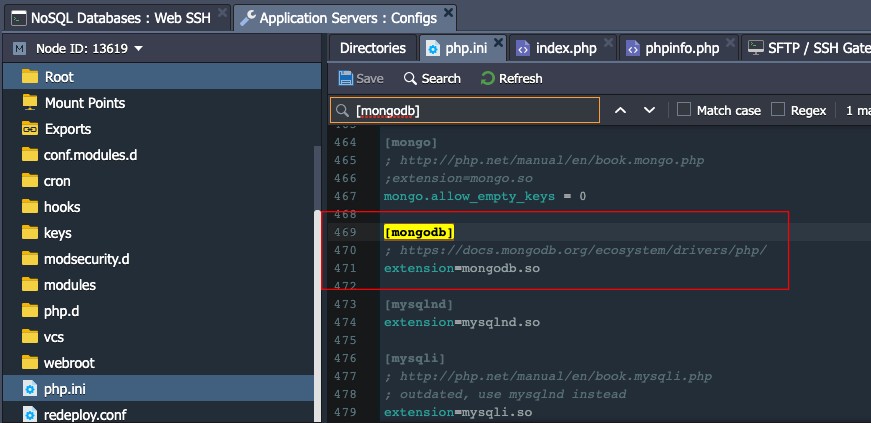
Search for the word [mongodb] and remove the comment (;) in front of the name of the library you want to use. In this case it will bemongdb.so
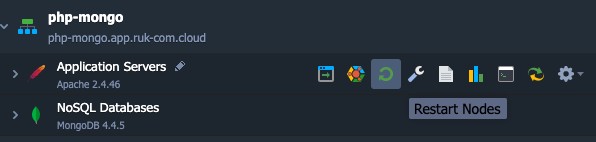
7.SaveChanges performed and restart your app server node to apply.
Deploying the application
You can now proceed to deploy the application in the Environment you just prepared using Ruk-Com.Deployment Manager(For projects included in a permanent repository or pulled directly from a GIT/SVN repository)
For example, we will use the following simple app, which is designed to monitor the establishment of connections between compute nodes associated with a specified MongoDB server using an extension.mongodb.so
index.php:
<html>

<head>
 <title>Test MongoDB Connection</title>
</head>

<body>
 <h1>Test MongoDB Connection</h1>
<form action="#" name="form" method="POST">
  <table cellspacing="10">
    <tr><td>Host</td><td><input type="text" name="host" value="<?php echo htmlspecialchars($_POST['host']); ?>" size="40"></td></tr>
      <tr><td>User</td><td><input type="text" name="username" value="<?php echo htmlspecialchars($_POST['username']); ?>" size="20"></td></tr>
    <tr><td>Password</td><td><input type="text" name="password" value="<?php echo htmlspecialchars($_POST['password']); ?>" size="20"></td></tr>
    <tr><td>Database</td><td><input type="text" name="database" value="<?php echo htmlspecialchars($_POST['database']); ?>" size="20"></td></tr>
    <tr></tr>
    <tr><td> </td><td><input type="submit" name="sub" value="Test Me!"></td></tr>
  </table>
</form>

<?php
if (@$_POST['sub']){
 $host=$_POST['host'];
 $username=$_POST['username'];
 $password=$_POST['password'];
 $userdb=$_POST['database'];
 $database=$userdb.".phptest";

  try{
    $manager = new MongoDB\Driver\Manager("mongodb://{$host}/{$userdb}", array("username" => $username, "password" => $password));
       if ($manager) {
        $bulk = new MongoDB\Driver\BulkWrite;
        $bulk->insert(['x' => 1]);
        $bulk->insert(['x' => 2]);
        $bulk->insert(['x' => 3]);
        $manager->executeBulkWrite($database, $bulk);

        $filter = ['x' => ['$gt' => 1]];
        $options = [
            'projection' => ['_id' => 0],
            'sort' => ['x' => -1],
        ];

        $query = new MongoDB\Driver\Query($filter, $options);
        $cursor = $manager->executeQuery($database, $query);
            }
  }catch(Exception $e){
      echo  "<center><h1>Doesn't work</h1></center>";
    print_r($e);
           exit;
  }
}

if ($host)
 echo "<center><h1>Good connection</h1></center>";

?>

</body>
</html>
So if you want to test the connection, justdownloadPackage with the project as shown above and deploy it.
Tips: For legacy driver versions (such as mongo.so), please use this testing application. The work steps are similar to those described below.
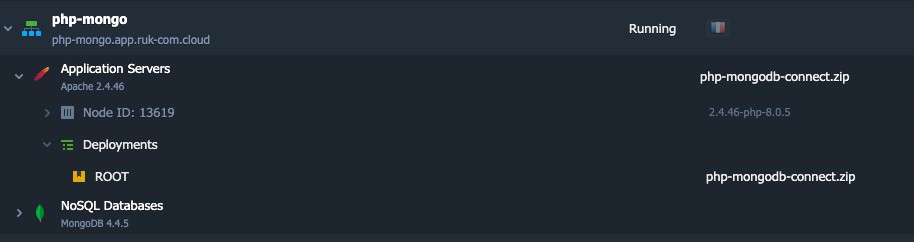
So you will get an Environment similar to the one shown above.
Check connection
1. Open your Environment in the browser with the same name button, you will see a form for entering your MongoDB database details.
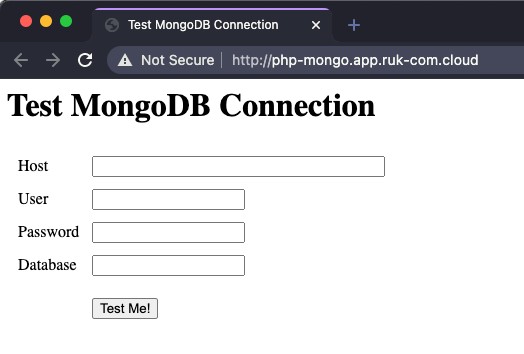
The following values should be specified:
- Host– A link to your admin database panel without the https:// part (can be found in the relevant email or copied from the browser address bar after clicking Open in browser for the MongoDB node)
- User- The username you assigned to the database. (in our case, dbuser)
- Password- Password for the user specified in the previous field.
- Database- Name of the desired database (In our case, it's mongodb-connect)
After entering information in the appropriate fields, click on the Test Me! button.
2. If the specified information is correct, the message Good connection will be displayed.
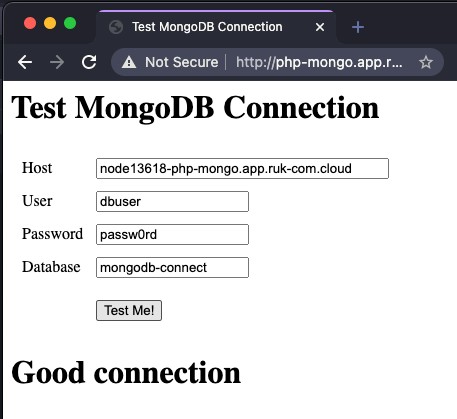
If the information is wrong, you will receive a notification that your connection is down. And what are the detailed results of this error?
3. Additionally, upon successful connection creation, a new phptest collection containing a number of records will be added to the specified database.
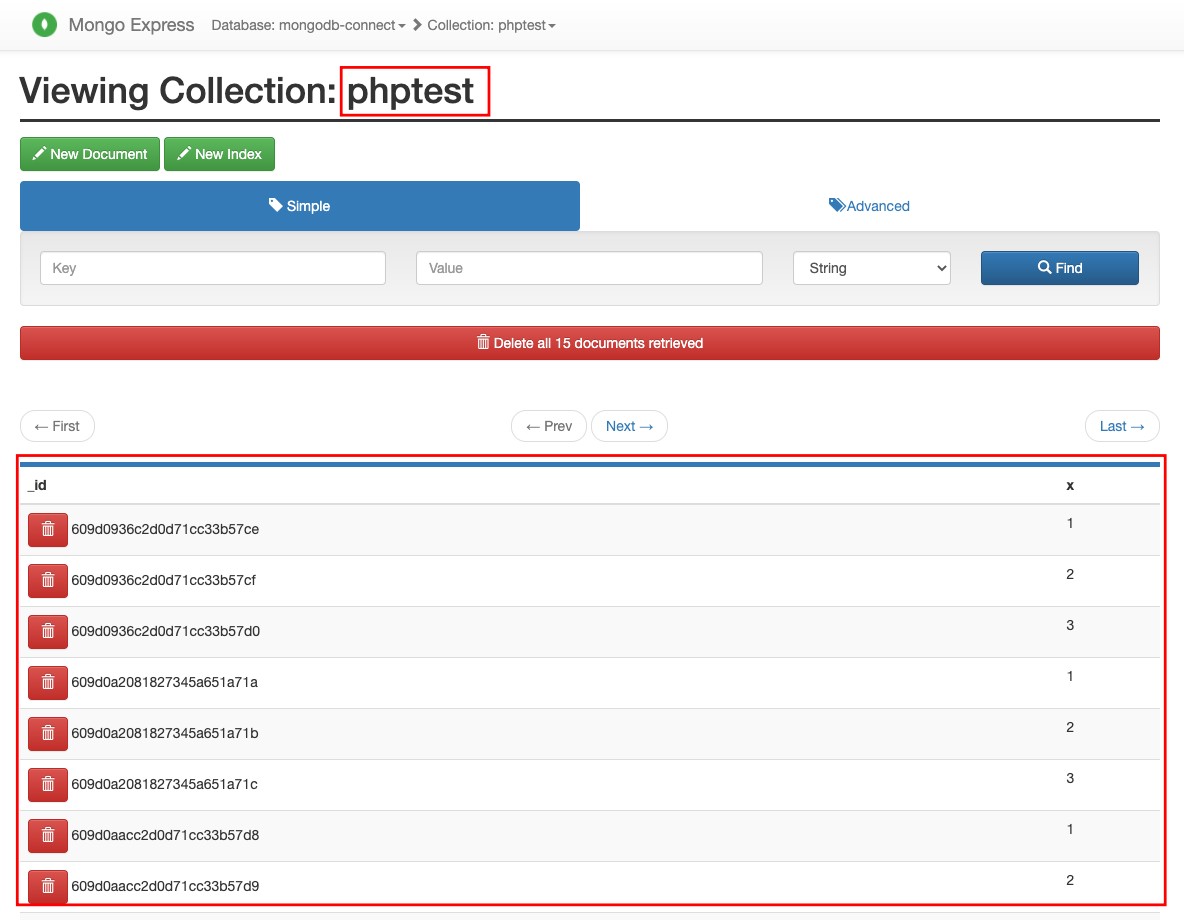
So you can go to the admin database panel. This will ensure that everything works correctly and take other necessary actions.
Things you should know
The Ruk-Com Developer's Center also has a number of specific MongoDB guides that may be useful for different tasks:
- Set upMaster-Slave Replicationbetween multiple database servers to achieve better performance and data access
- ConfigureReplica Setwith unequal number of MongoDB nodes to use Master-Slave replication and automatic failover simultaneously.
- Increase data security through settingsBackups SchedulingThis may prevent data loss or reduce its consequences. (via recovery) if unexpected server failure occurs
- Use the optionRemote AccessFor direct manipulation of your database through the desired client application. Eliminate the need to login to our dashboard.
- Check methodImport & Export DumpUsing 3d-party DB management clients to easily back up your data.