
SSH Access via Web Browser
This guide is maintained for Ruk-Com PaaS. Screens and options may vary by platform version and account permissions.
Confirm the environment, region and account permissions, and back up current settings before changing a production system.
Objective
This guide explains how to use SSH Access via Web Browser on Ruk-Com Cloud PaaS, with ordered procedures and practical verification points.
Before you begin
- Sign in with an account permitted to manage the relevant environment.
- Confirm the target environment, region and resources before saving changes.
- Create a backup or rollback plan before changing a production system.
The platform allows you to connect to your containers directly through the Web SSH Client without the need to create an SSH key pair or perform any configuration. Adding to the hassle
How to use:
1. Select the layer or node you want to access.
2. Click the "Web SSH" button next to the layer.
3. The system will automatically open a new tab with the Terminal Emulator program window connected to the container.
This way, you can easily, quickly, and securely manage your systems within containers without any additional setup.
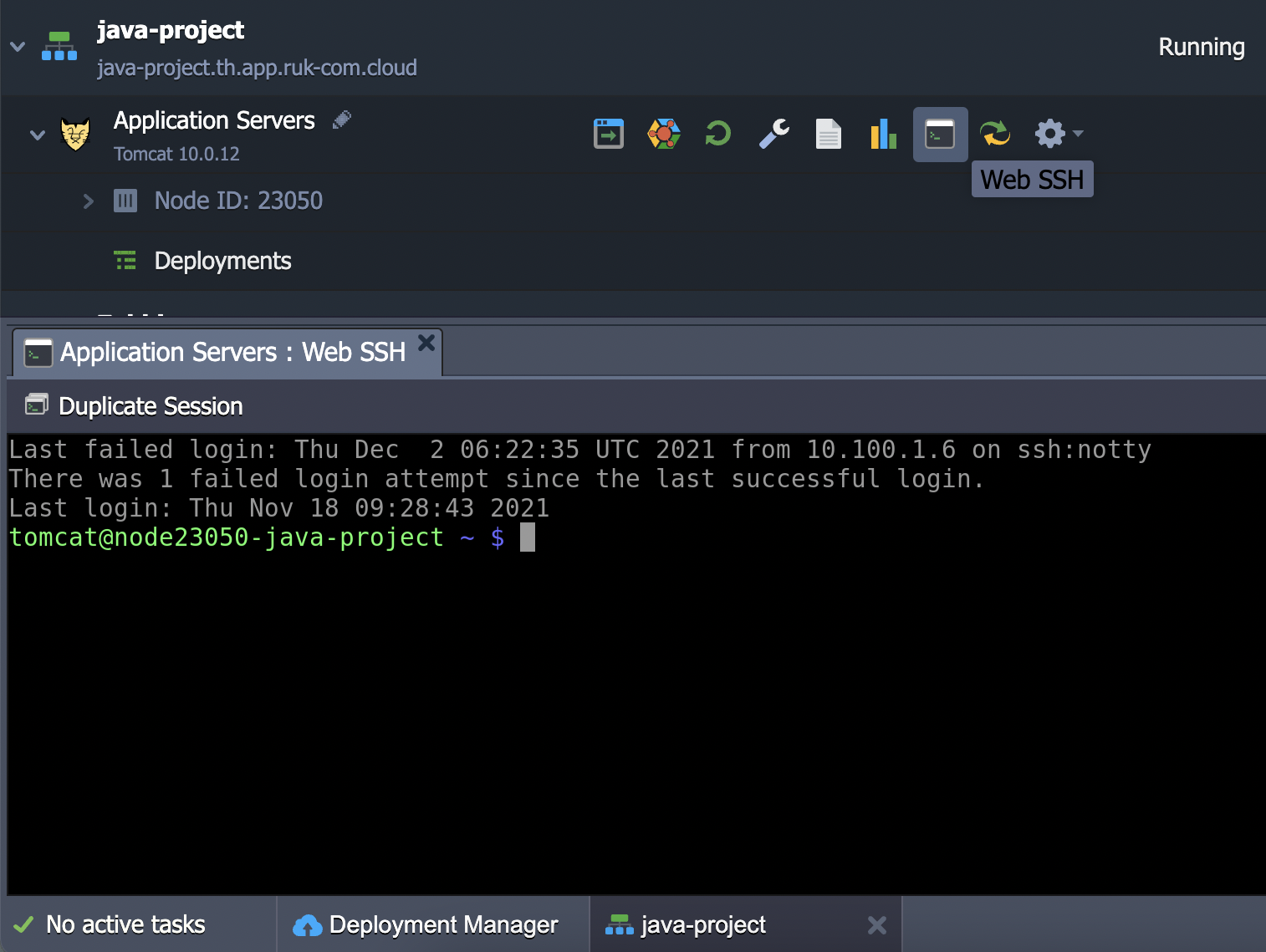
Opening multiple sessions with the Duplicate Session button
You can click on the "Duplicate Session" button to open a new tab connected to it. the same container instantly. This feature allows you to work Many things at once conveniently on a single node
- wp:list-item
- Open a window to run commands.
tail -fTo track the log in real time
/wp:list-item
wp:list-item
- Another window is used to manage or edit applications, such as editing config or restarting services. /wp:list-item
The web SSH client also has embedded shortcuts for ease of management. You can see this by hovering your mouse over the keyboard icon in the top right corner of the tab):
- wp:list-item
- Copy(Ctrl + Shift + C) /wp:list-item wp:list-item
- Paste(Ctrl + V) /wp:list-item wp:list-item
- Settings(Ctrl + Shift + Alt) - Allows to configure the simulator, for example changing the input method. Manually change text in the clipboard, etc.
You can now start managing your container via SSH (e.g. customizing variables or changing firewall settings, etc.).