SFTP / Direct SSH Access
This guide is maintained for Ruk-Com PaaS. Screens and options may vary by platform version and account permissions.
Confirm the environment, region and account permissions, and back up current settings before changing a production system.
Objective
This guide explains how to use SFTP / Direct SSH Access on Ruk-Com Cloud PaaS, with ordered procedures and practical verification points.
Before you begin
- Sign in with an account permitted to manage the relevant environment.
- Confirm the target environment, region and resources before saving changes.
- Create a backup or rollback plan before changing a production system.
You can use FTP through installing add-ons. If the environment you want to access does not support add-ons, you can create an sftp connection through the dashboard, here's how:
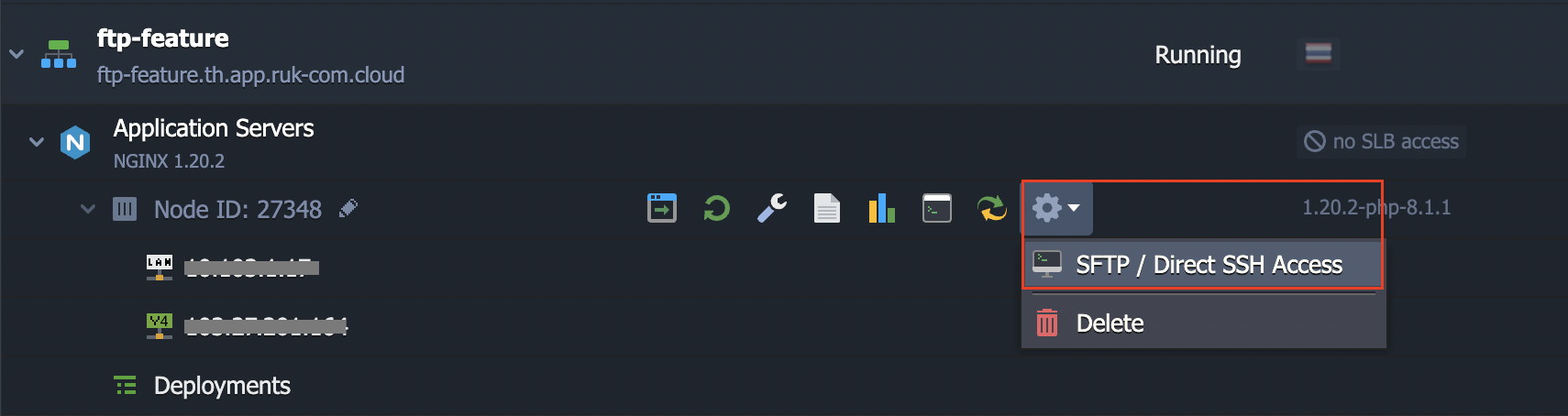
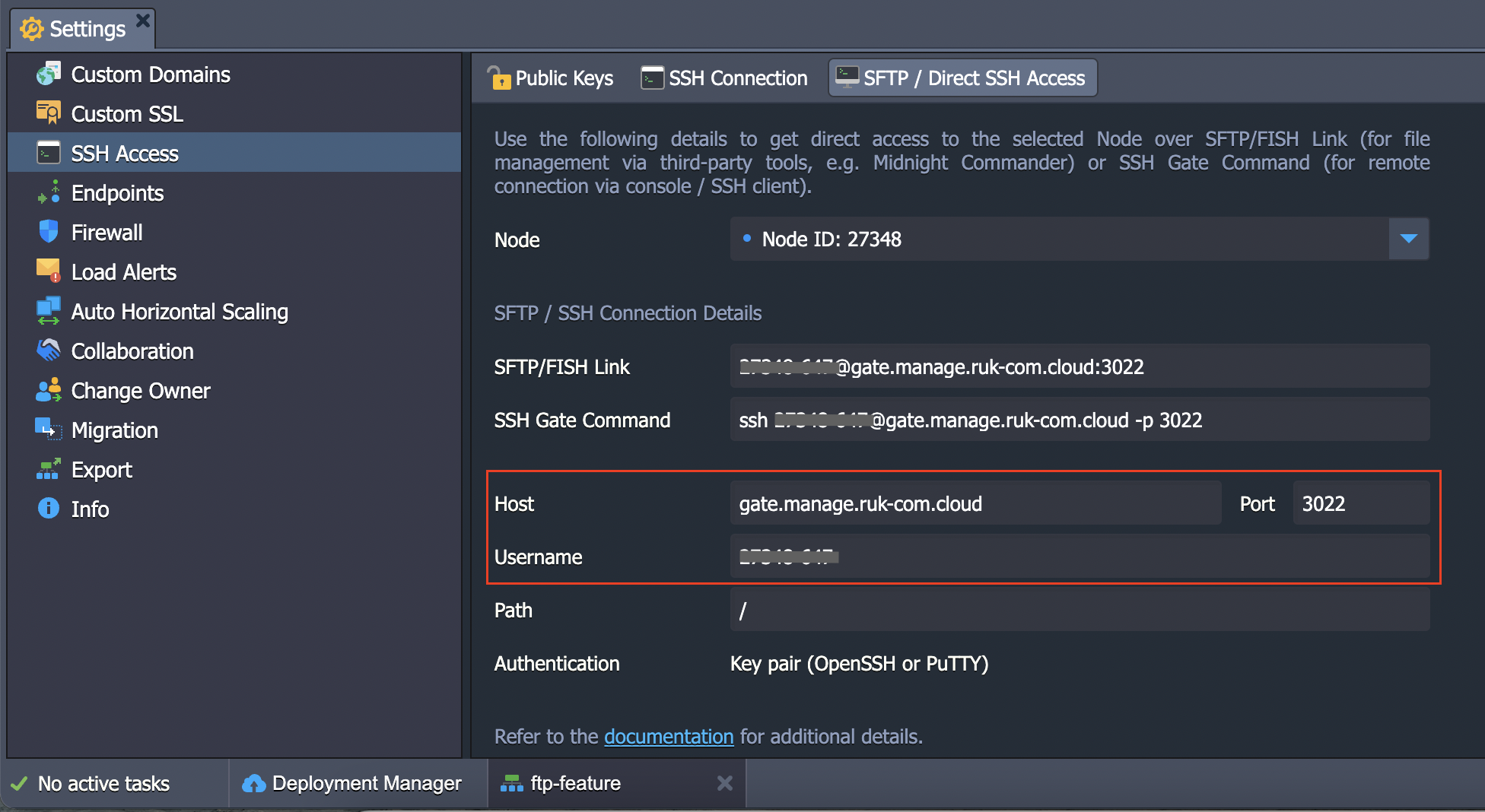
1. Select the node to which you want to sftp connect, then click on the gear button on the right. SelectSFTP / Direct SSH Access
2. SFTP/Direct SSH Access settings will appear for you to click.Add Public SSH Key
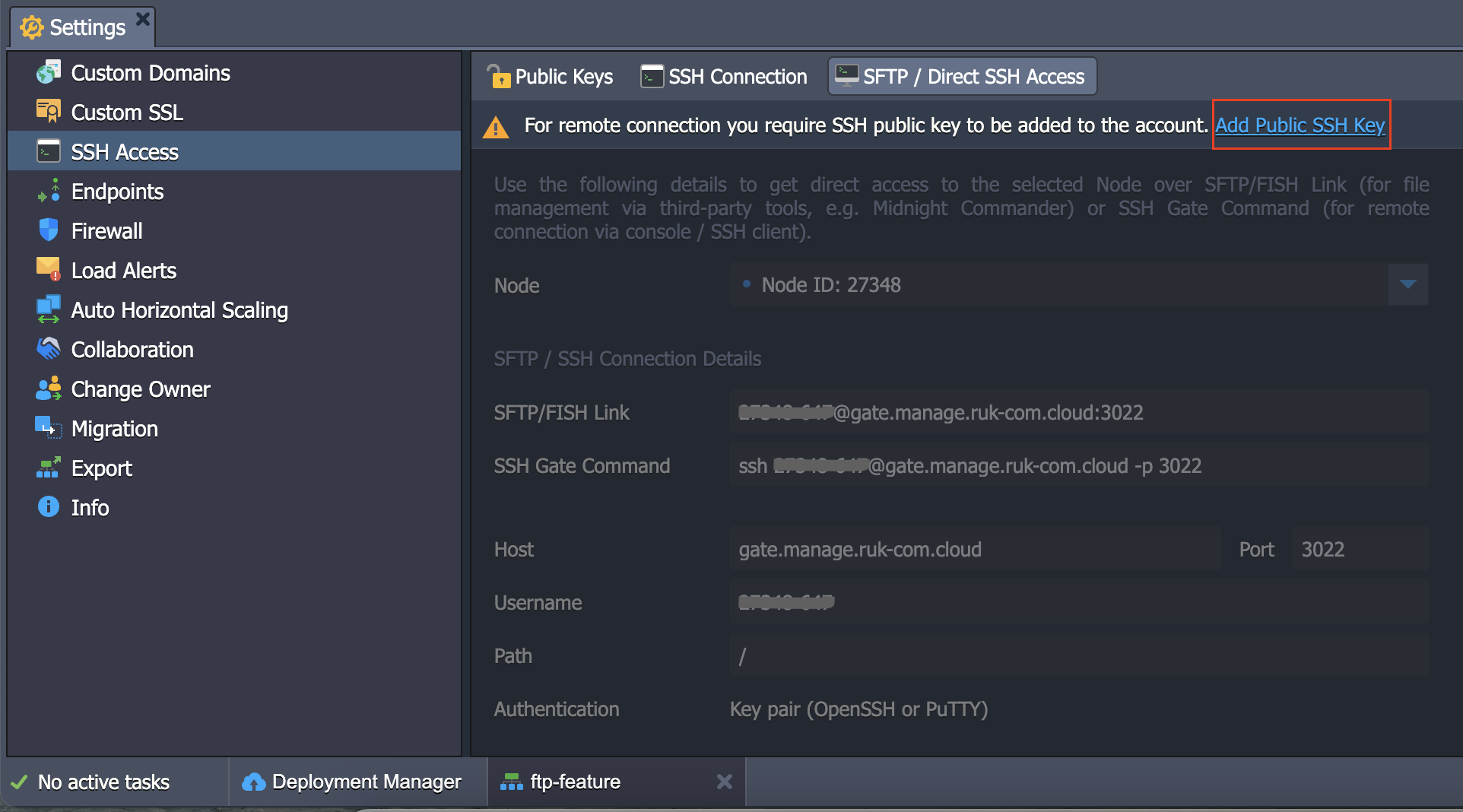
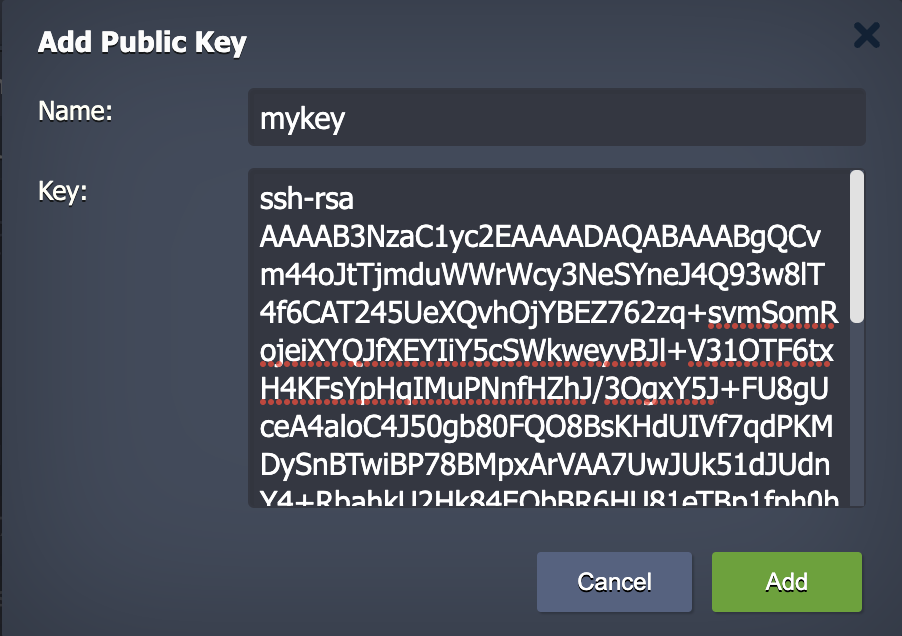
3. Add your public key to your dashboard by specifyingName(such asmykey) andPublic Keyinto the box and clickAdd
- You can create a public key on your machine using the commandssh-keygenThrough the terminal, for example:
ssh-keygen -t rsa
- An SSH key will be generated on your machine which consists of a file.id_rsais private key andid_rsa.pubis public key
- Use the command below to view your public key.
cat .ssh/id_rsa.pub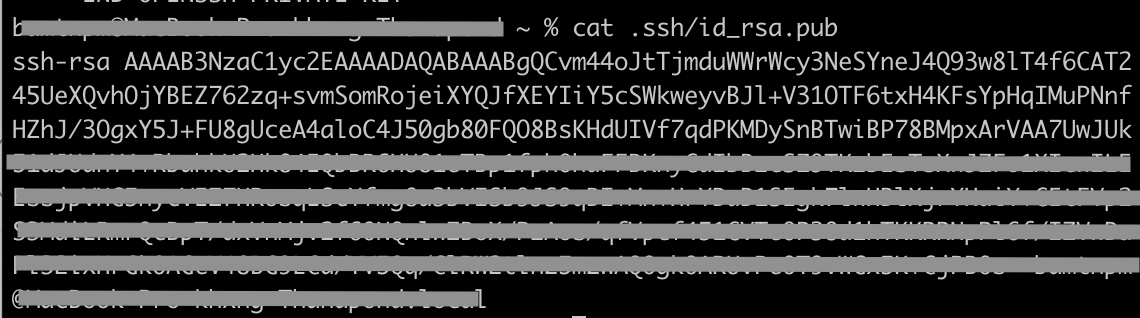
- Copy the key and add it to your dashboard.Add Public Key
Using SFTP via FileZilla
Connecting to your server through FileZilla follows these simple steps:
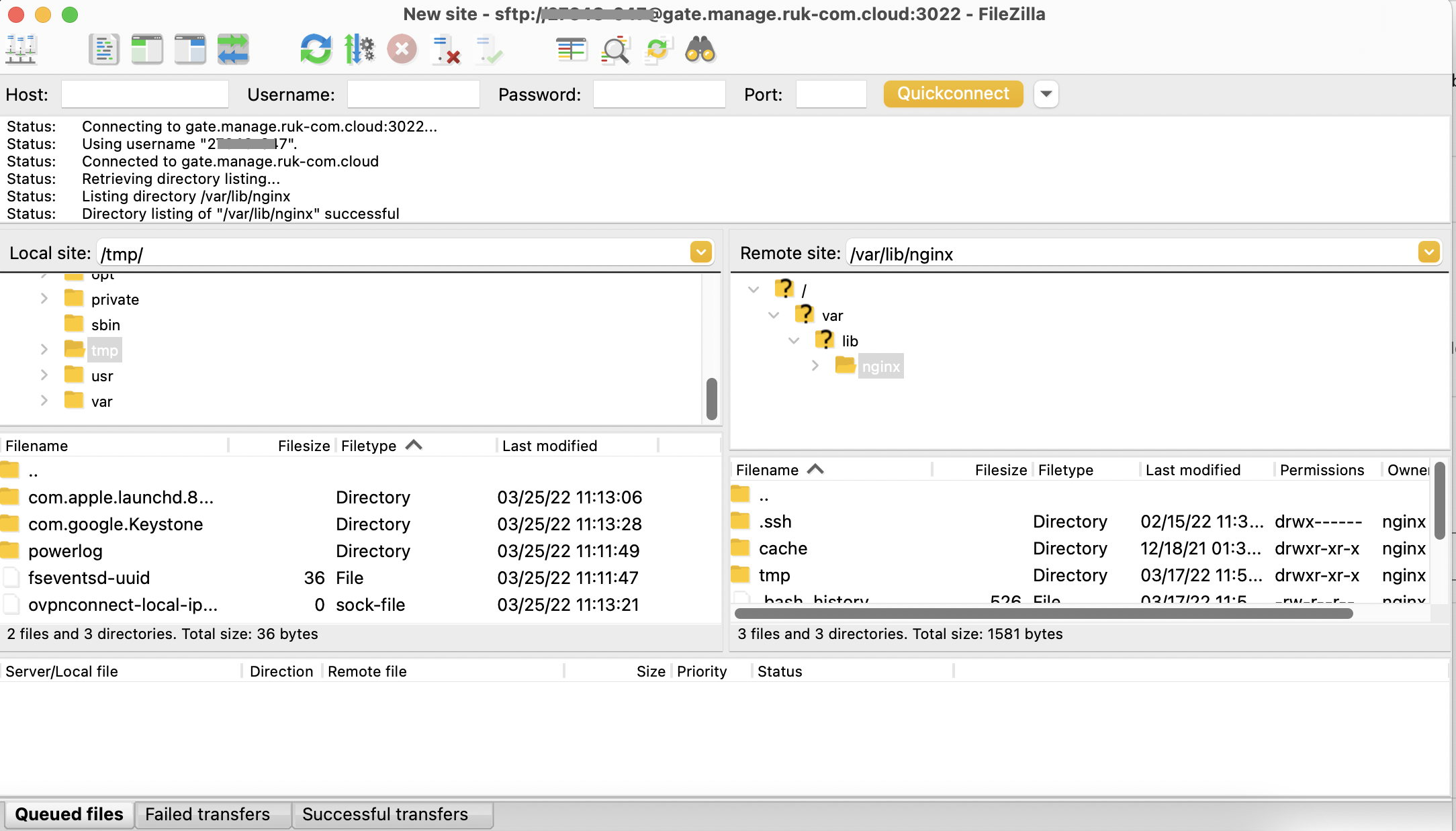
1. After you have finished adding your public key. You can use the informationHost, Username, PortTo connect through FileZilla
2. Go to FileZilla on your device, click the button.Site Manager
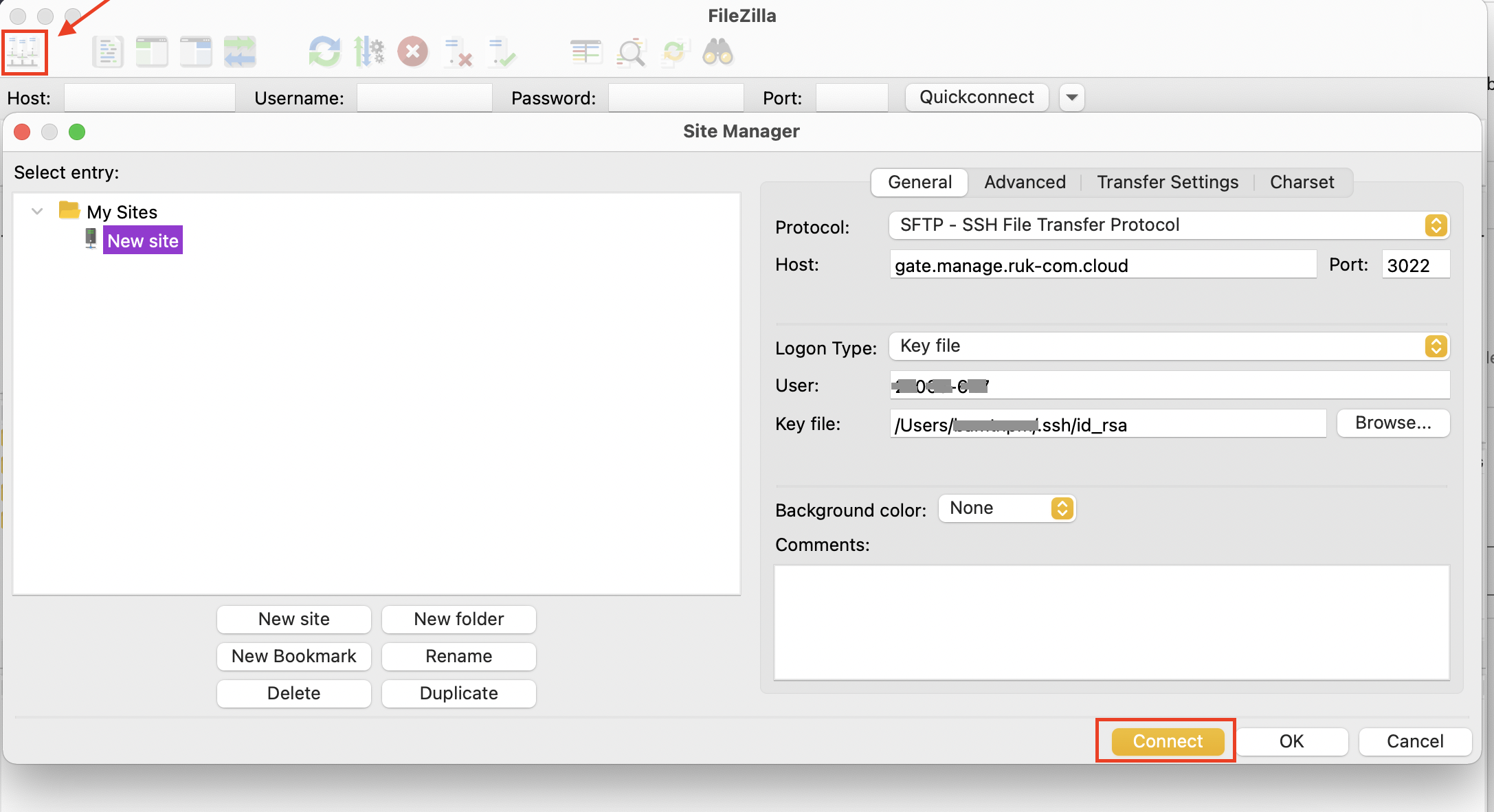
Set up the connection as follows.
- Protocol: Select SFTP - SSH File Transfer Protocol.
- Host:gate.manage.Ruk-Com.cloud
- Port:3022
- Logon Type:Select Key file
- User:Specify your username on your dashboard settings page.
- Key File:Click the Browse button and select the file.id_rsaat your machine
When you have finished entering information, clickConnectto connect to your application server
3. If the connection is successful, the status will be displayed.SuccessfulYou can now transfer your files.