
How to create SFTP manually
This guide is maintained for Ruk-Com PaaS. Screens and options may vary by platform version and account permissions.
Confirm the environment, region and account permissions, and back up current settings before changing a production system.
Objective
This guide explains how to use How to create SFTP manually on Ruk-Com Cloud PaaS, with ordered procedures and practical verification points.
Before you begin
- Sign in with an account permitted to manage the relevant environment.
- Confirm the target environment, region and resources before saving changes.
- Create a backup or rollback plan before changing a production system.
1. Login to Ruk-Com Cloud Dashboard.
2. You must havepublic IPfor the environment to connect to SFTP and click the buttonWebSSH
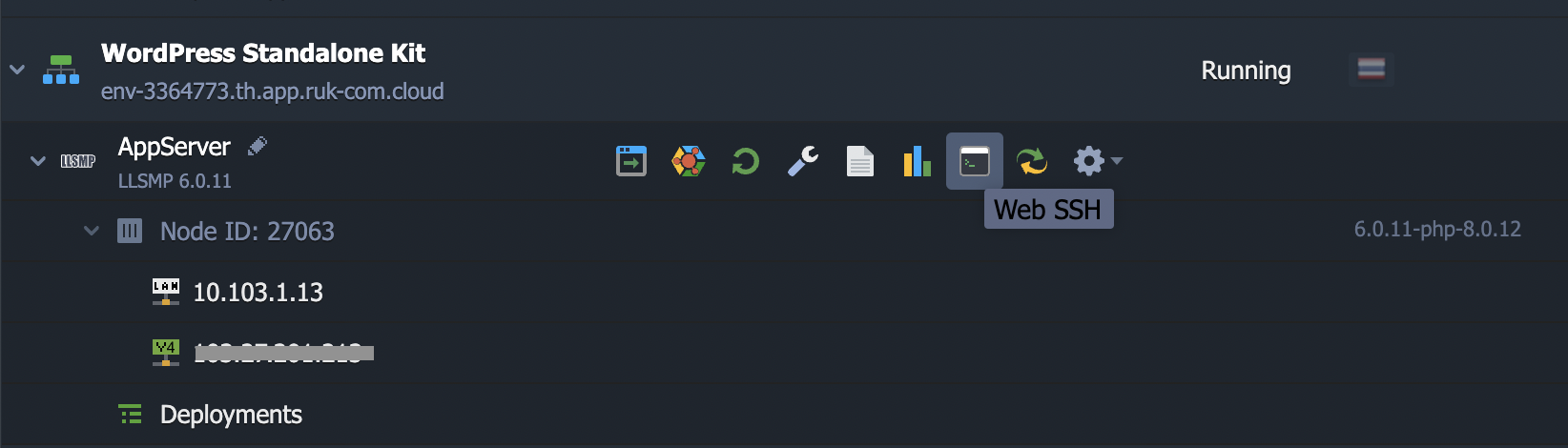
Note:You will need to install the add-on.Root AccessTo configure your username and password, click the button.Install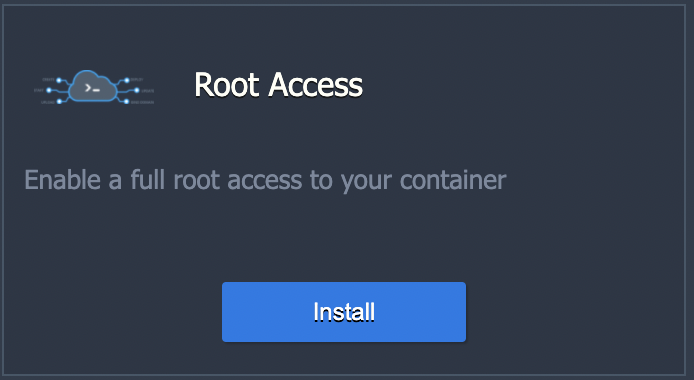
3. In the Web-SSH window that appears, grant root privileges using the commandsudo su
4. Then add the username for SFTP by setting the path value./etc/passwdand add this command:
jelastic-ftp:x:700:700::/var/www/webroot/ROOT:/bin/false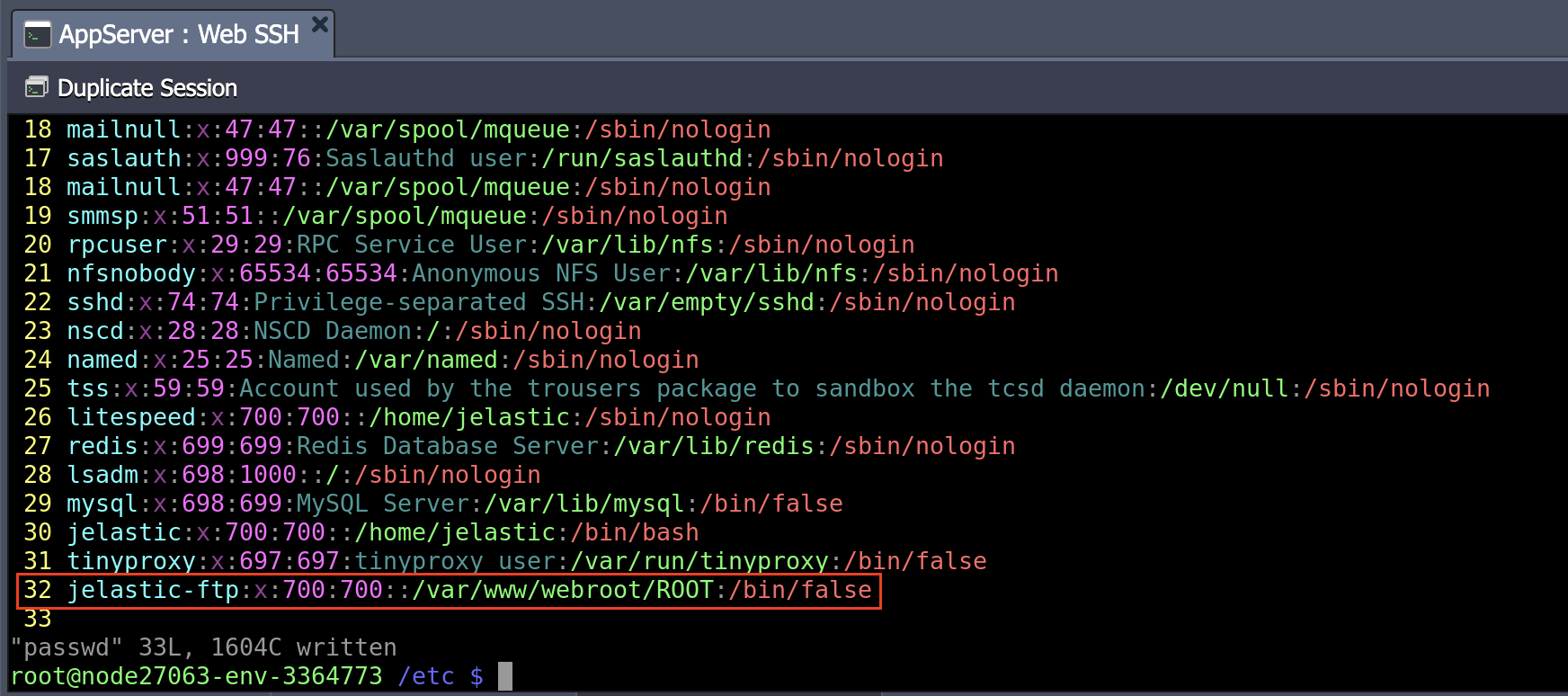
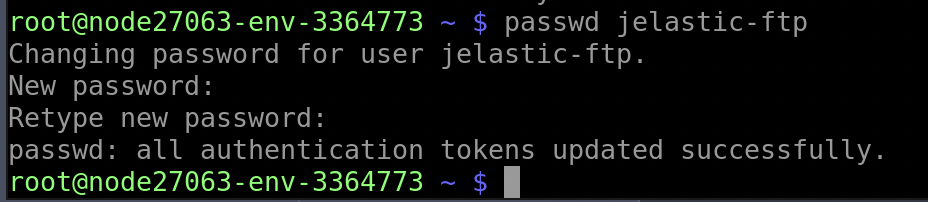
4. You can set your password using the commandpasswd Ruk-Com PaaS-ftp
5. Edit the sshd configuration by typing the command vim /etc/ssh/sshd_configScroll down to line 129, comment Subsystem, and add the command as shown:
Subsystem sftp internal-sftpIn the bottom section, add the user by typing this command:
Match User jelastic-ftp
        X11Forwarding no
        AllowTCPForwarding no
        ForceCommand internal-sftp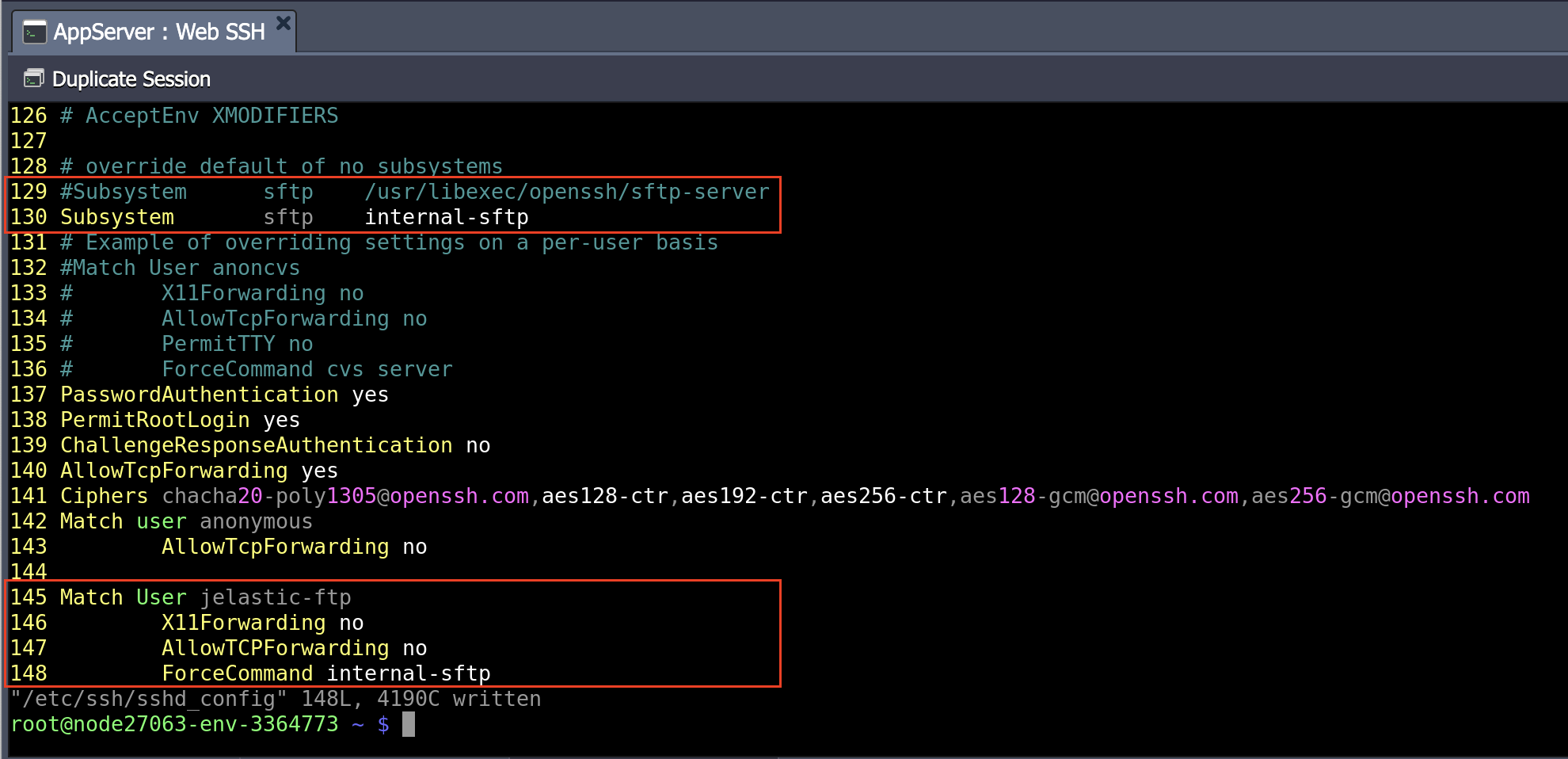
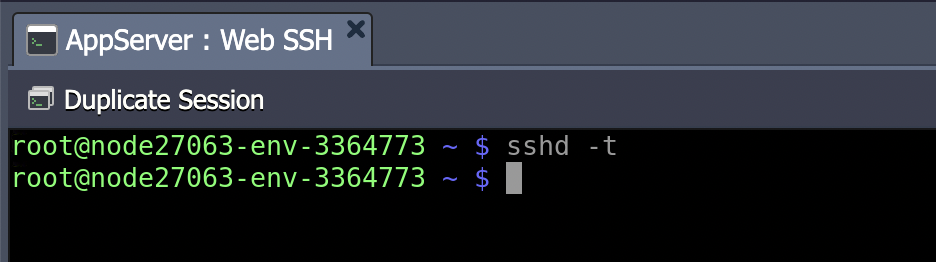
6. Verify correctness by typing the command.sshd -t
7. Restart the service by typing the commandservice sshd restart
8. You can now use SFTP. We will give an example of connecting through the program.FileZilla
Enter the host, username and password you set. Then press the buttonQuickconnectThe status will be successful.
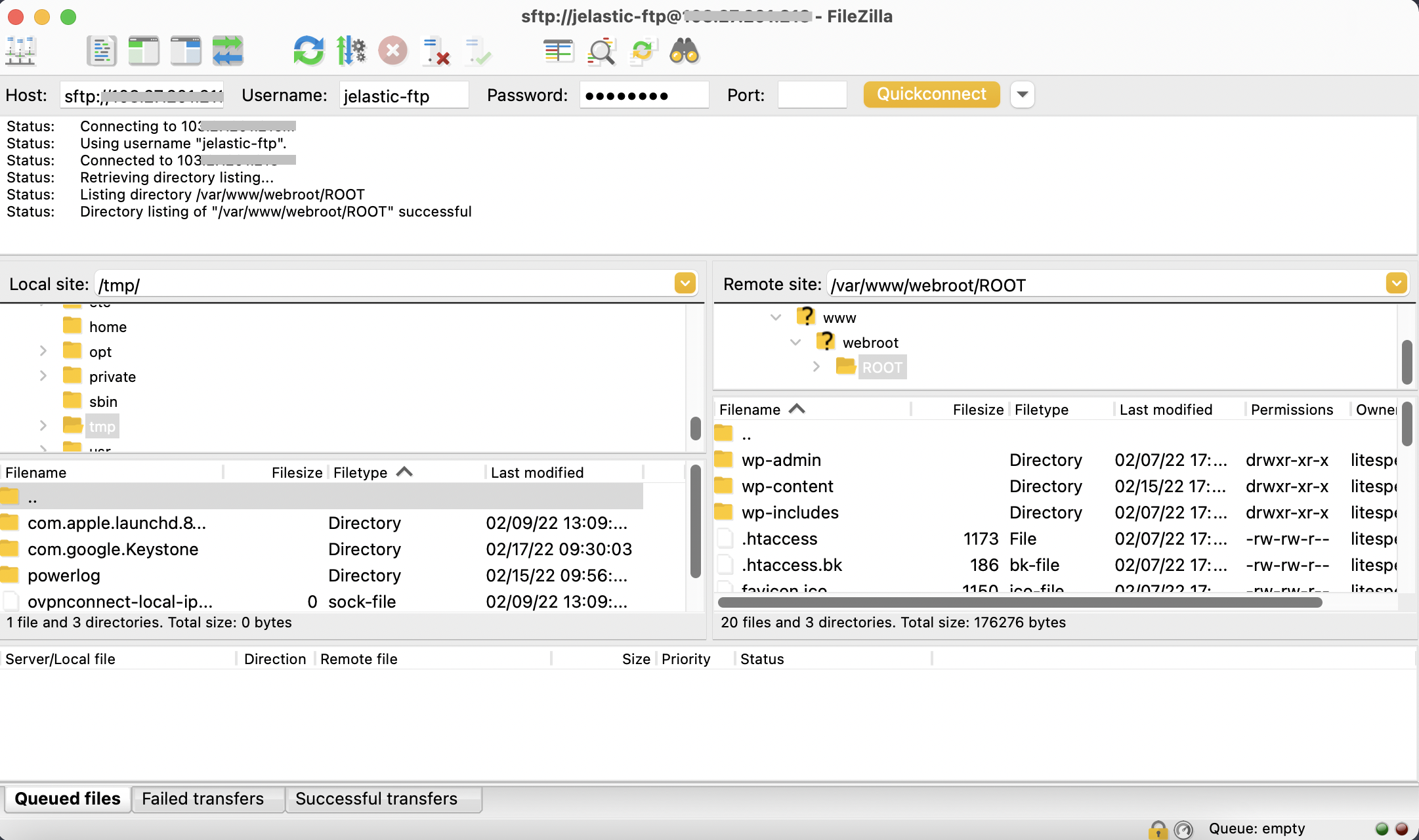
You can now transfer files from your machine to the environment.