
Horizontal Scaling inside the Cloud: Multi Nodes
This guide is maintained for Ruk-Com PaaS. Screens and options may vary by platform version and account permissions.
Confirm the environment, region and account permissions, and back up current settings before changing a production system.
Objective
This guide explains how to use Horizontal Scaling inside the Cloud: Multi Nodes on Ruk-Com Cloud PaaS, with ordered procedures and practical verification points.
Before you begin
- Sign in with an account permitted to manage the relevant environment.
- Confirm the target environment, region and resources before saving changes.
- Create a backup or rollback plan before changing a production system.
Hosting your applications becomes more flexible with Ruk-Com Cloud PaaS.auto-verticalYou can also increase/decrease the number of servers in your environment automatically or manually.
Resizing itself is quite simple - just turn it on.environment topology wizardand use the appropriate "+" and "-" buttons or type the desired numbers in the central control panel. Additionally you can use the scrollbar which will be displayed byautomaticWhen making any adjustments
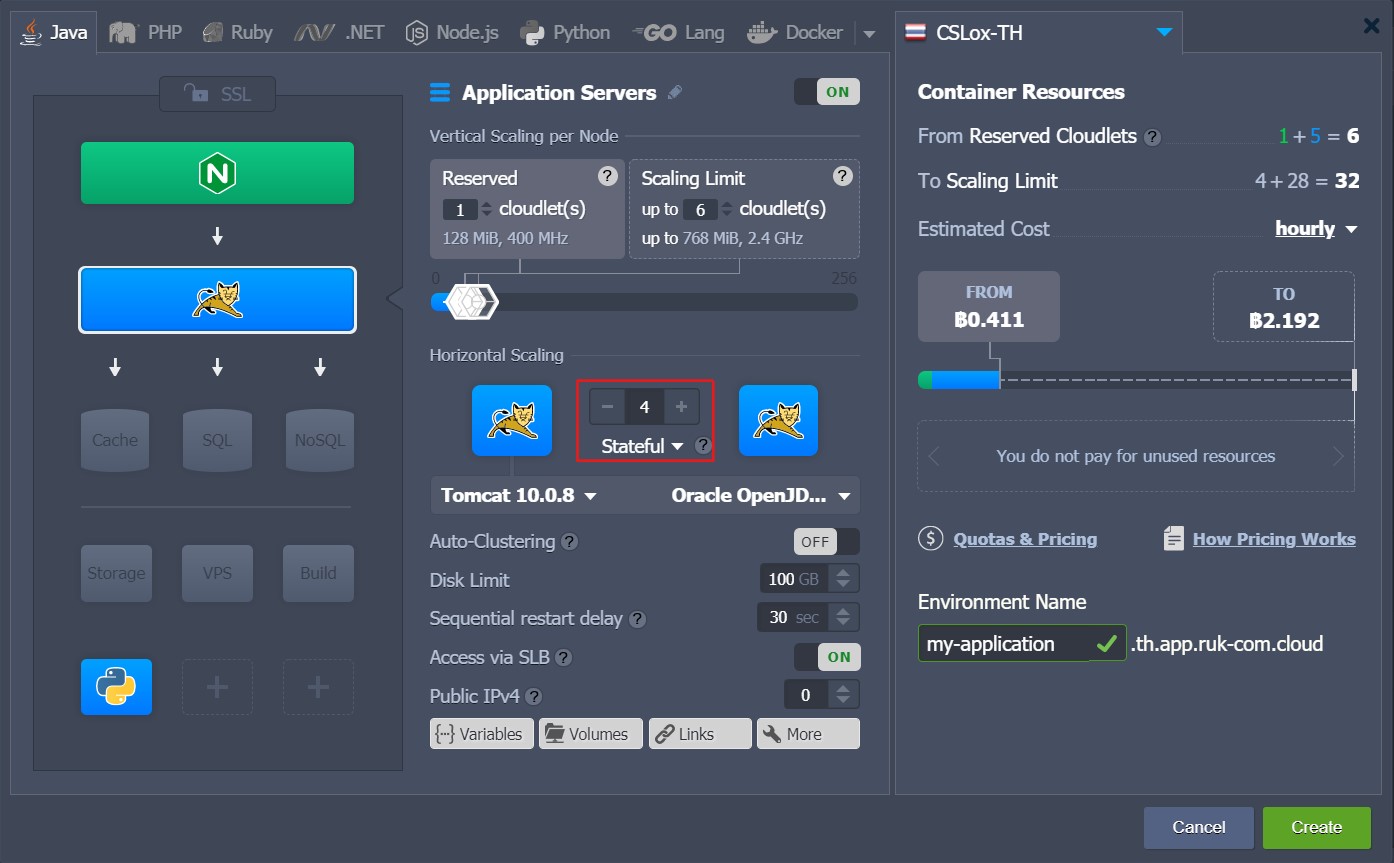
- Tips:You can automatically adjust the horizontal size according to the incoming load with the help ofTriggeradjustable
- You can use the default (master) node of the layer asstorage serverFor sharing data within all layers
- In the case of scaling (e.g. reducing the number of nodes), the last container added to a layer will be the first to be removed (unlesschoose clearly)
You can select your desired scaling mode from the drop-down list. For more details, refer to the horizontal scaling scale below.
Scaling Modes
Starting with platform version 5.5, the desired scaling mode for a new environment can be selected during creation or modify an existing one via the topology wizard:
- Stateless- Create new nodes all at once from the image template.
- Stateful- Copy the main container's file system to the new node accordingly.
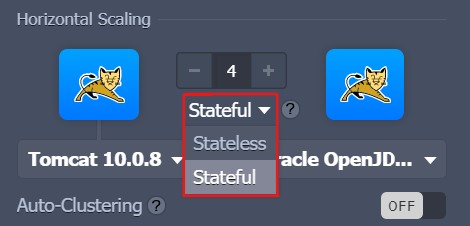
The first option is somewhat faster. While the second option automatically copies all custom configurations simultaneously during the initial layer creation. All nodes are created simultaneously to speed up the process (for the modestatefulBecause there hasn't been any adjustment yet)
While using the modestatelessBe aware that new nodes within a layer do not have the following features:
- deployments- Existing project contexts will not be transferred.
- custom SSL- SSL certificate and configuration will not be copied.
- mount points- ThemountsCustom designs will be moved only if they are configured.volumeThat's appropriate.
- add-ons-Add-on programsVarious items installed on the layer will not be available.
Tips:Custom file transfer for modestatelessThis can be done manually or configured through our automation system.Cloud Scripting(such as usingonBefore-andonAfterScaleOut)
Based on these specific features, Ruk-Com Cloud PaaS introduces a scaling mode.statefulScaling mode (used by default) for load balancers, application servers, and VPS stacks. If necessary, you can reconfigure the scaling mode for your nodes at any time through the topology wizard.
Horizontal scaling details
The maximum number of servers of the same type within a single environment layer depends on the specific hosting provider's settings (usually limited to 16 nodes). You can check the exact values within the frame.Quotas & Pricing >Account Limits
All newly added servers are built at different hardware nodes providing high reliability and availability.
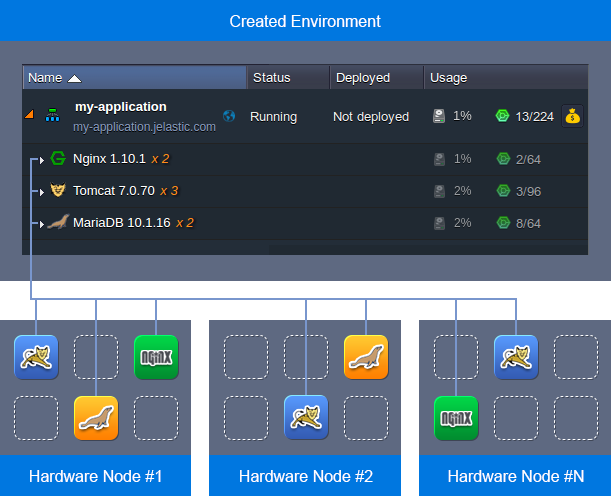
Each environment node (layer) has a unique name. If desired, you can adjust this manually in cases where there are multiple instances. The layer name will include:xN(whereNis the actual node number)
Having multiple nodes of the same type within a layer allows them to be manipulated at the same time.synchronousSo you canConfiguresimultaneously checking logs and statistics,restart or redeployVia the following related icons:
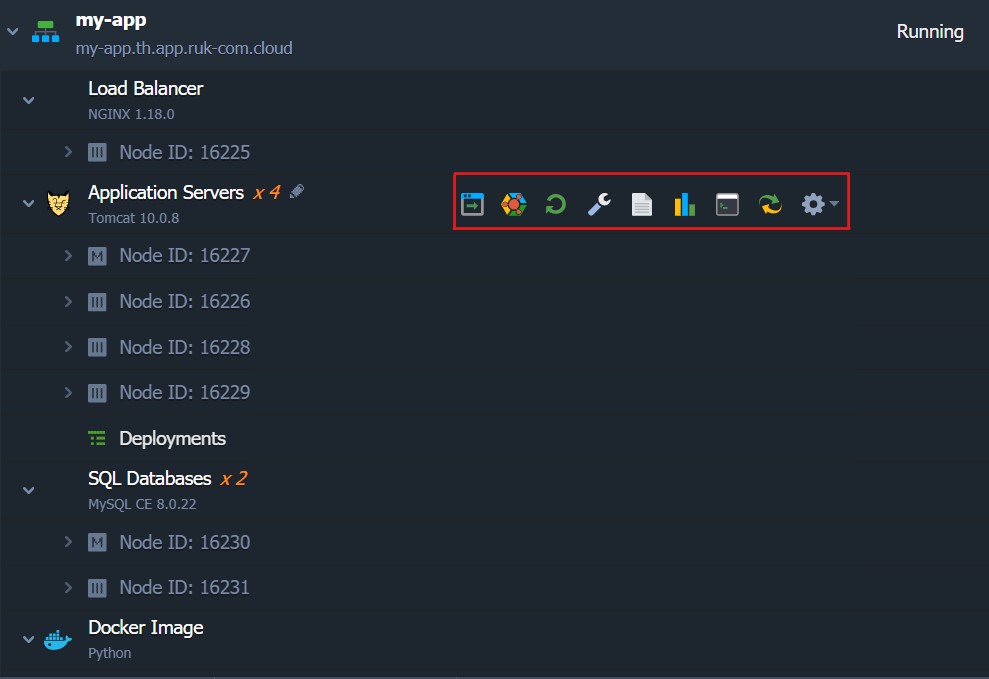
To facilitate interoperability with many servers of the same type, Ruk-Com Cloud also allows marking specific nodes with appropriate labels, for example to define master and slave instances in a DB cluster.
Just double click on the default value.Node ID: xxx(Or hover over a node and click the pencil icon) to specify an alternative name.

More information about this feature can be found in the documentation.Environment Aliases
Different types of stack sizing Consider the following specifics:
- When scaling an application server instance, a load balancer node is automatically added to the environment topology.
- If the option is enabledhigh-availabilityFor server applications that require an NGINX load balancer, they cannot be horizontally scaled (if multiple NGINX nodes exist first). those nodes are automatically reduced to a single instance)
- When scaling VPS nodes, each node has a separate public IP attached to it.
- Maven is the only node that cannot be horizontally resized (because there is no point in doing so).
Now you know how to scale instances horizontally in Ruk-Com Cloud PaaS and know the simple specifics. Additionally, you can configure automatic node scaling to smoothly spike high loads without overpaying for idle resources.
Managing nodes within layers
The platform provides simple node management by simply specifying the required number of containers in a layer. The removal process is performed in the opposite order to the addition - i.e., the most recent containers are removed first. In case you want to delete some nodes you can select the desired nodes via:
- part ofHorizontal ScalingIn the topology wizard - accessed using the Change Environment Topology button next to the desired environment.
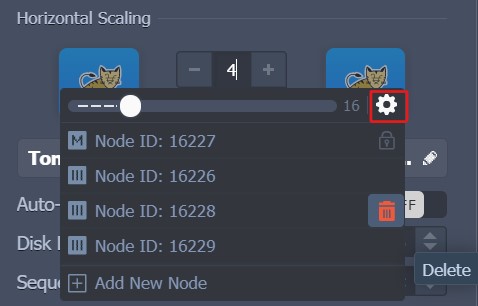
- Scaling Nodes form in the dashboard - can be accessed using the optionAdditionally > Scaling Nodesnext to the layer orAdditionally > Deletethat is next to a particular node
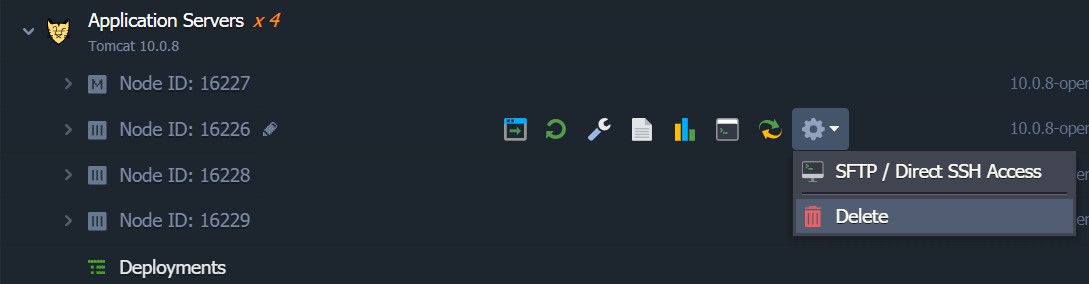
inside the windowScaling NodesYou can do the following:
1. Add a new node to the layer using the + or button.Add New Node
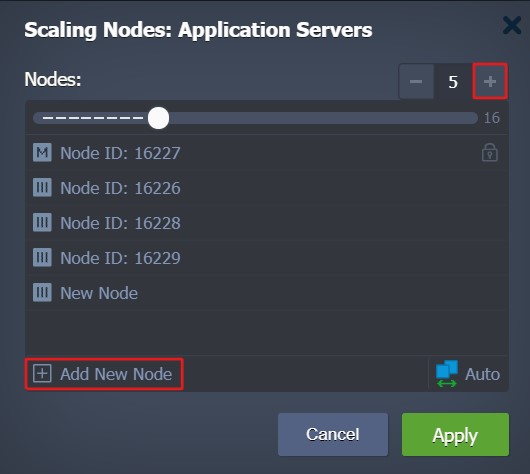
Tips:The first node of the list is called"Master"of the layer (highlighted with a special icon) and can be deleted only for the entire layer.
- If you have already pressed delete a node, you canundoCan undo deletion of existing nodes during configuration However, after applying the changes, the instance will be permanently deleted.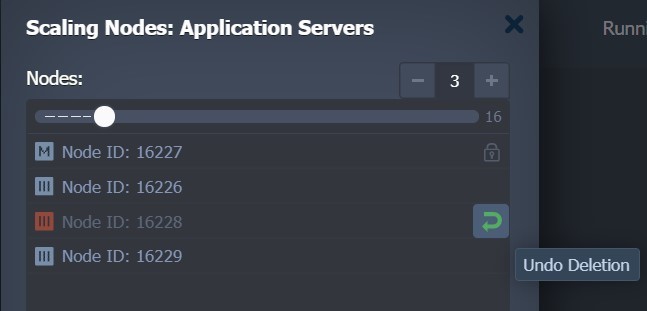
3. At the bottom of the frame You will see a redirect.AutoGo to scalinghorizontalautomatically
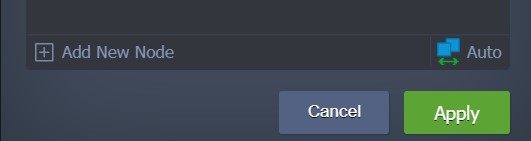
If there are any changes in the form You will need to confirm the redirect through the pop-up that appears. (Because unsaved changes will be discarded)
4. When applying changes, Ruk-Com Cloud PaaS will automatically notify you about all potential malicious actions to be performed on your environment (if any), as follows:
- Node restart notification
- Notification of layer deletion and node splitting
- Notification of impact on existing NFS mounts
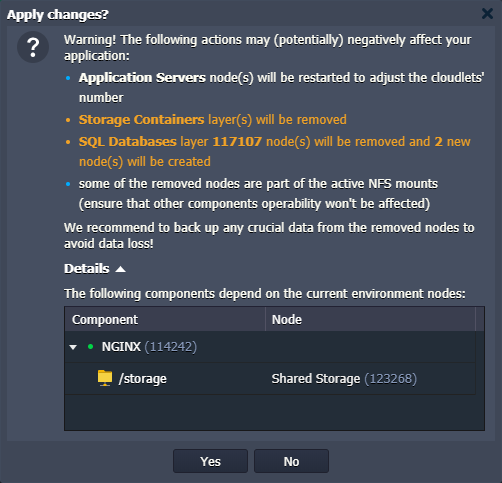
Before proceeding Please ensure that the points listed will not affect your application and any important data. (from the deleted node) and is safely backed up.