
Custom Environment Variables
This guide is maintained for Ruk-Com PaaS. Screens and options may vary by platform version and account permissions.
Confirm the environment, region and account permissions, and back up current settings before changing a production system.
Environment variables represent a kind of placeholders, where you can store the frequently used parameters values or strings in order not to specify them manually in the code each time they are needed. There is a number of default environment variables which are preconfigured and can be used in your application code or even adjusted before node creation to apply some customization, making your work with the platform even more convenient.
In this guide, we’ll describe the most common ways of adding your custom variables for any node within the platform:
- via a dedicated variables section of the dashboard
- using the shell configuration files
- through the variables.conf file (for Java only)
Customize Environment Variables via UI
- Hover over the node group in dashboard, expand the Additionally list and select the Variables options.
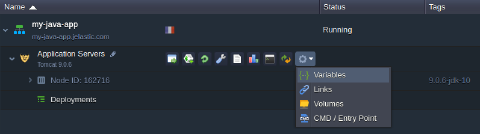 2. Within the opened frame, you can adjust a list of environment variables up to your needs (using the buttons at the tools pane).
Note: The platform implementation of the Docker containers allows usage of the existing environment variables to define others. For example, the MY$HOME value will be automatically converted to *MY* one (or similar based on the HOME variable value).
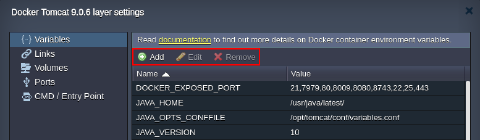 Don’t forget to Apply the changes you’ve made.
Set Up Environment Variables via Shell Configs
You are able to provide your custom variables using the shell config files:
- ~/.bash_profile is executed only upon login via console
- ~/.bashrc is executed for each new bash instance
In order to help you with maintaining these files, the platform automatically include the sources of the .bashrc config within .bash_profile. In such a way, you can provide custom variables through the former file only:
- Establish SSH connection to your container. For example, we’ll use the embedded Web SSH client:
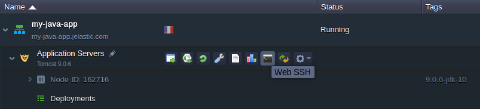 2. Create or adjust the .bashrc file within the home directory by adding your custom variables in the following format:
bash Copy
export {var_name}= {var_value}
where
- {var_name} - name of the variable you would like to specify
- {var_value} - value of your variable
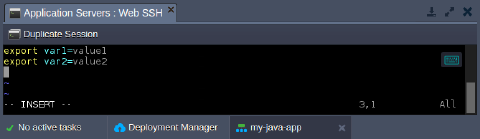 3. Now, each new bash instance will be provided with your custom variables. To force new settings appliance for the current session, just refresh the sources with the command shown below. Next, verify new variables availability:
bash Copy
source ~/.bashrc
echo $ {var_name}
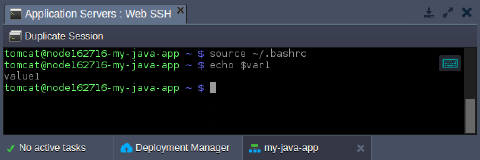 As you can see, the changes were successfully applied.
Adjust Java Environment Variables via Configuration Manager
The following simple workflow is identical for all of the platform-managed Java application servers.
- Click the Config button for your application server to access container file manager.
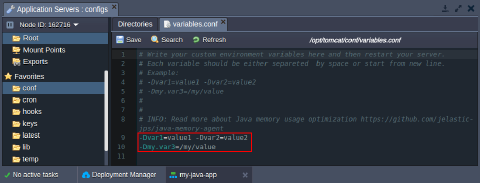
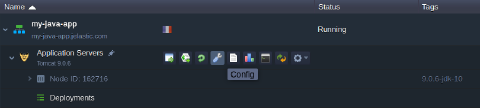 2. In the opened tab, navigate to the variables.conf file within one of the following locations:
- Tomcat, TomEE - /opt/tomcat/conf/variables.conf
- Jetty - /opt/jetty/etc/variables.conf
- Spring Boot - /opt/shared/conf/variables.conf
- GlassFish - /opt/glassfish/glassfish/domains/domain1/config/variables.conf
- Payara - /opt/payara/glassfish/domains/domain1/config/variables.conf
- WildFly - /opt/wildfly/conf/variables.conf
- Here, you can provide your custom variables (each one should be separated by space or start from a new line) or adjust Java options for your application. For example:
-Dvar1=value1 -Dvar2=value2
-Dmy.var3=/my/value
Tip: Alternatively, some of the application servers (i.e., GlassFish, Payara, WildFly) are provided with admin panel, which also allows to add JVM options and custom variables:
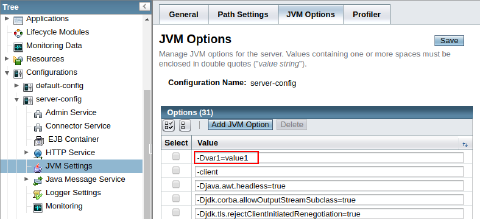
Do not forget to Save the configurations you’ve made.
- Restart nodes of your application server to apply changes.
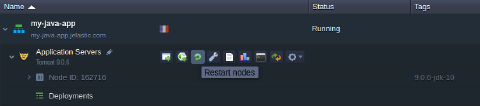 5. The new variables can be called through your Java code with the help of the System.getProperty(“your_variable”) method to appoint the specified values to the needed arguments. For example:
- String var1 = System.getProperty("var1");
- String var2 = System.getProperty("var2");
- String var3 = System.getProperty("my.var3")
Now, you can adjust your application code using these new variables.