
Windows VM Access via RDP
This guide is maintained for Ruk-Com PaaS. Screens and options may vary by platform version and account permissions.
Confirm the environment, region and account permissions, and back up current settings before changing a production system.
Objective
This guide explains how to use Windows VM Access via RDP on Ruk-Com Cloud PaaS, with ordered procedures and practical verification points.
Before you begin
- Sign in with an account permitted to manage the relevant environment.
- Confirm the target environment, region and resources before saving changes.
- Create a backup or rollback plan before changing a production system.
All Windows-based nodes that Ruk-Com cloud provides have embedded Remote Desktop Protocol. You can connect to the virtual desktop of your Windows machine and can configure the server.
For convenience in using Windows in our platform, we have prepared an RDP tool calledGuacamoleIt's a clientless remote desktop, meaning you can connect to the virtual desktop via a web-based link. The tool doesn't require any additional plugin installation because it's built with HTML5 and runs smoothly through your browser.
You can remote to the virtual desktop in either of the following ways.
- RDP Connection via Web client
- RDP Connection via Local Client
Note:Due to the specific characteristics Two simultaneous connections can be made to one node and are limited to two accounts. From now on, each account can only be used by one user at a time.
RDP Connection via Guacamole
Accessing the desktop server is the same for Windows-based nodes for quick access can be clicked in the email sent after node creation or accessed through the Ruk-Com cloud dashboard.
Let's see how to do it.
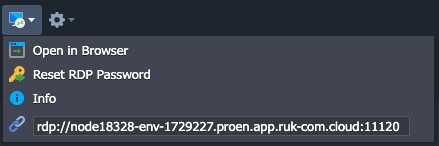
1. Press the iconRemote Desktopon the Windows node and click the buttonOpen in Browser
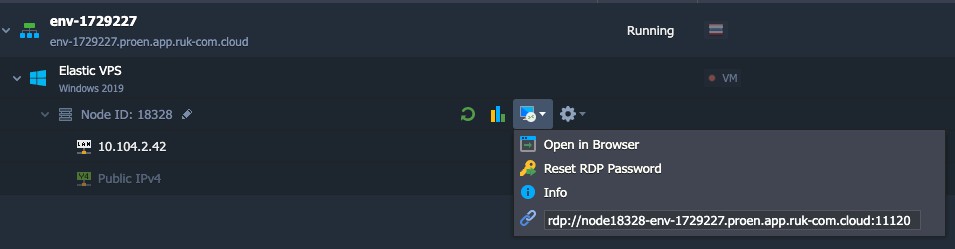
There will be various options as follows:
- Reset RDP Passwordfor changing password
- InfoShow information about the machine
- RDP linkThe link is for connecting via RDP desktop.
2. When you click Open in Browser, it will connect to the Windows Server machine. The page looks like this.
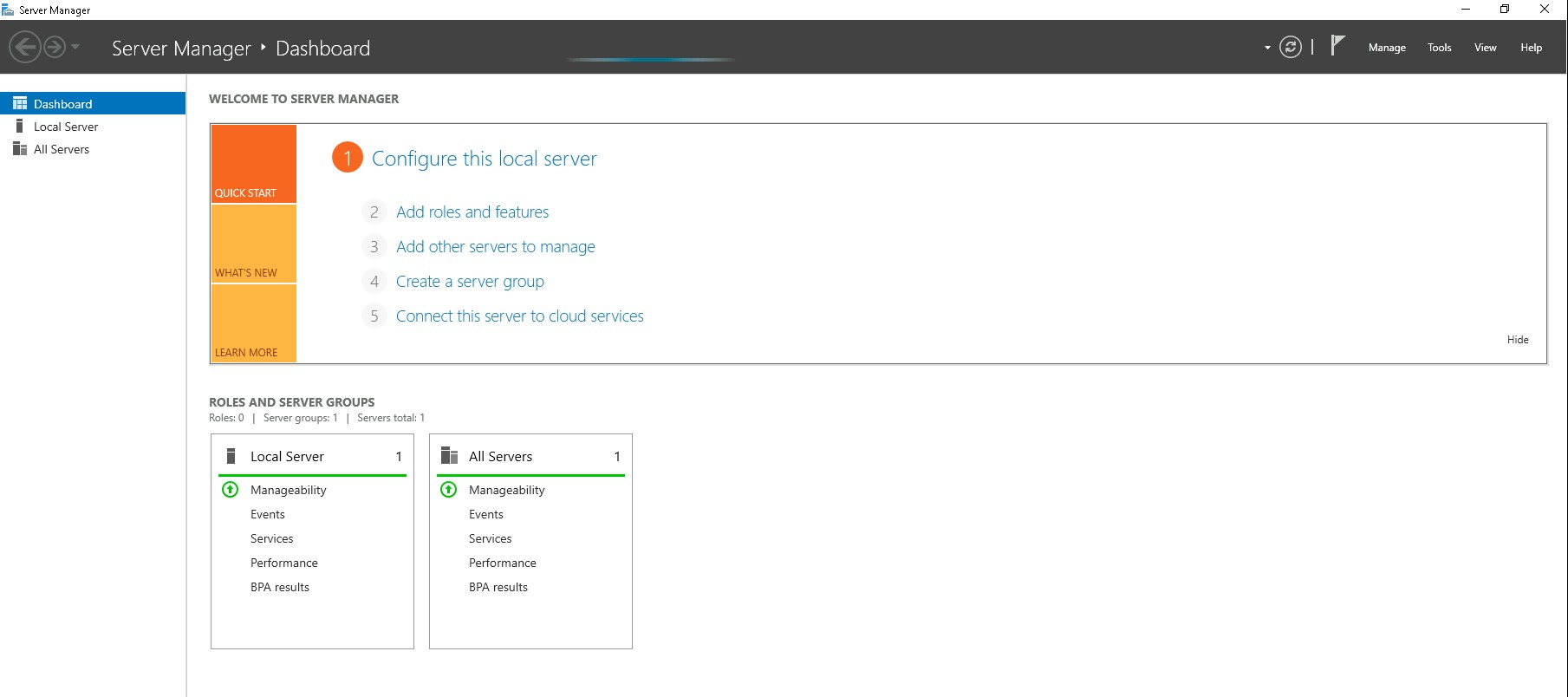
When the connection is complete You will see the Server manager screen open with Now you can manage your server.
RDP Connection via Local Client
In case you want to use the local remote desktop client, you must use the login information from the email sent to you. To create the environment and tools you will need: Remote desktop (for Windows), KRDC, Remina or RDesktop (for Linux), Microsoft Remote Desktop (for Mac OSX).
And the following will be an introduction to using the Remote Desktop program for Windows and UNIX-based.
- For Windows
- For Linux/MacOS/FreeBSD
For Windows
1. DownloadMicrosoft Remote Desktopand opened up
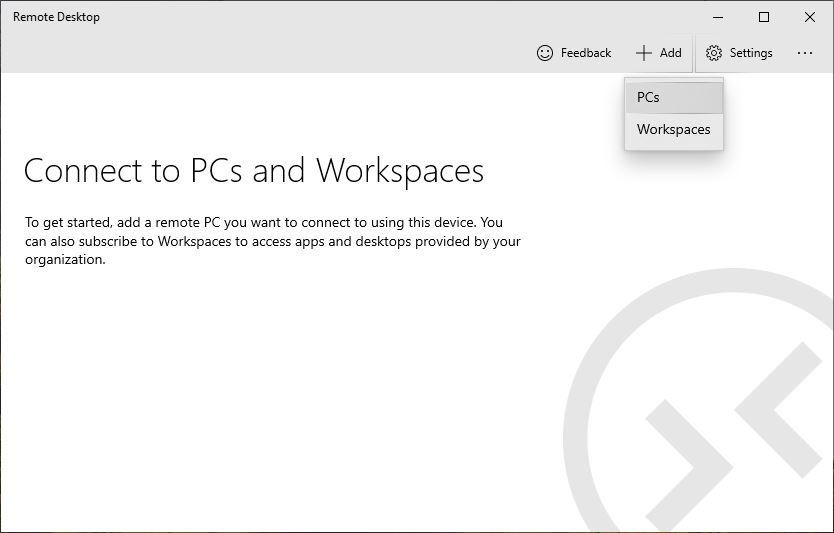
2. Click on Add > PC at the top menu of the program.
3. Enter the RDP connection link (endpoint) into the PC name field.
Note:If public IP is enabled for a Windows VM node, the IP must be used instead of the endpoint.
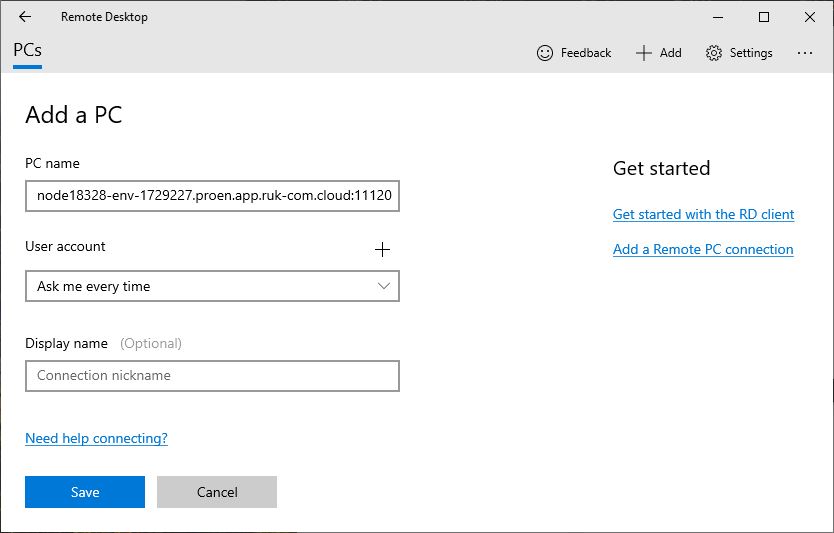
Tips:You can find the link in your email or dashboard.
- environment settings > endpoints

- Remote Desktop in the node's menu
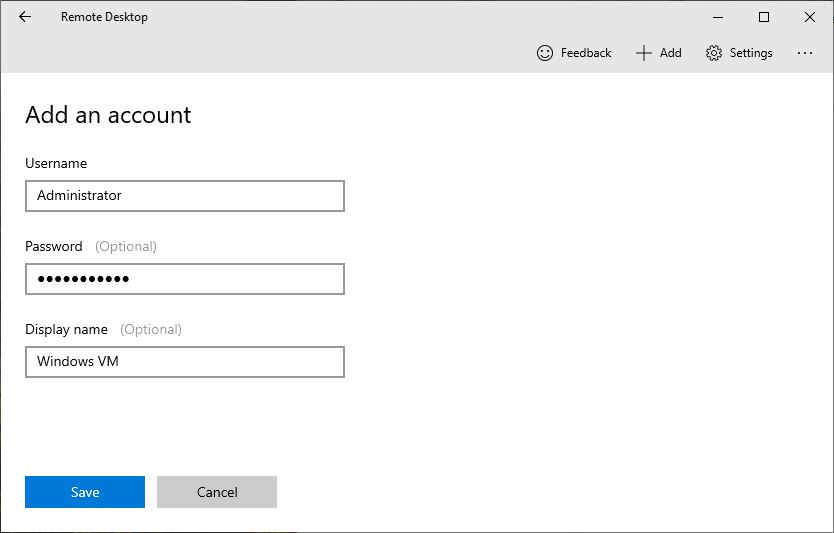
4. Click the + button next to User account and enter your login information. (can be seen from email)
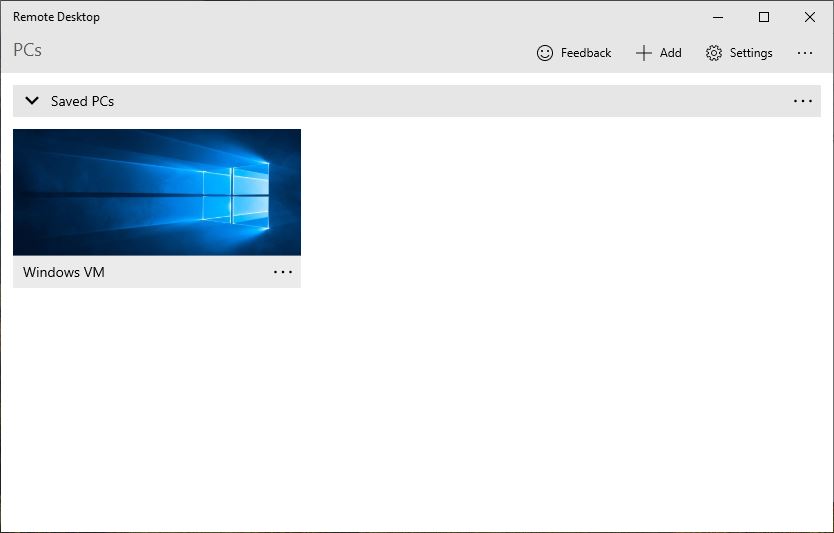
Click Save and make additional adjustments if desired.
For Linux/MacOS/FreeBSD
We have chosen rdesktop as an example to make an RD client if you do not have this tool. You must install it first. Using the command to install the package for that operating system (e.g.yum -y install rdesktop or sudo apt-get instsall rdesktop)
After that, open a terminal and follow these steps:
1. The easiest way to connect to the remote desktop is to enter the following command:
rdesktop {access_url}by{access_url}This will be the url for connecting. (will be in the email), without specifying the protocol prefix
Warning:environment must be enabled. Otherwise you will receive a message.Unable to connect.
2. In the window that appears, enter the information received via email.
Note:Another option is to specify username and password as parameters to the command.
rdesktop -u {username} -p {password} {access_url}This will immediately go through the login screen.
You can now access your server settings viaServer Manager.